
Staff
Safety first
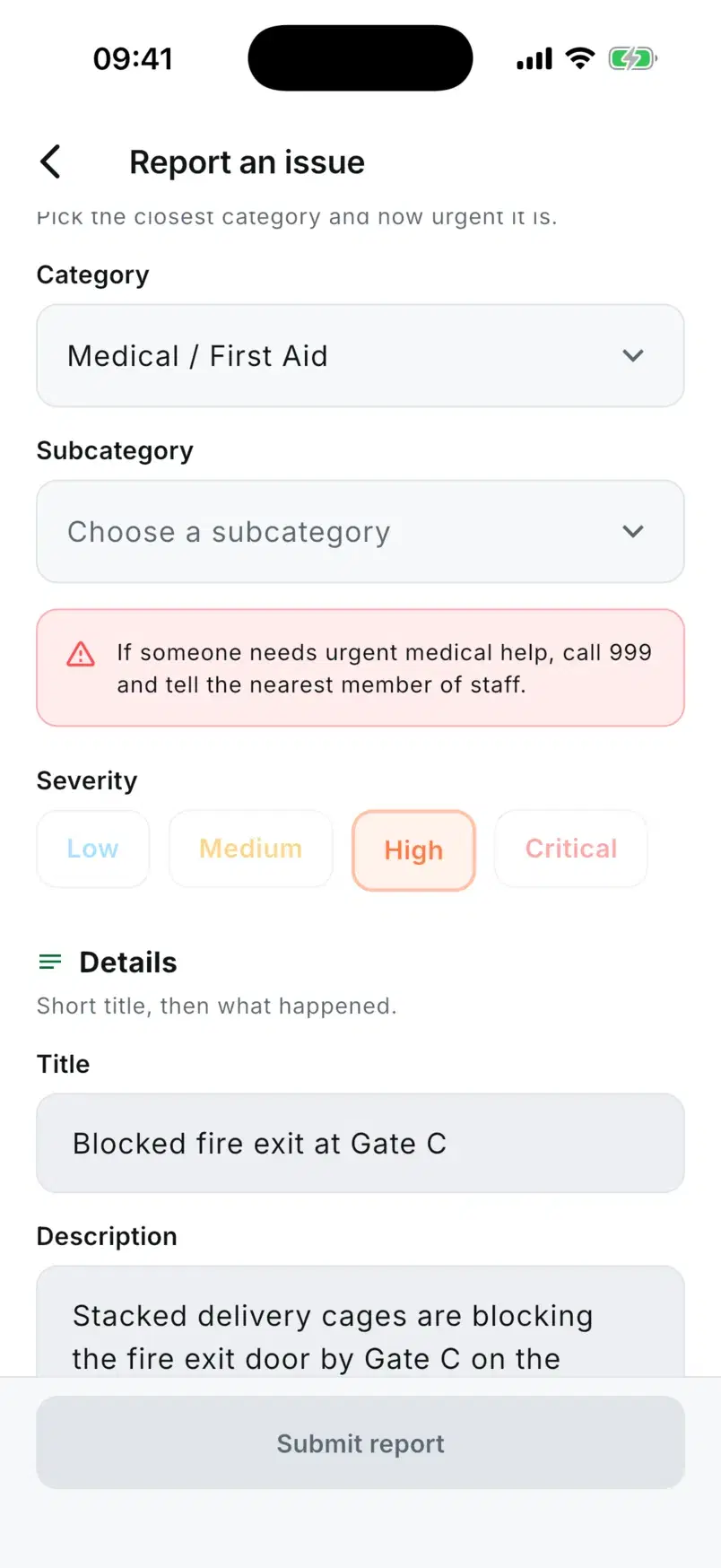
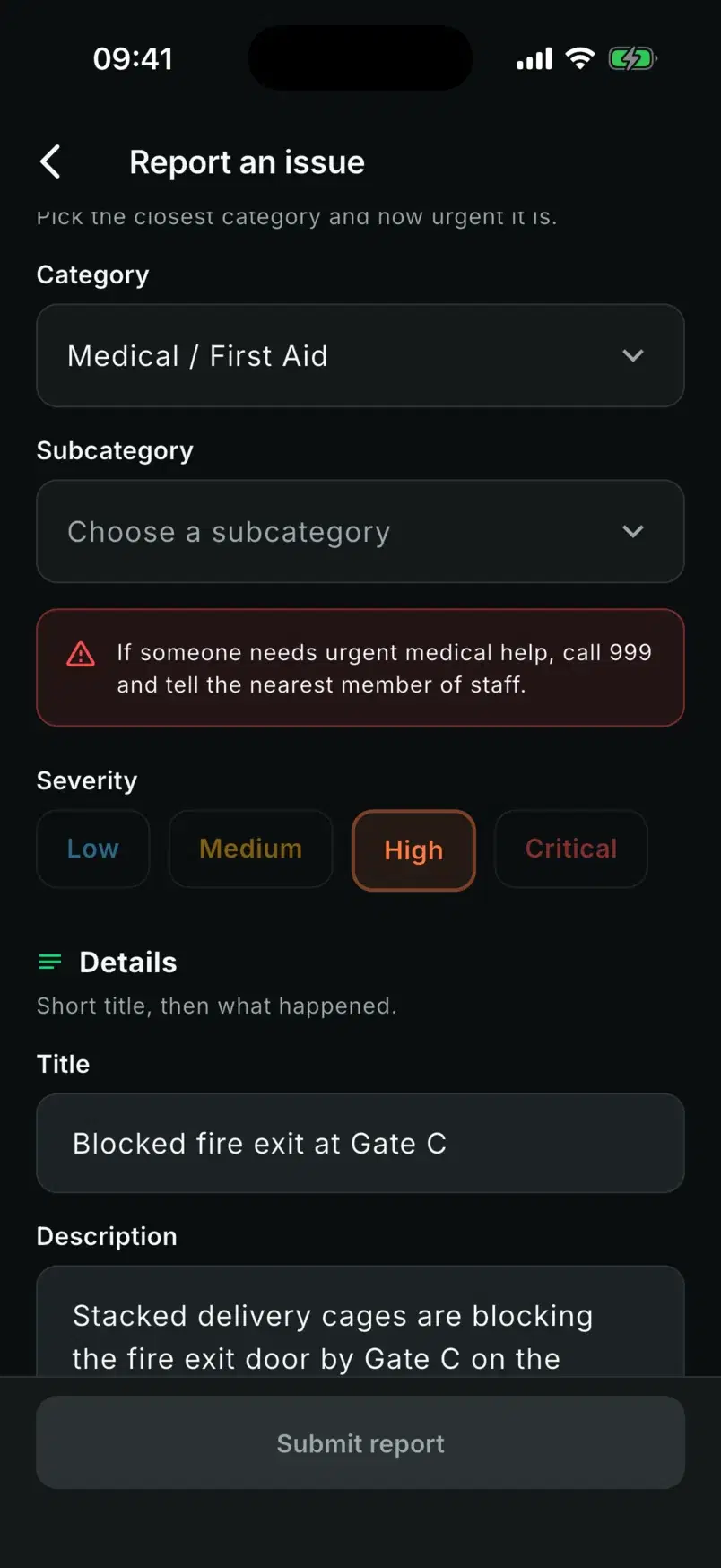
A category can carry a safety notice that shows the moment it is picked.
Mobile app
Staff report what they find and follow it to the fix. Contractors clock in, take the job and see it through. Both sign in with a link in an email, never a password.
Two roles · one record
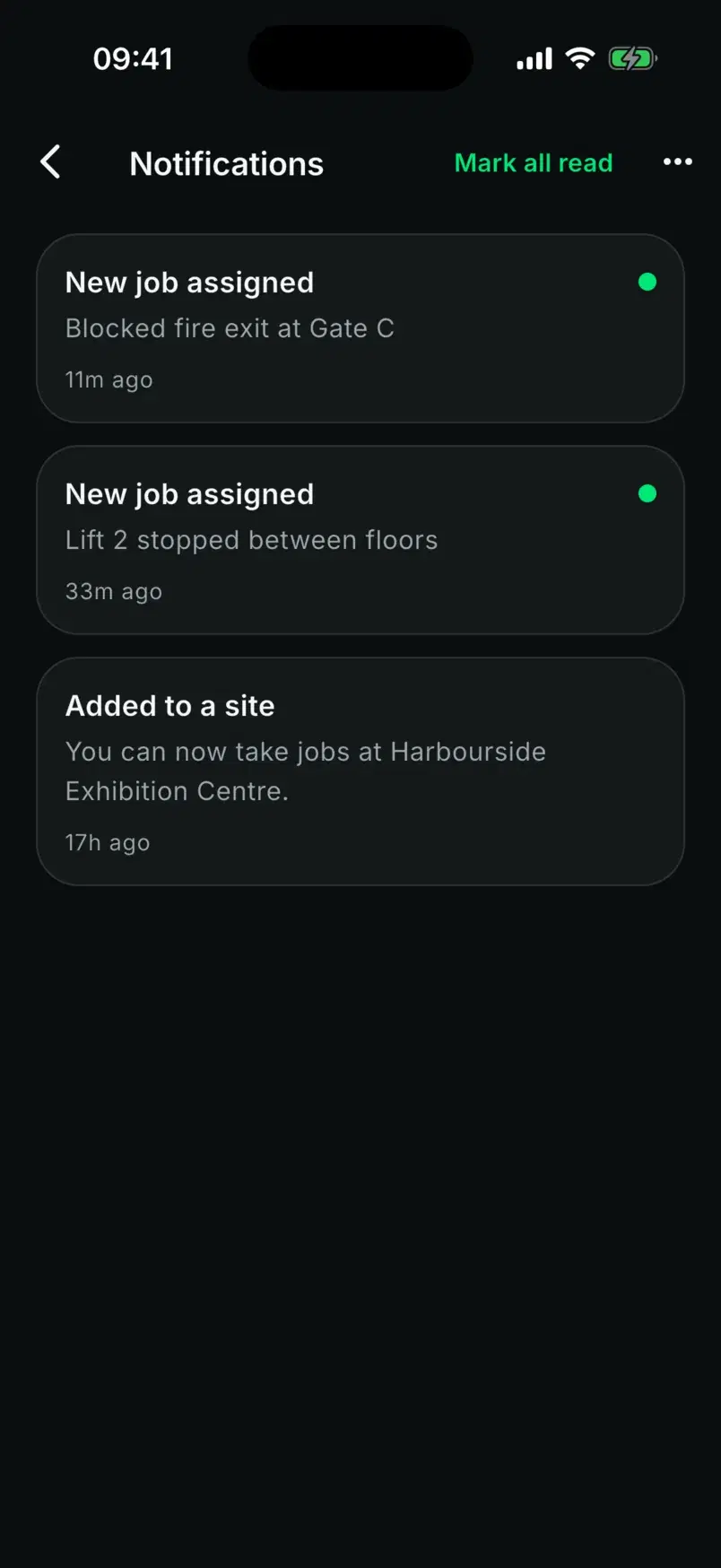
Sam spots a blocked fire exit and reports it. Ellie gets the job, fixes it and resolves it. Both of them, and your control room, are looking at the same incident the whole way through.
For staff
Sam's side of the story: one form on one scrolling page, then the report's progress until it is resolved.
Step 1 of 6
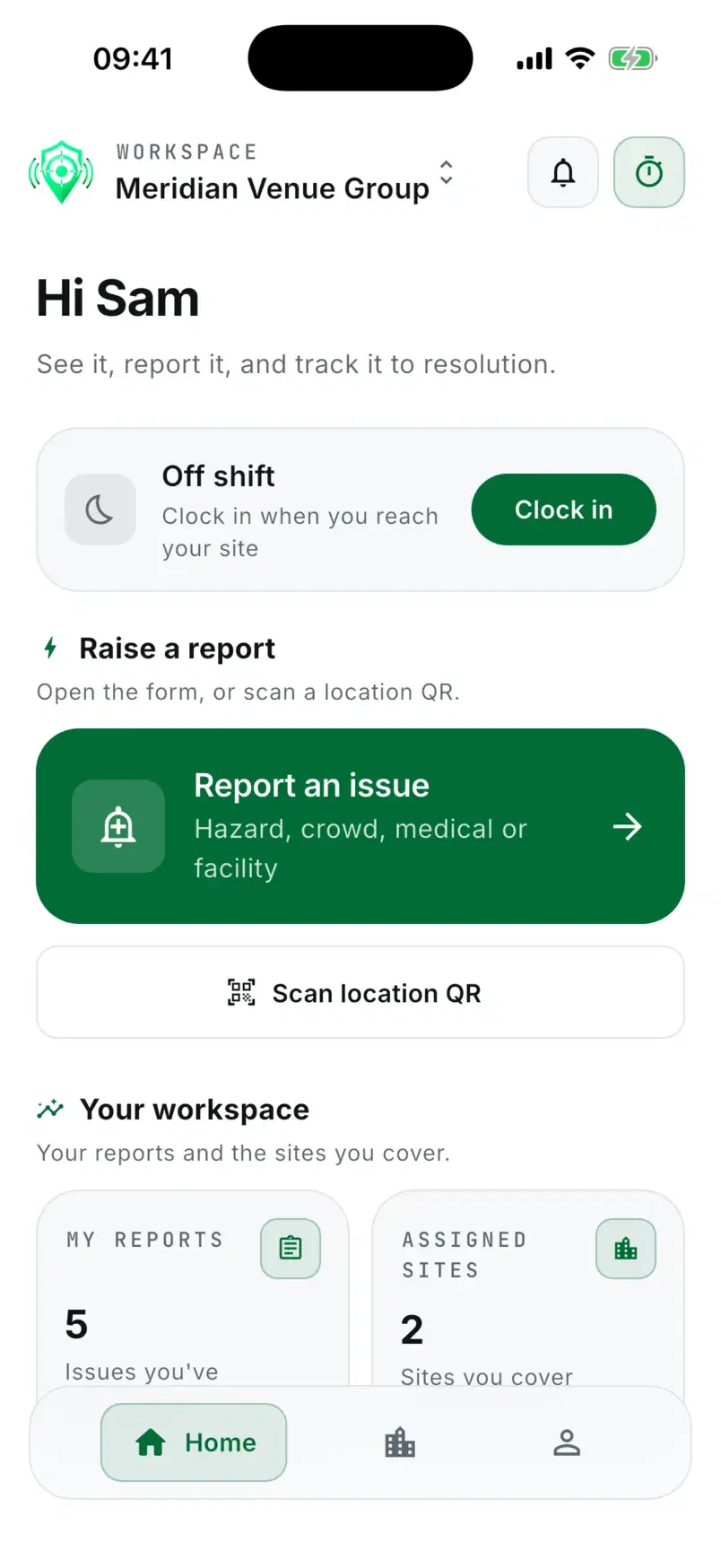
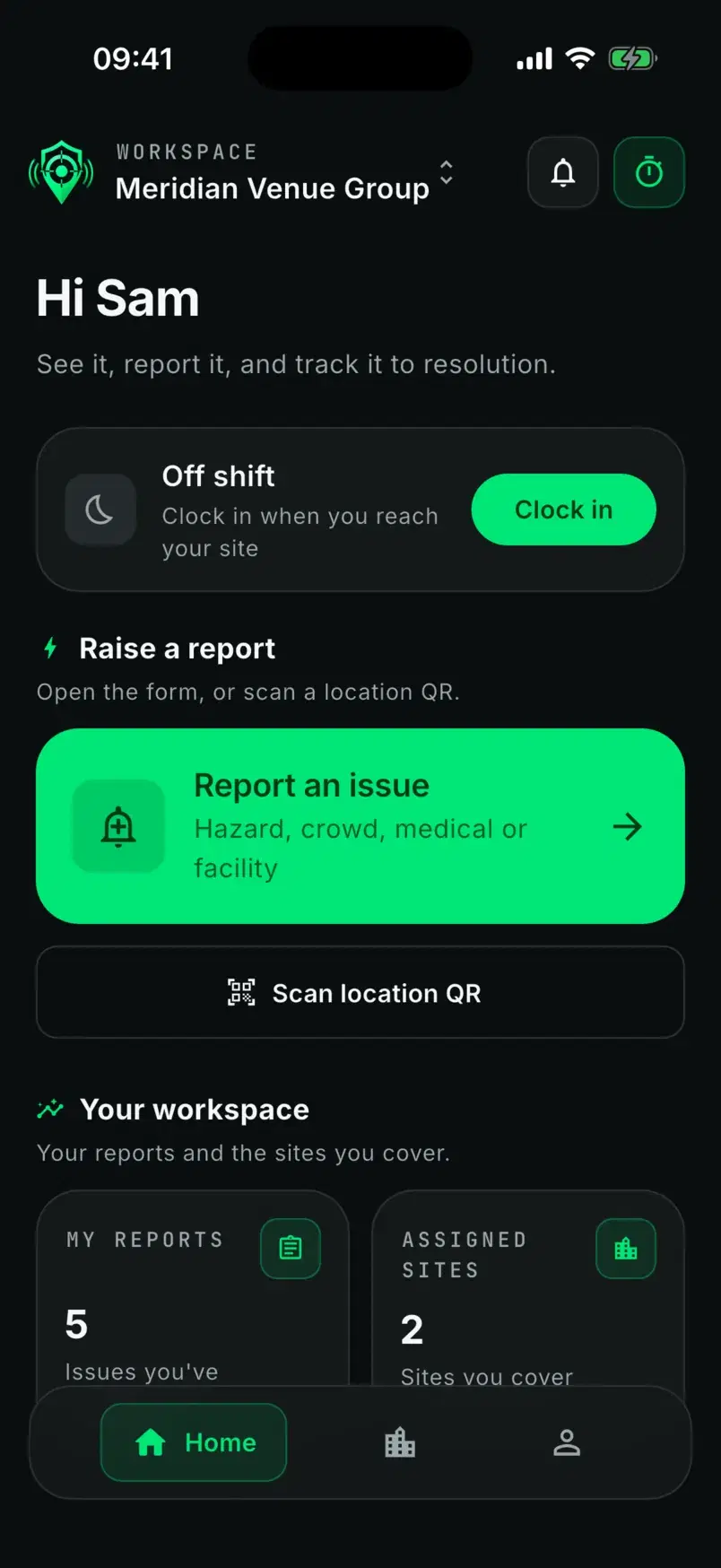
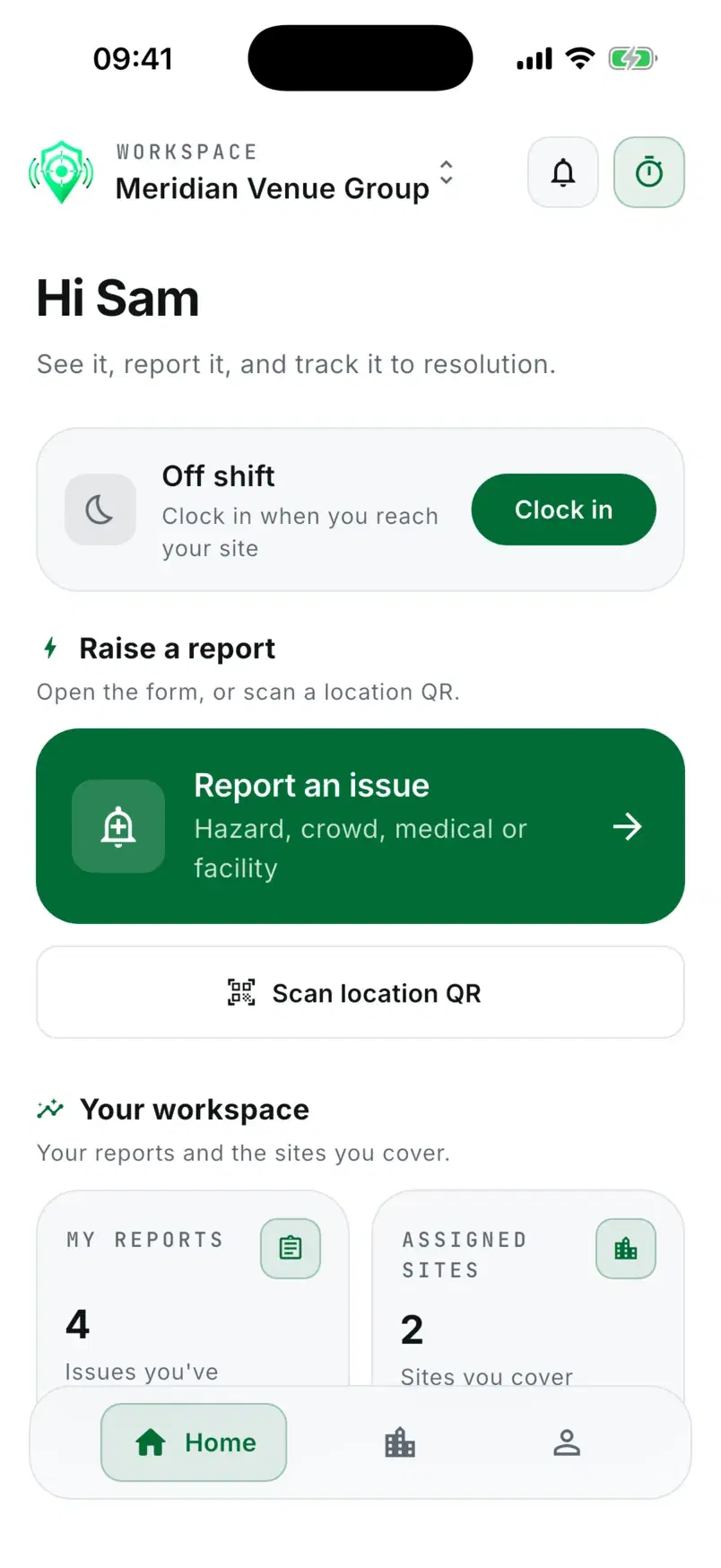
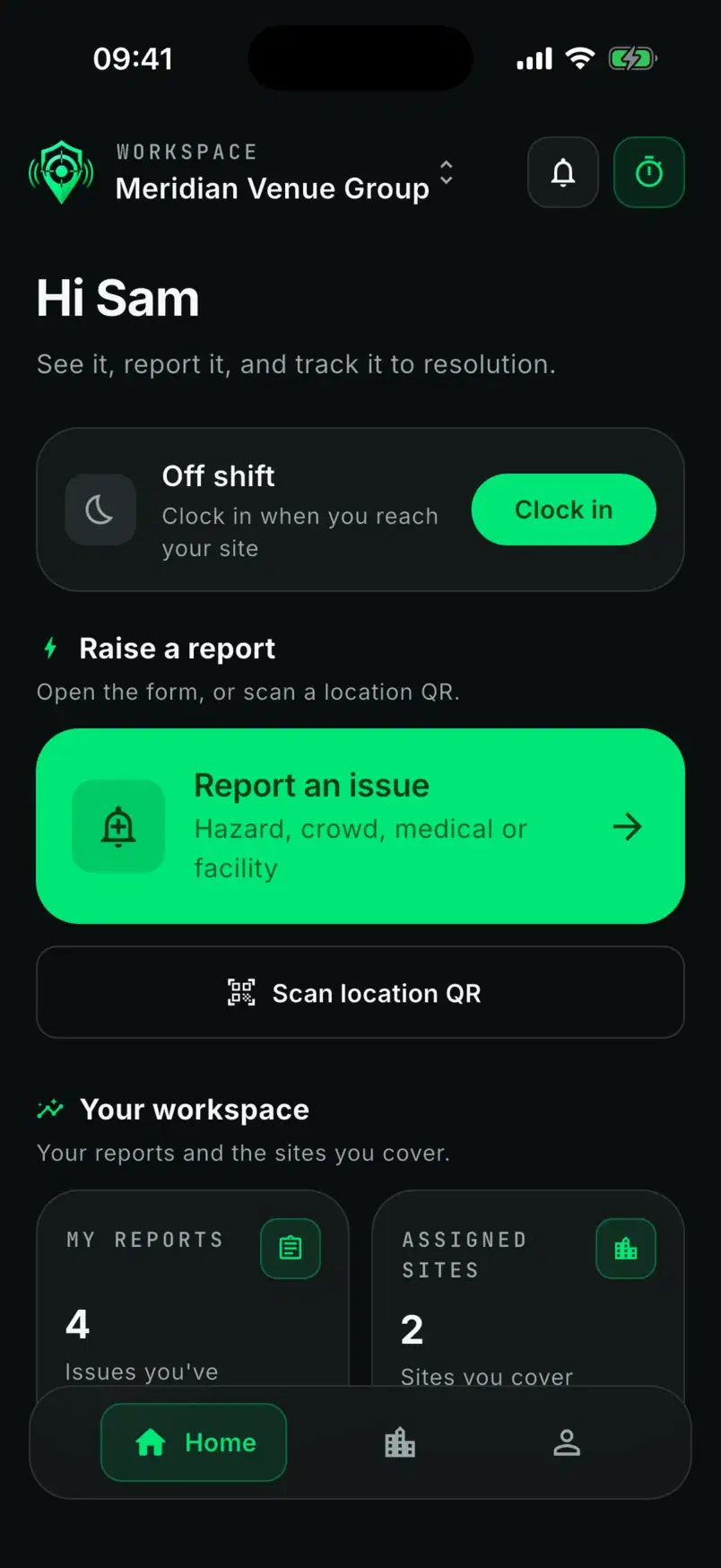
Open the report form in one tap, or scan a location's QR sign at one of their sites. Tiles show their reports and the sites they cover.
Step 2 of 6
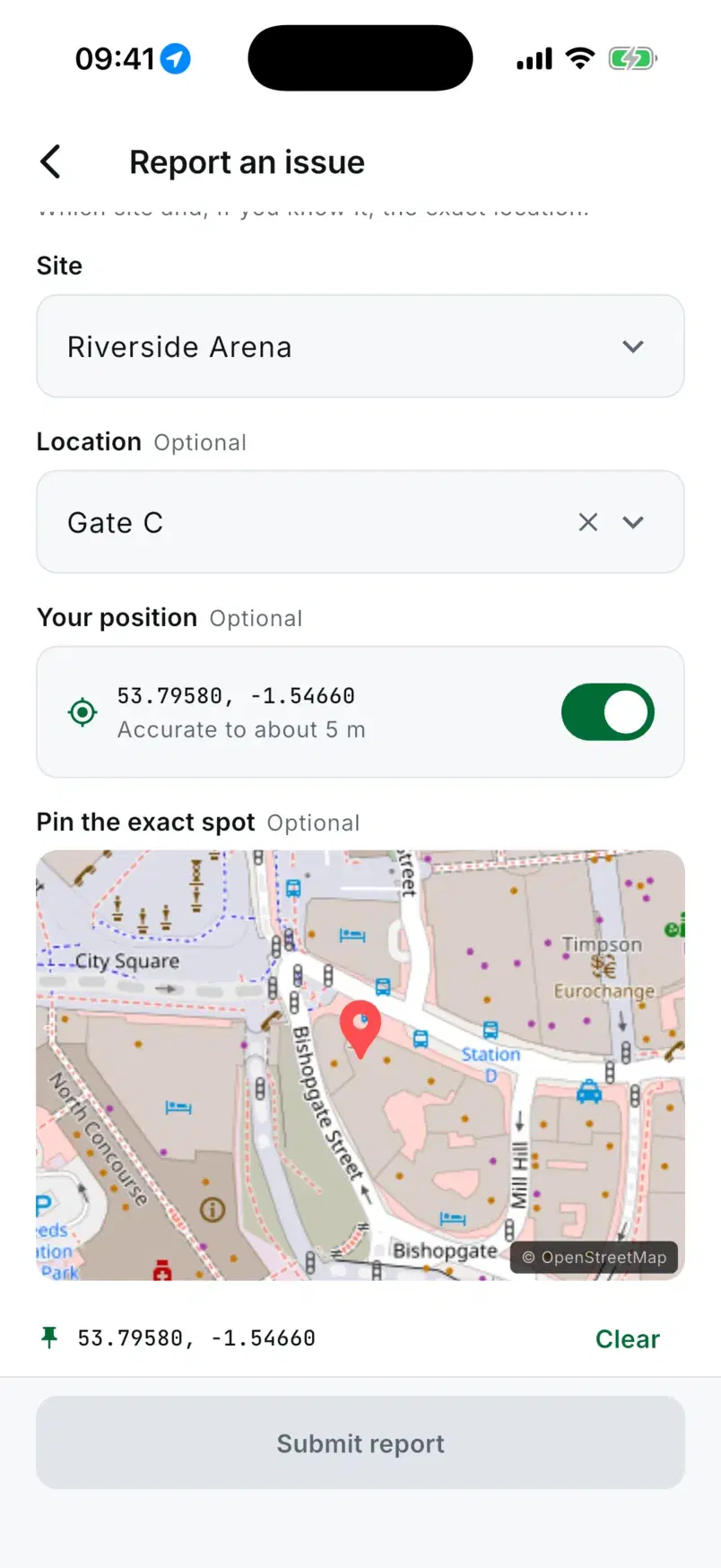
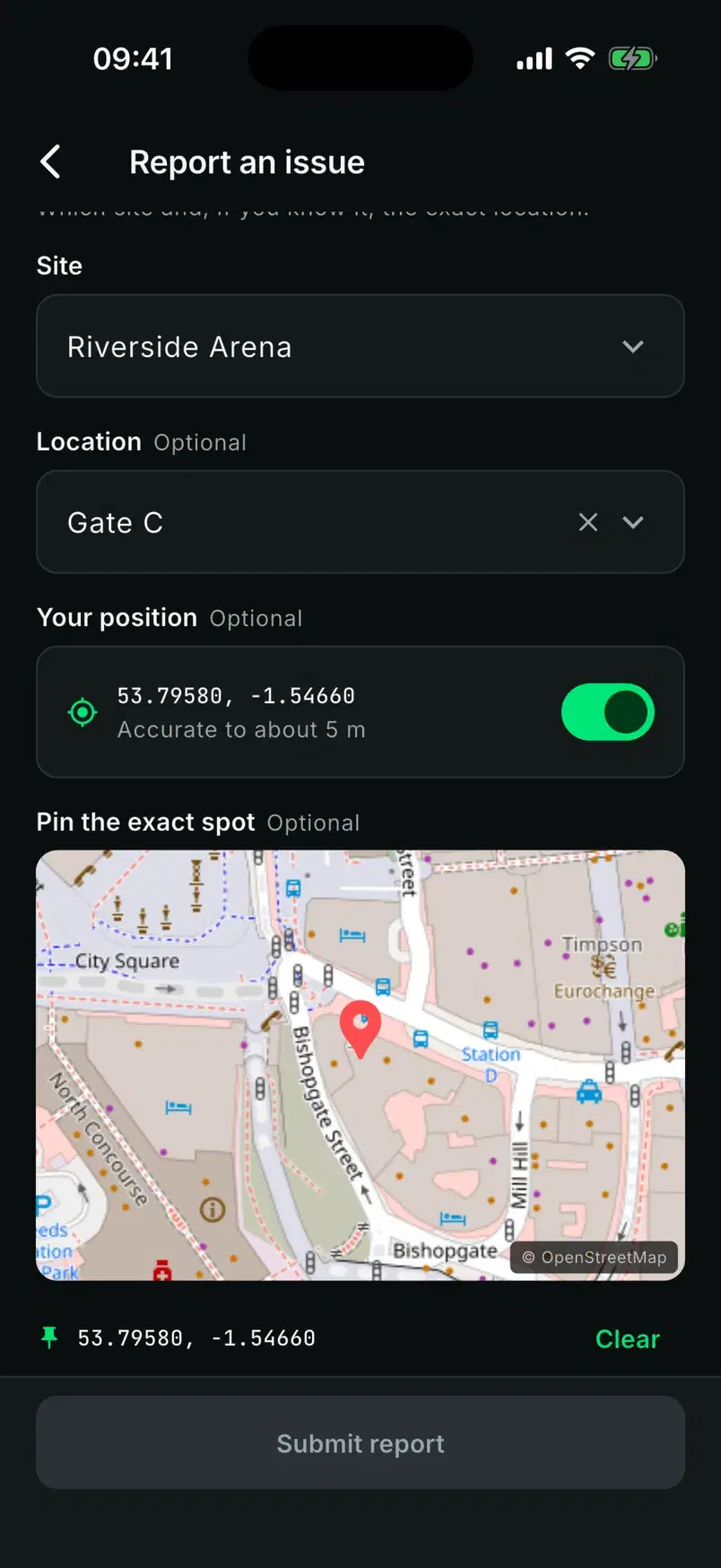
The site and location, the phone's position with its accuracy, and a pin dropped on the map. One switch leaves the position off.
Step 3 of 6
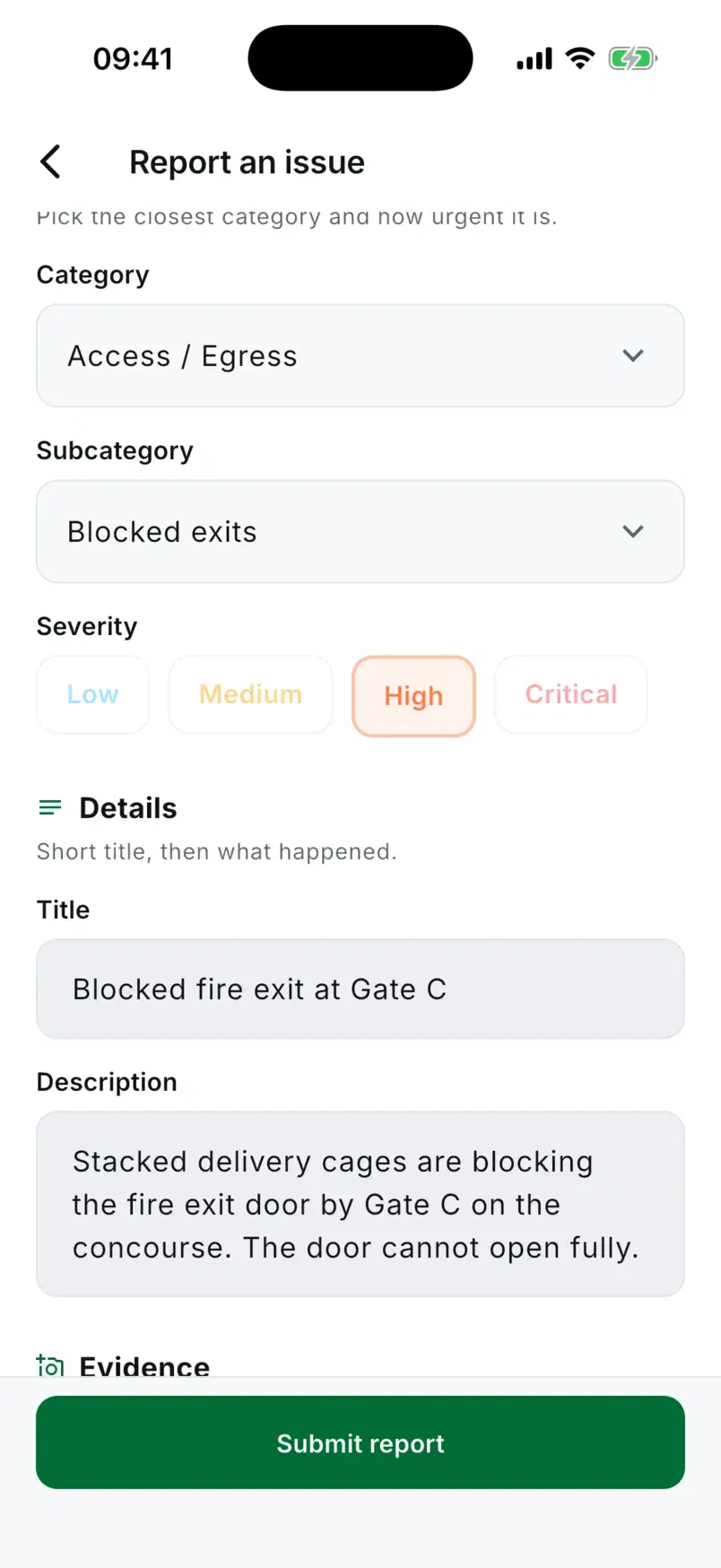
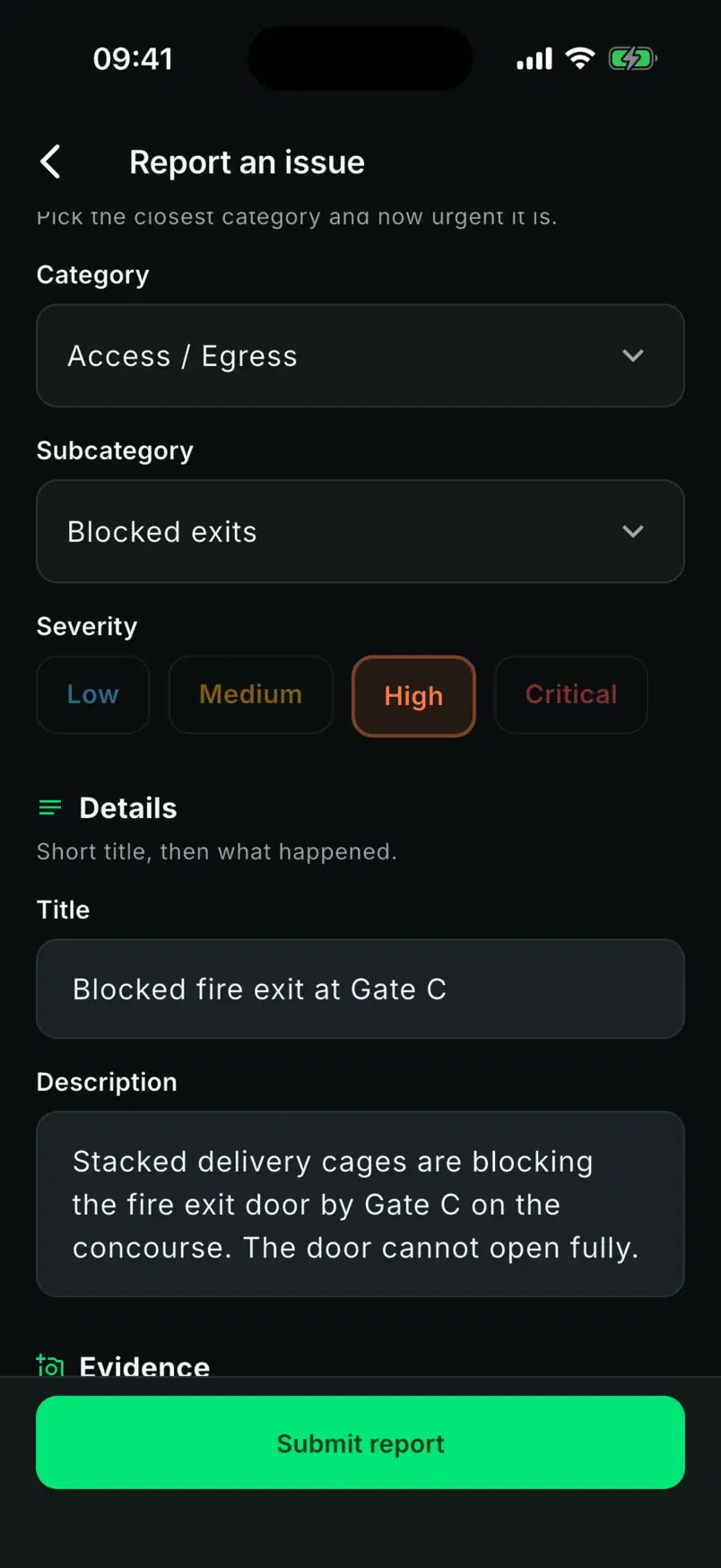
The workspace's own categories and subcategories, a severity from low to critical, a short title and what happened.
Step 4 of 6
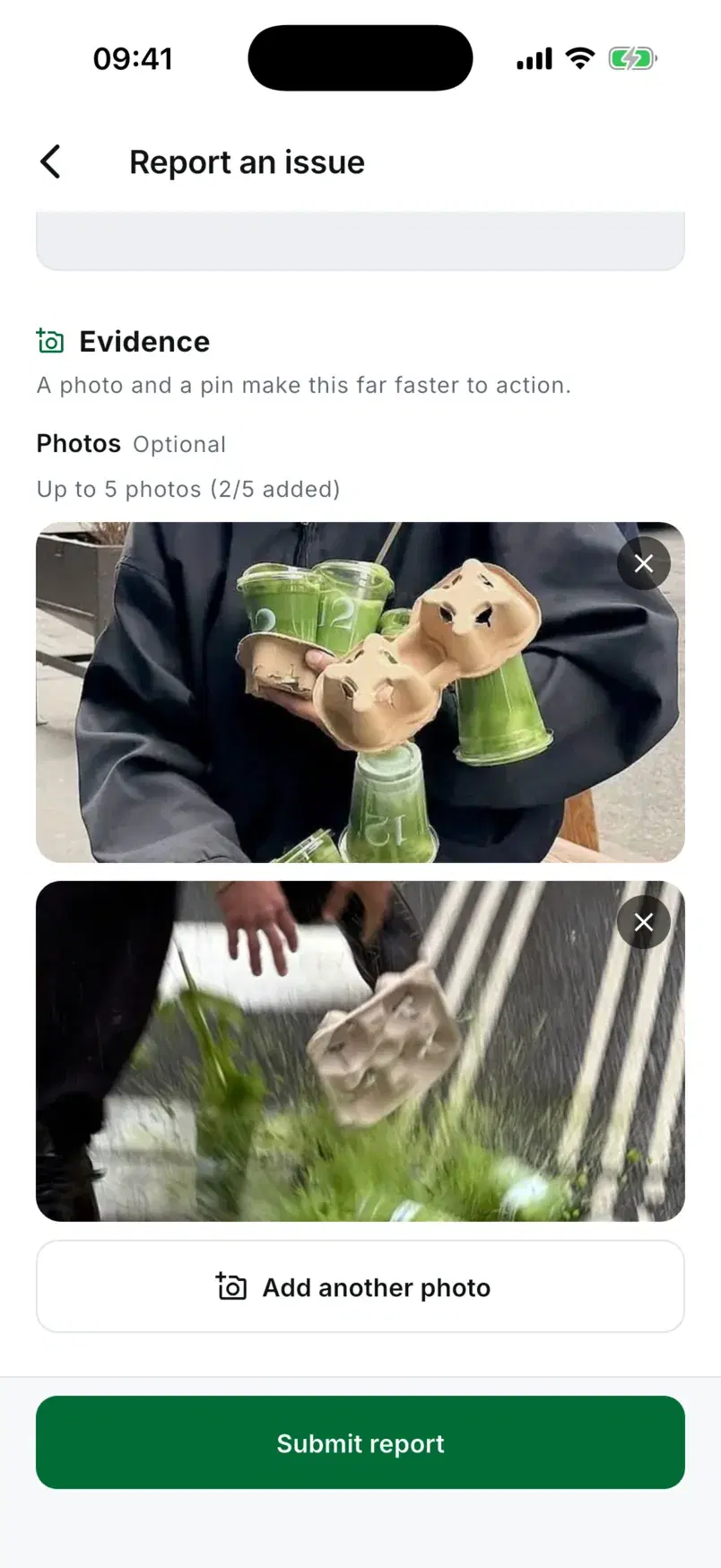
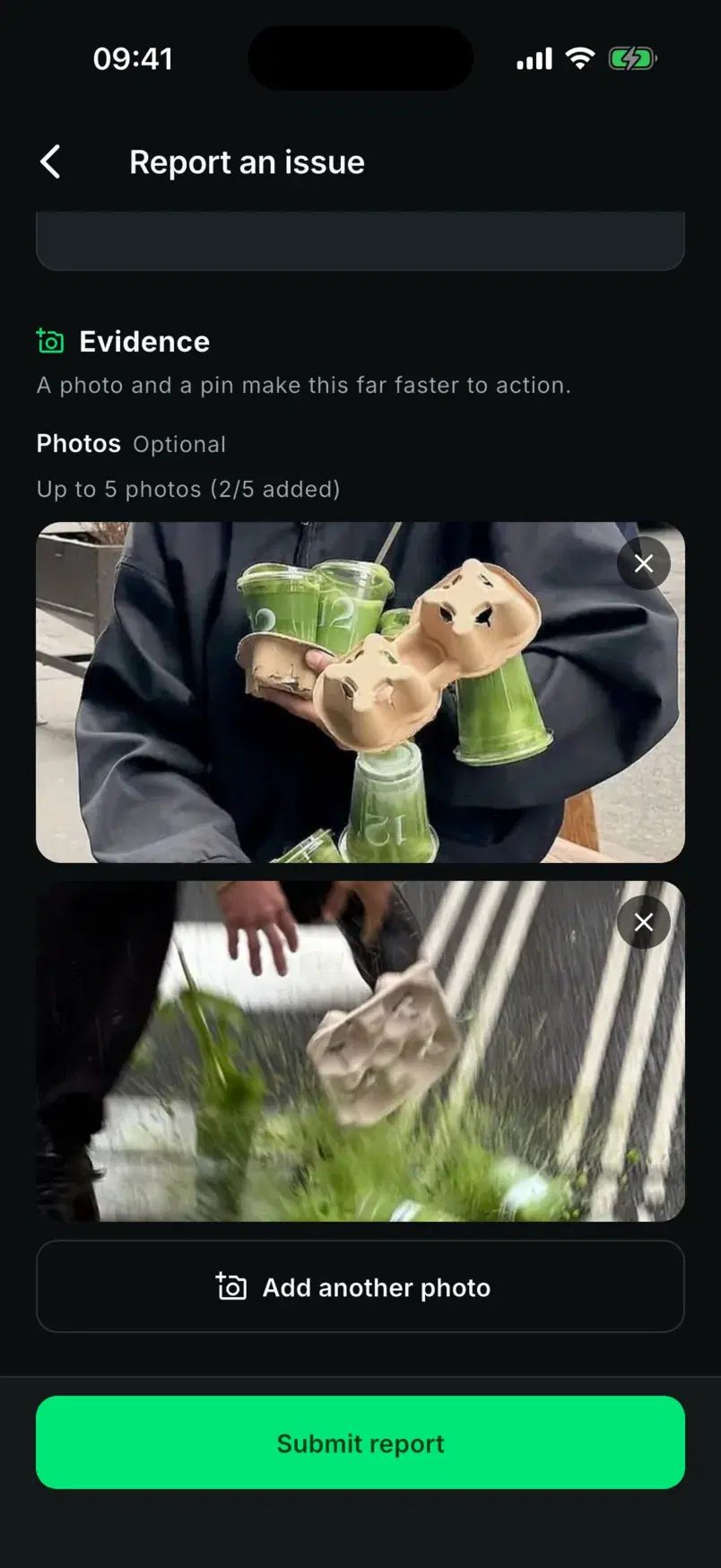
Up to five, from the camera or the gallery. The phone scales them down before they upload straight to storage.
Step 5 of 6
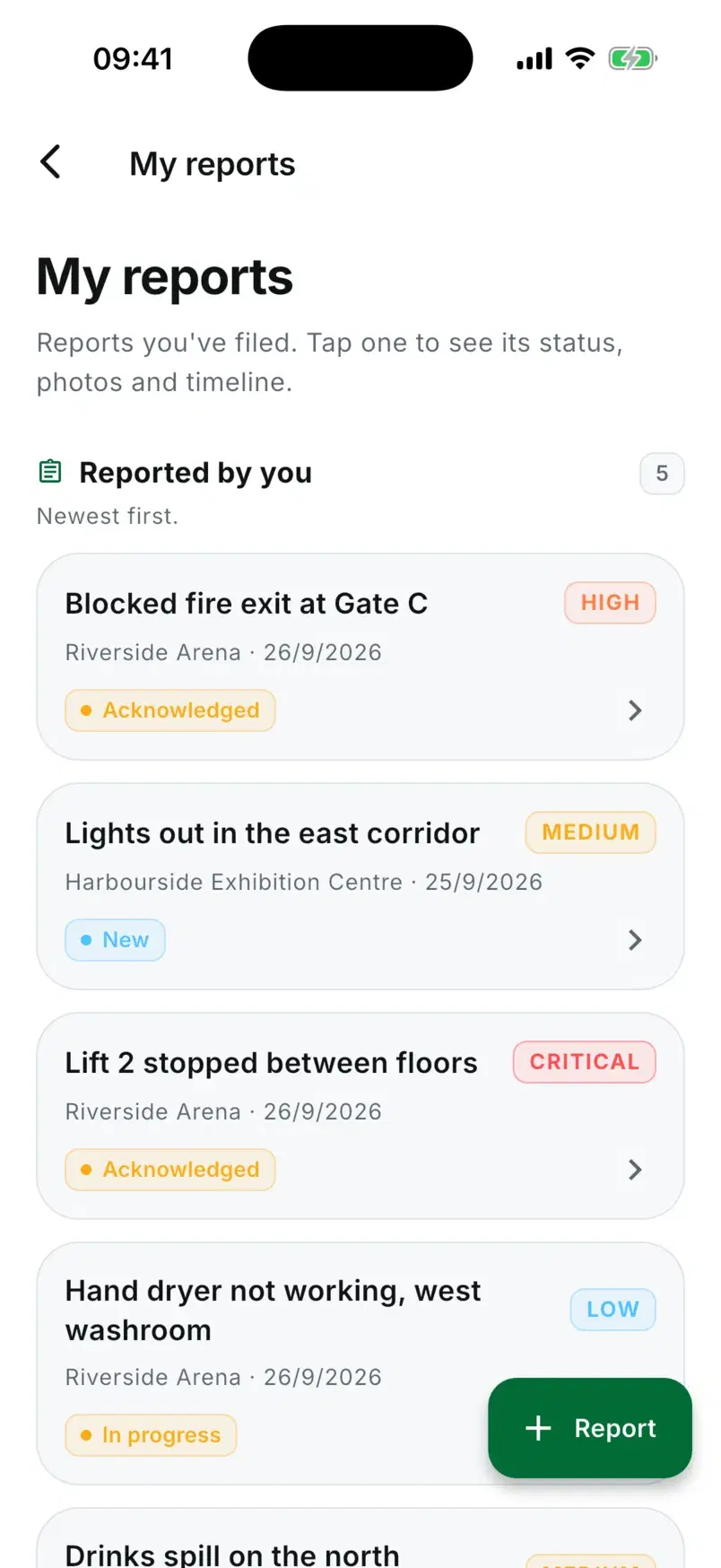
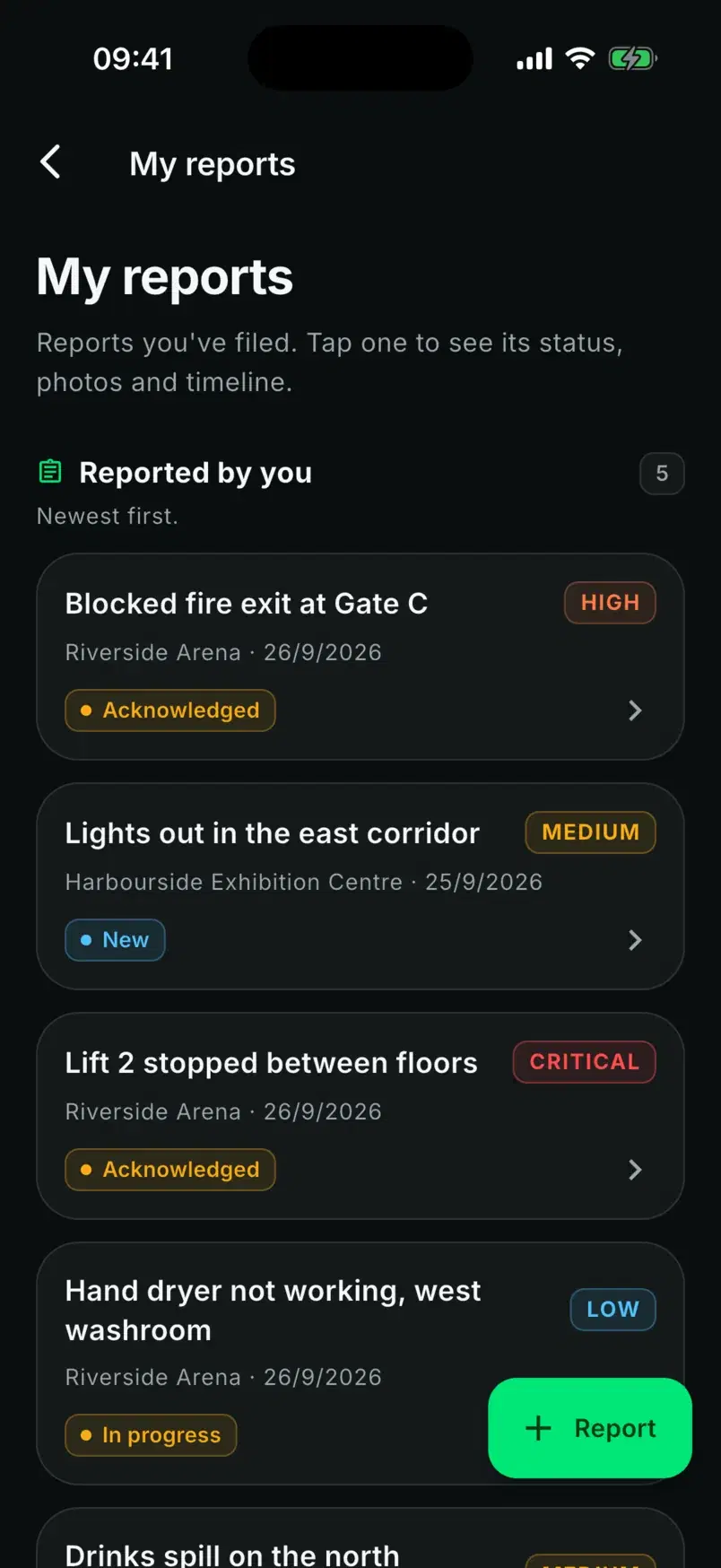
Once sent, the report opens on its own page and joins their list, and its status updates on its own while the app is open.
Step 6 of 6
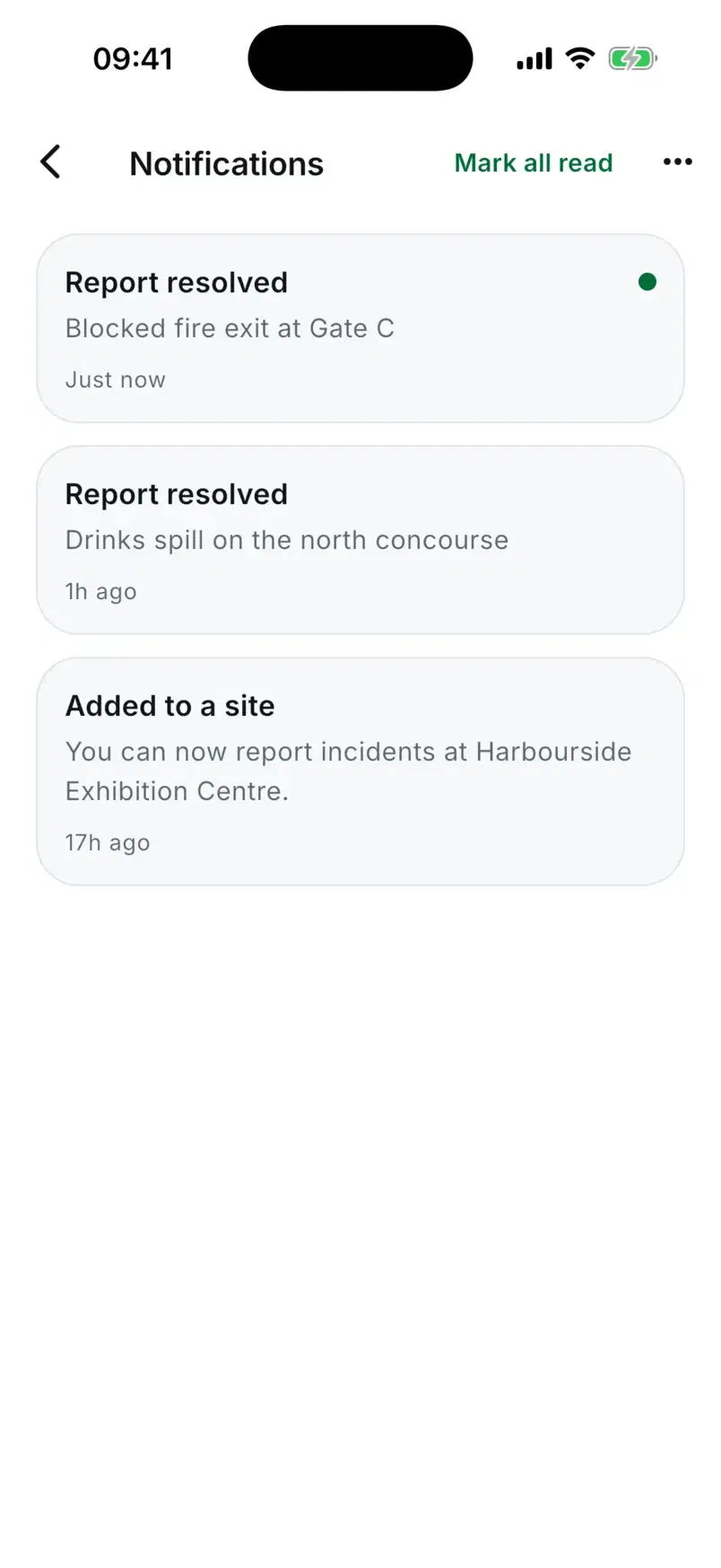
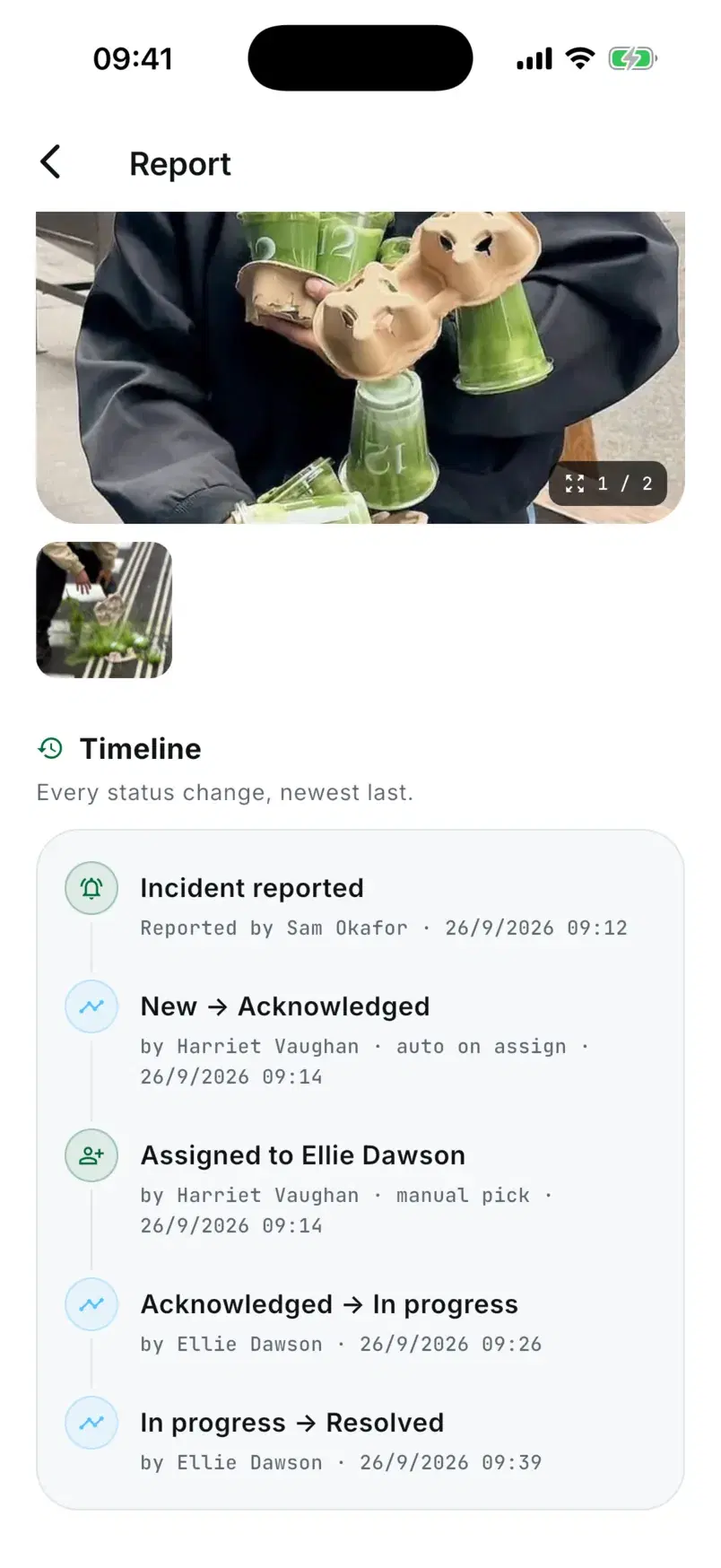
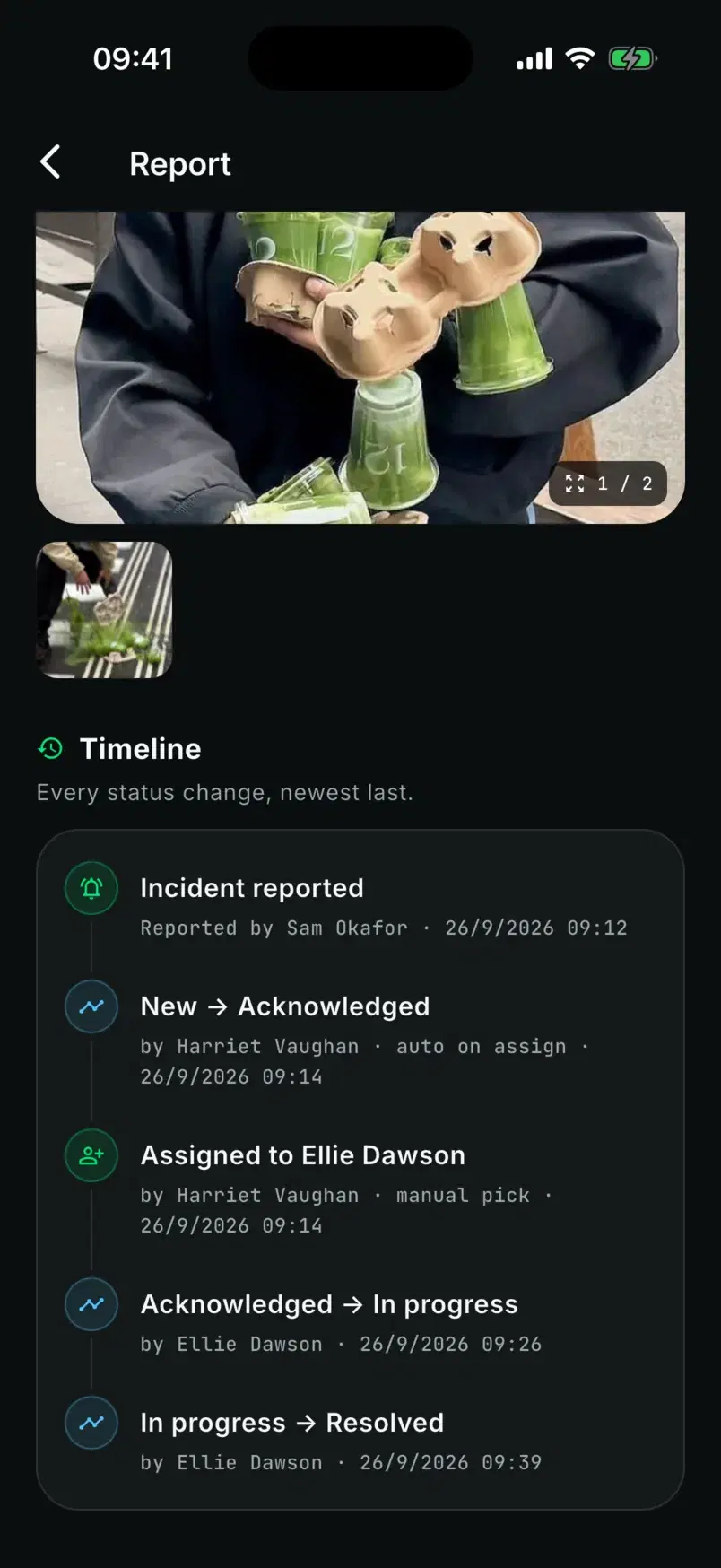
The timeline shows every step, from acknowledged and assigned to resolved, and a notification tells them when it is done.
For contractors
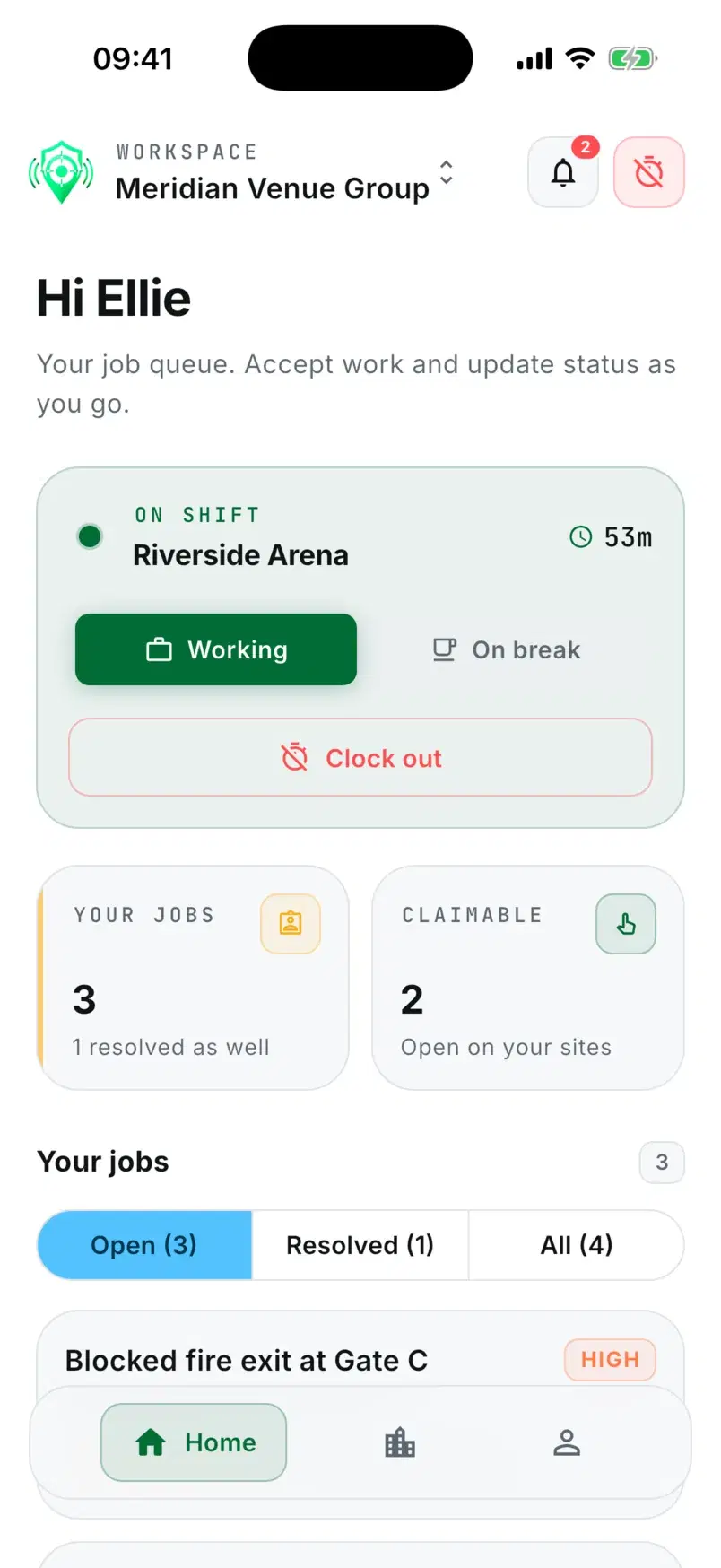
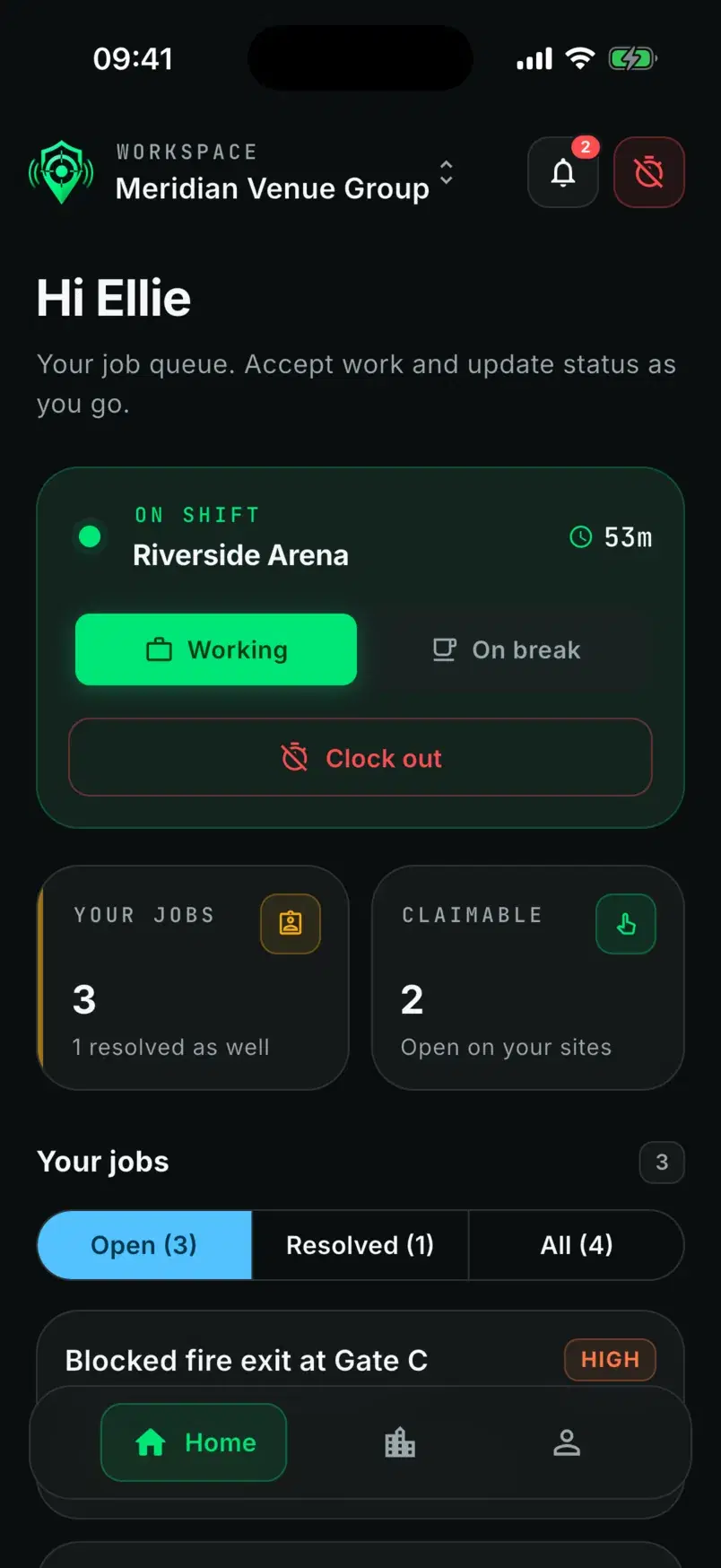
Ellie's side of the same incident: from the start of her shift to the job resolved.
Step 1 of 6
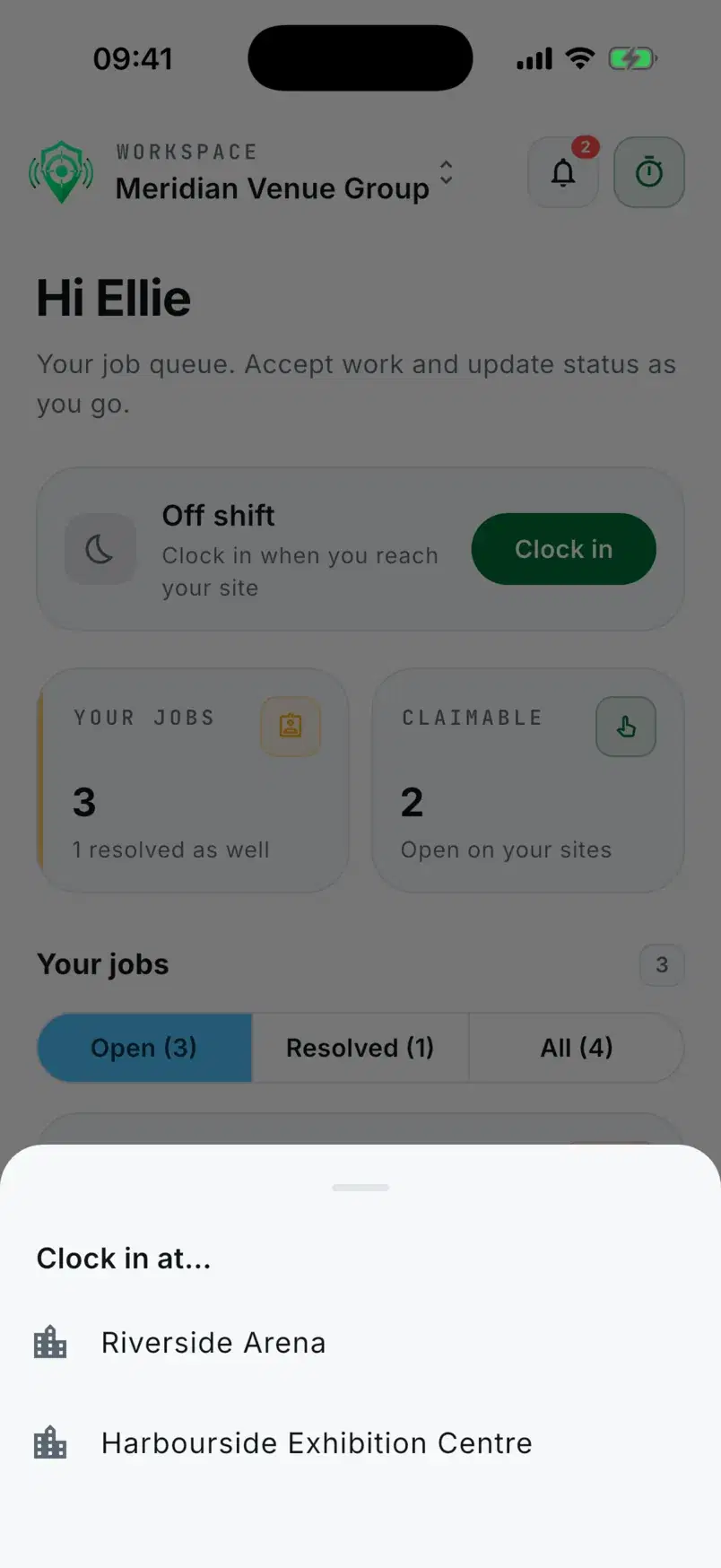
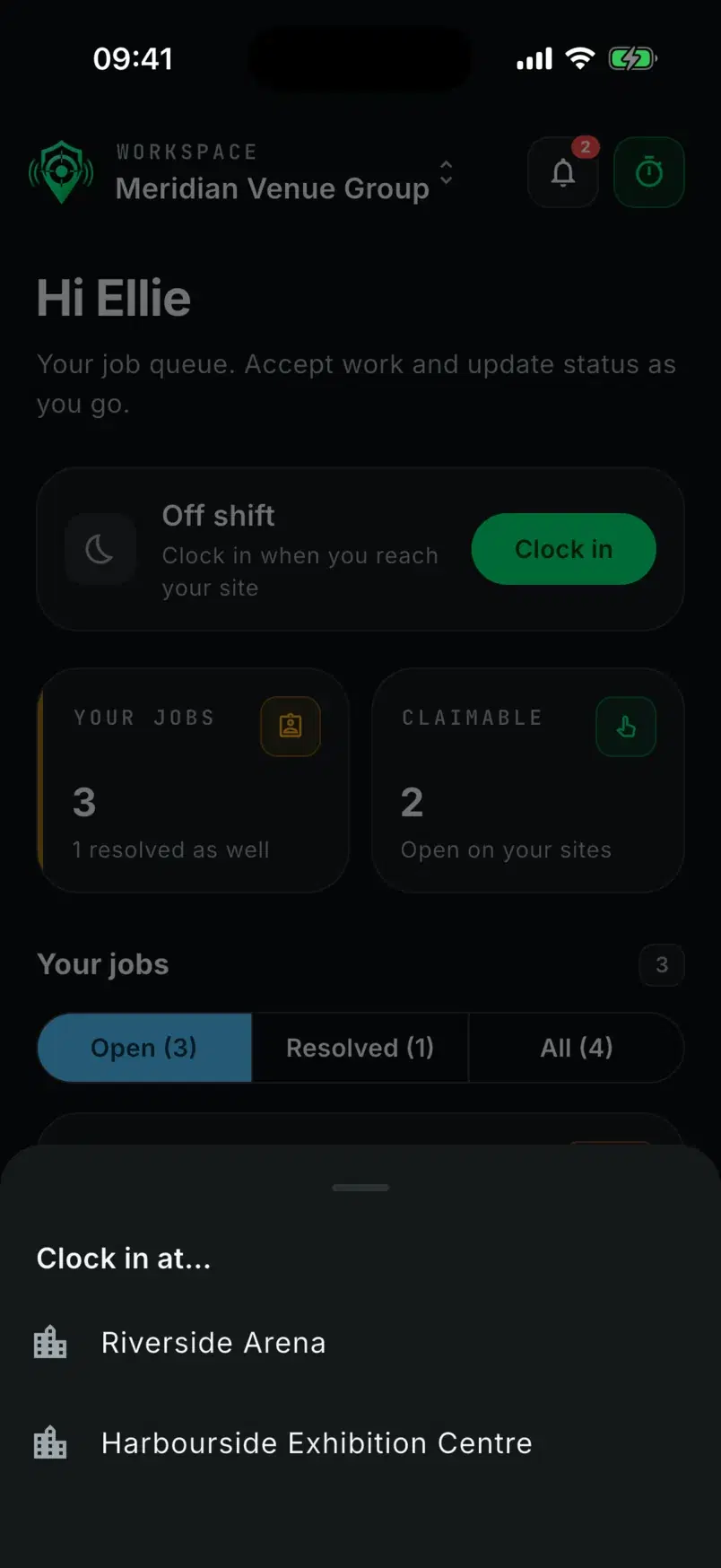
Pick the site they are working at. Automatic dispatch only picks contractors who are on shift at that site and free.
Step 2 of 6
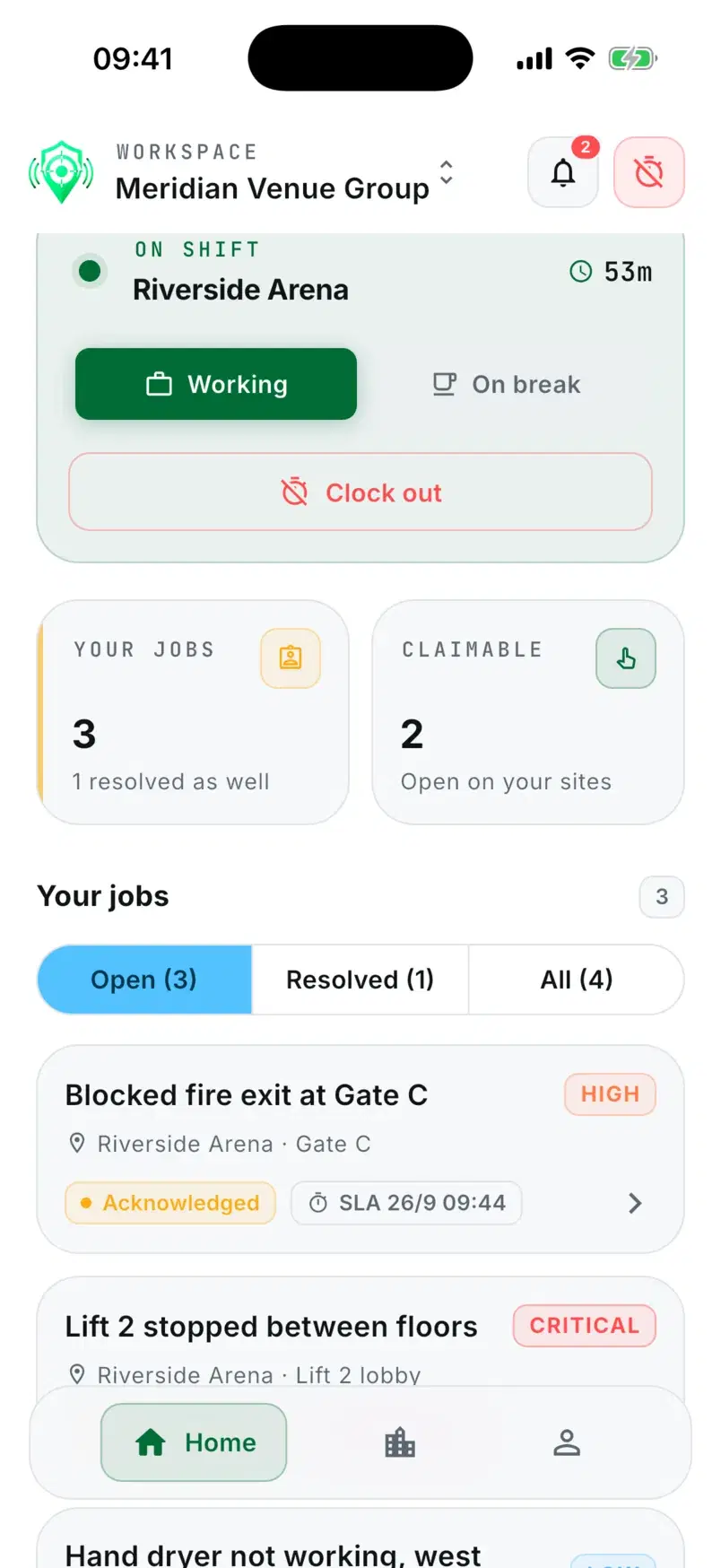
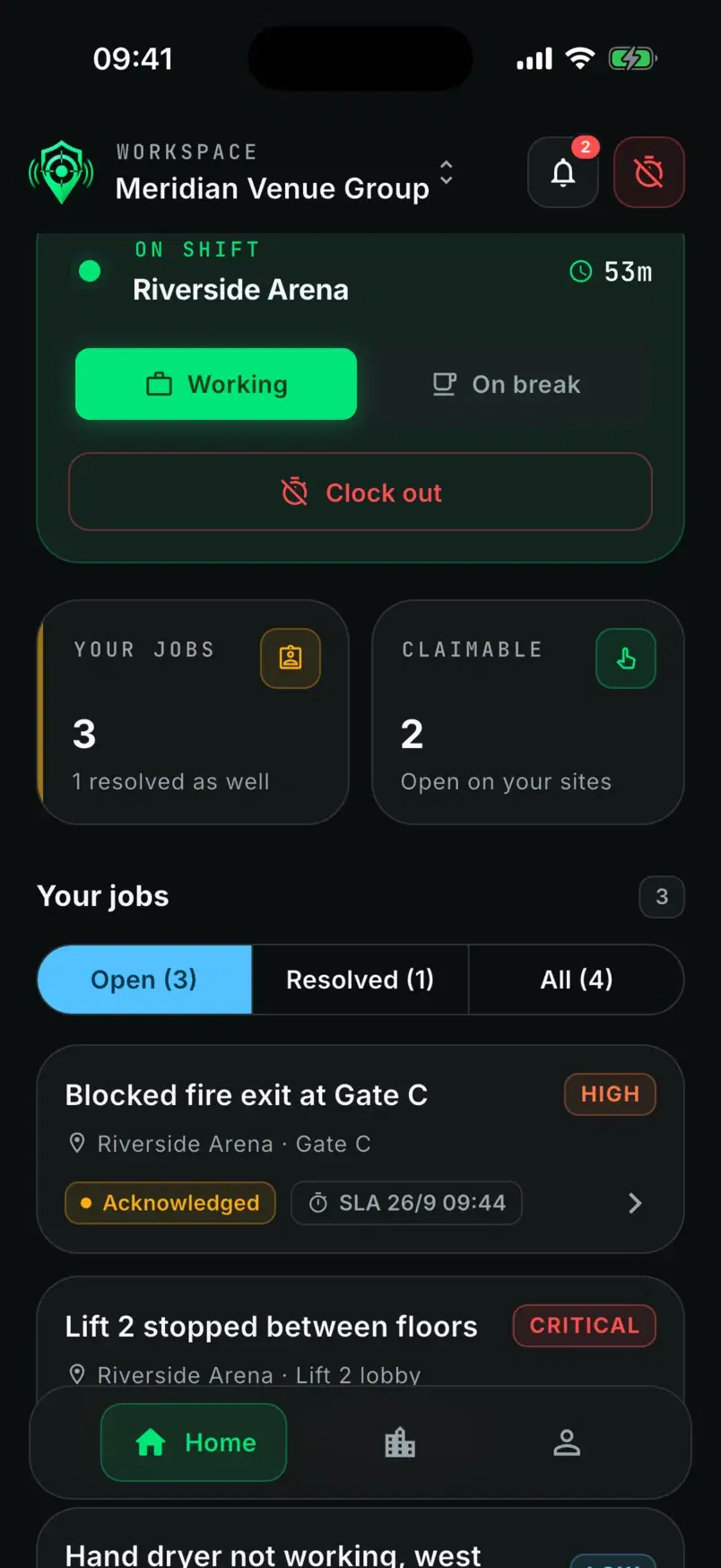
The jobs assigned to them, with the severity, status and due time of each. The queue updates while the app is open.
Step 3 of 6
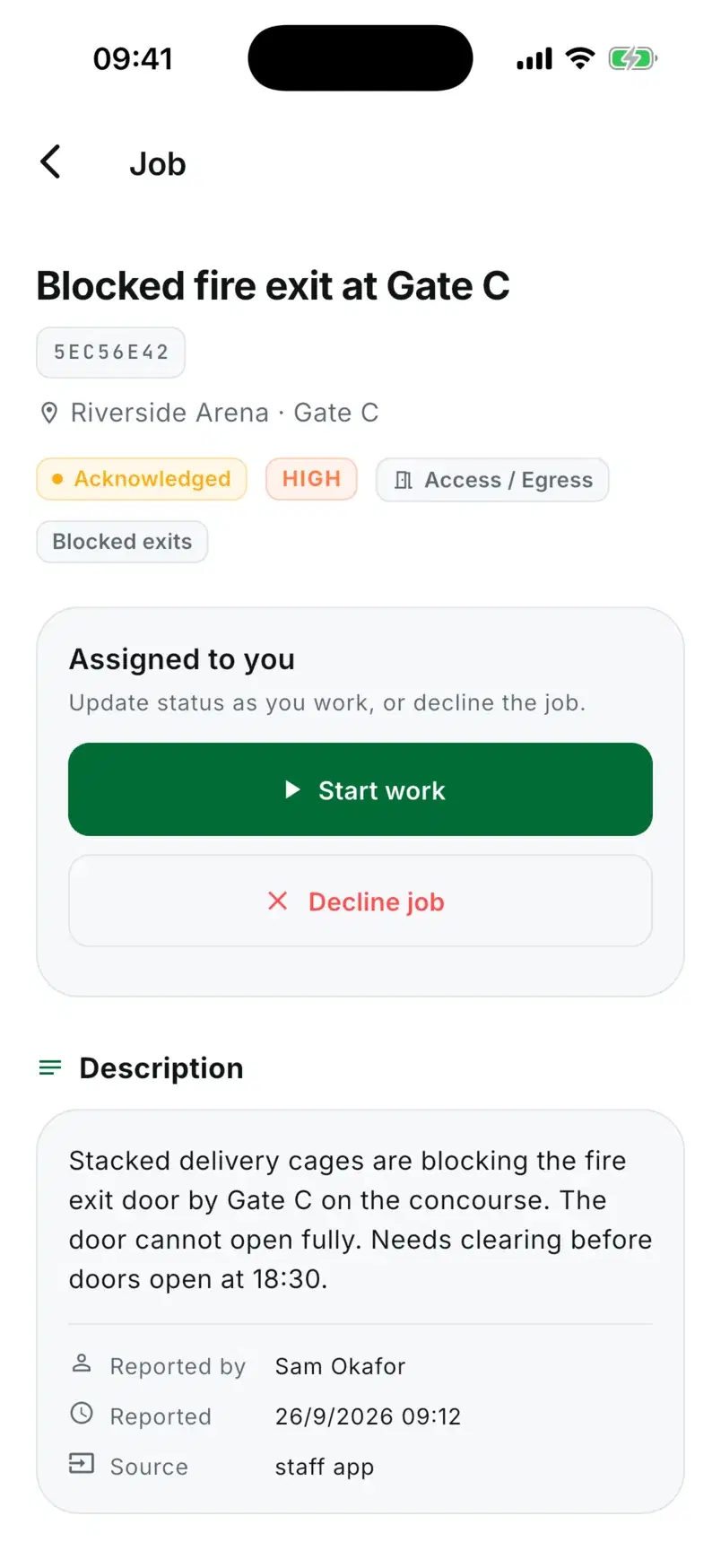
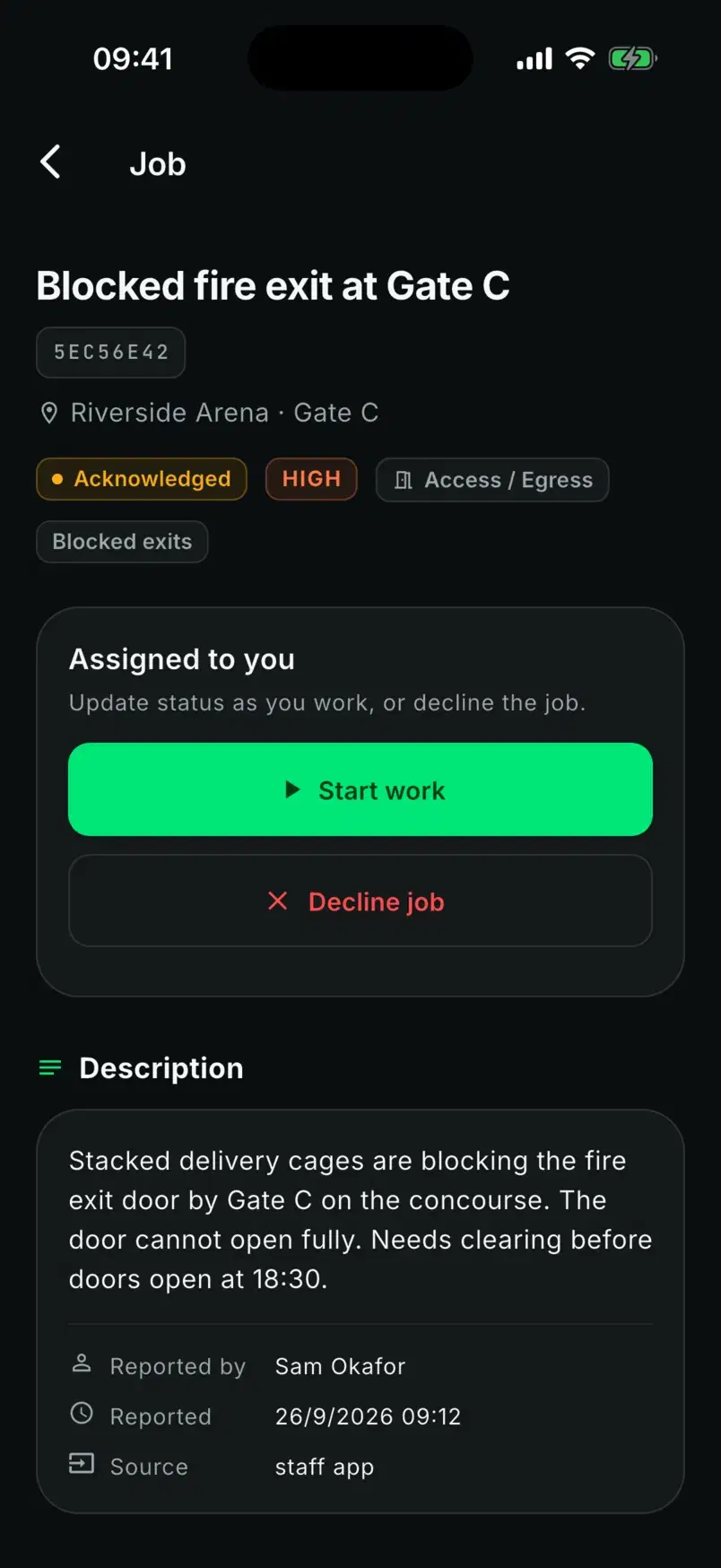
Start work, or decline it and it goes back to the control room as unassigned, ready to send to someone else.
Step 4 of 6
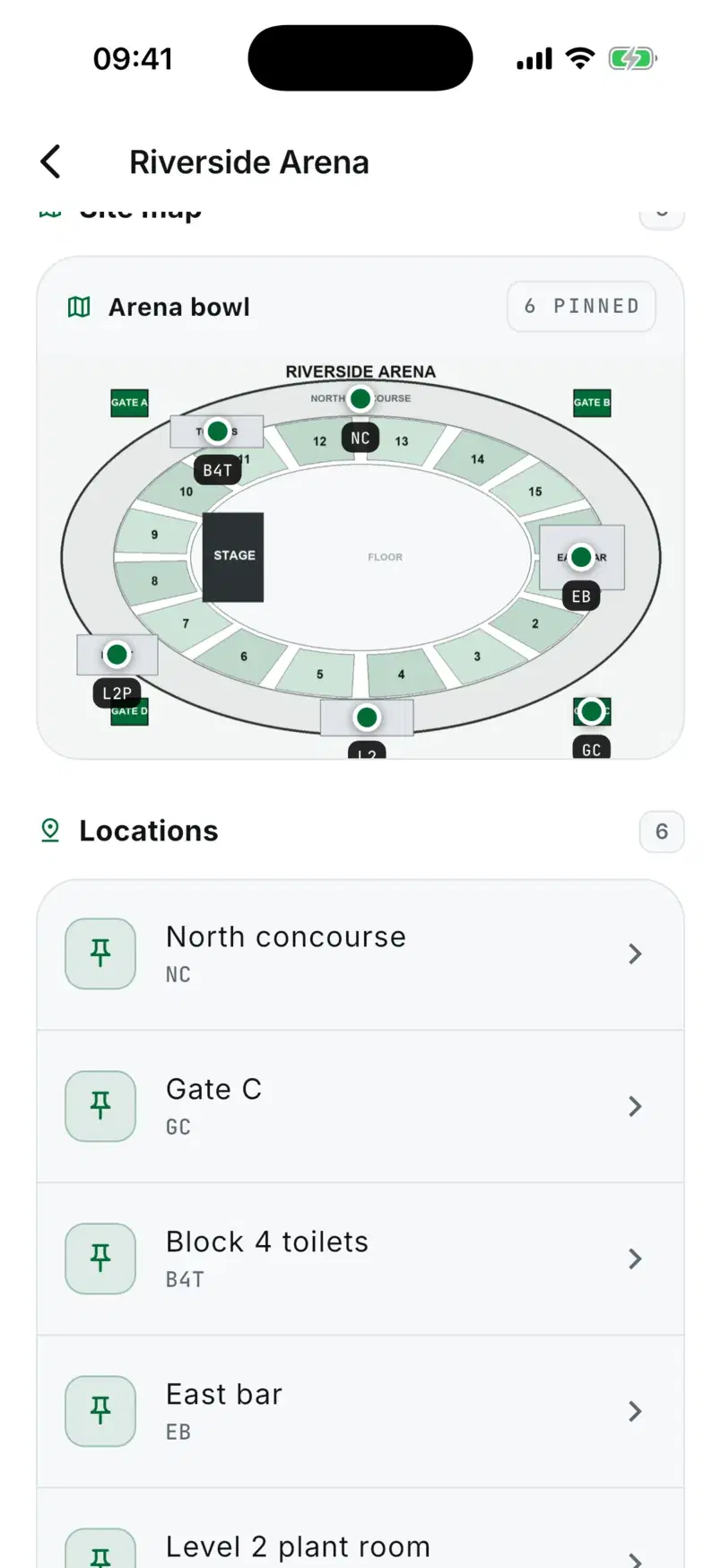
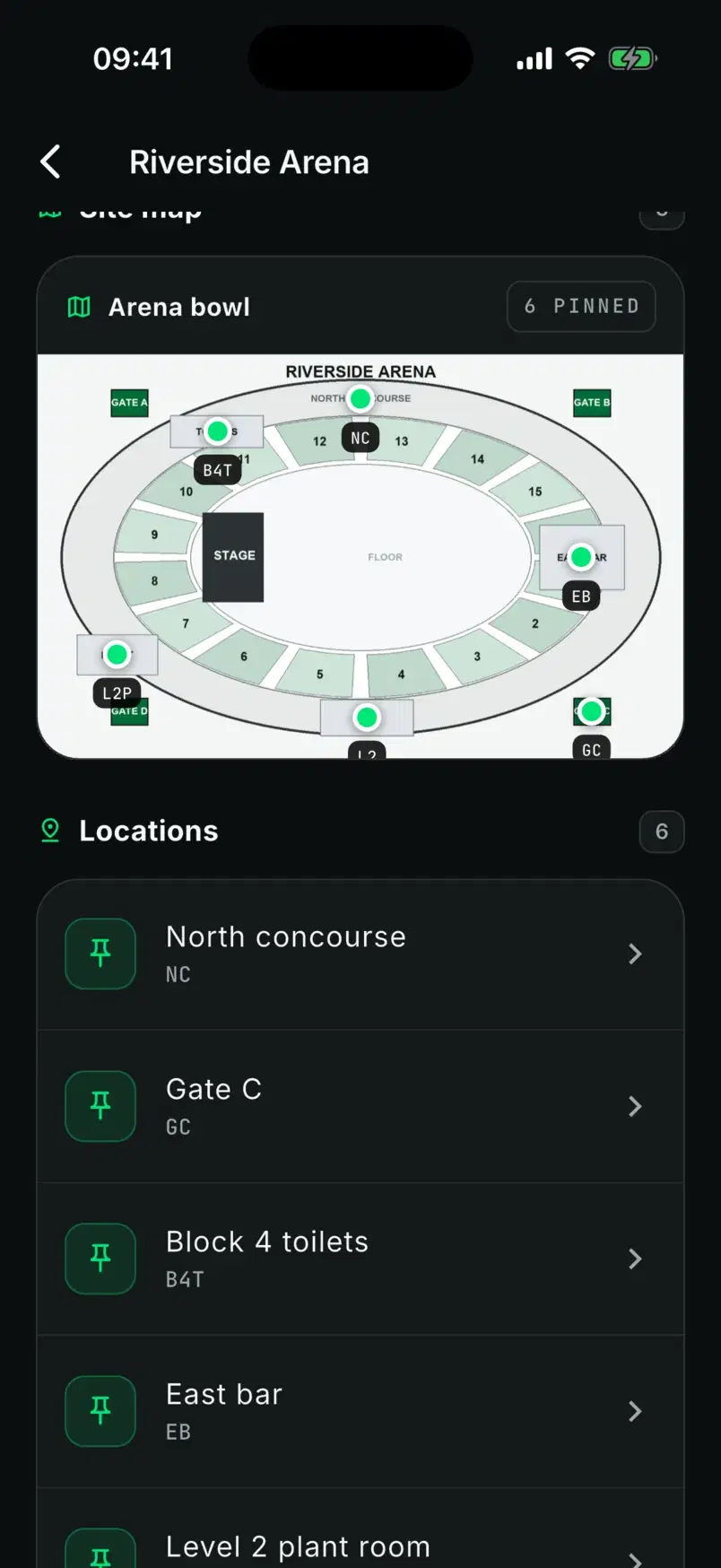
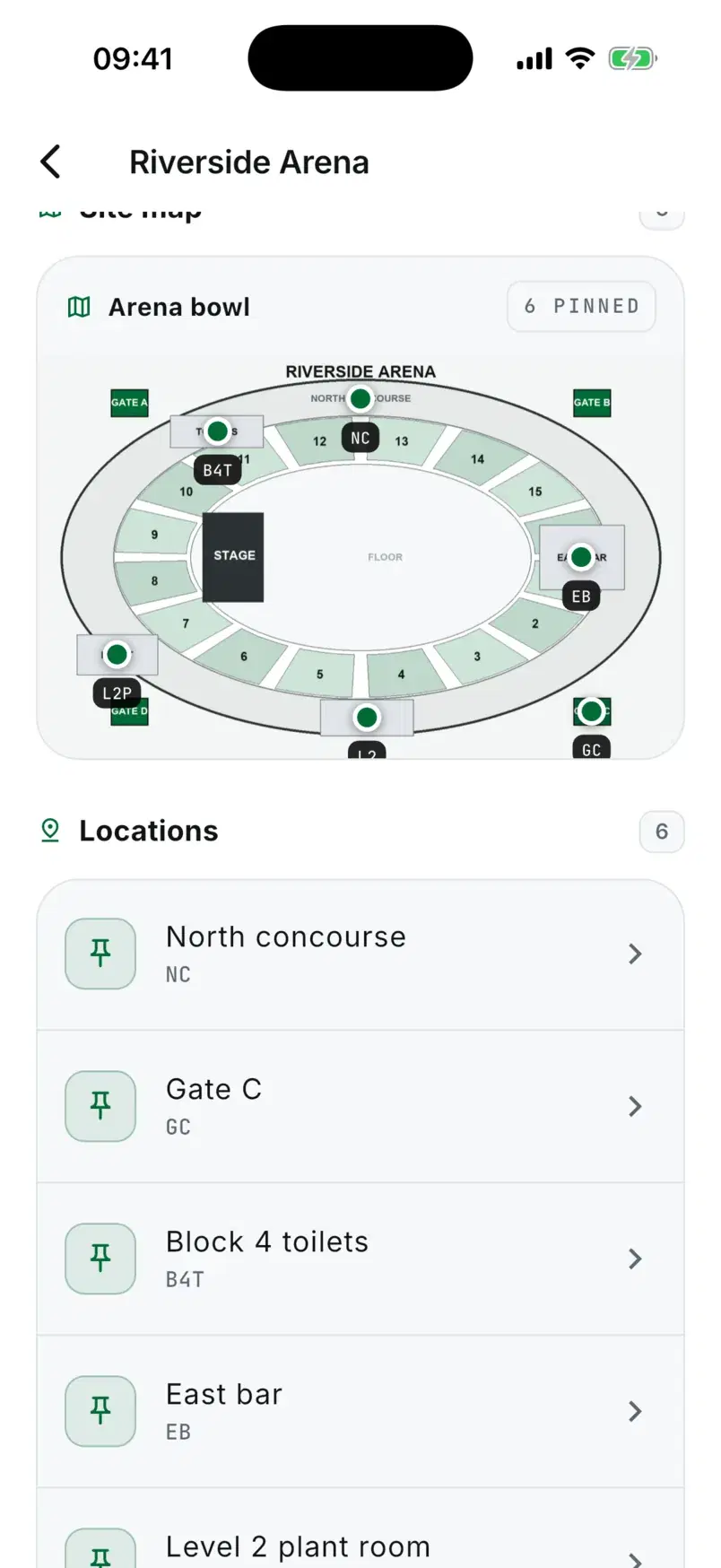
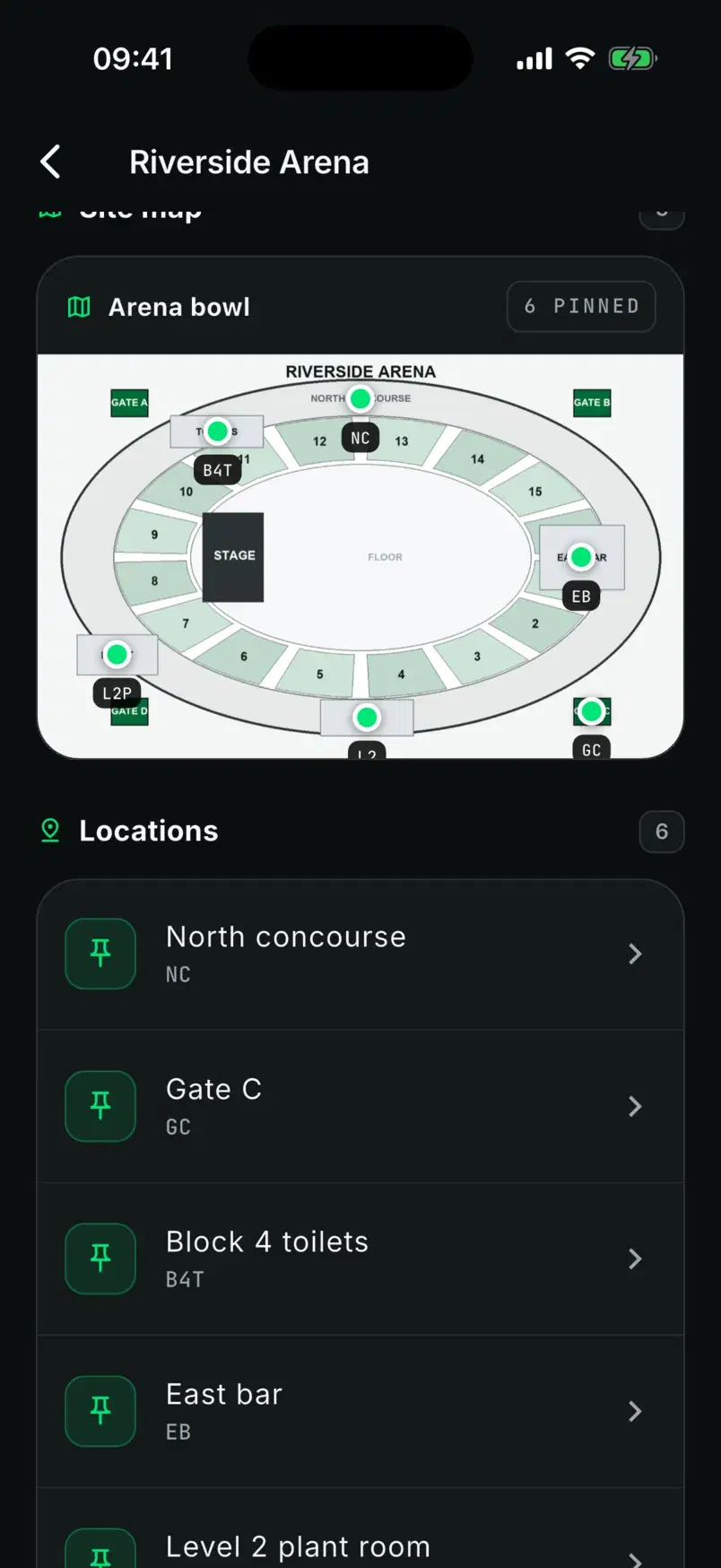
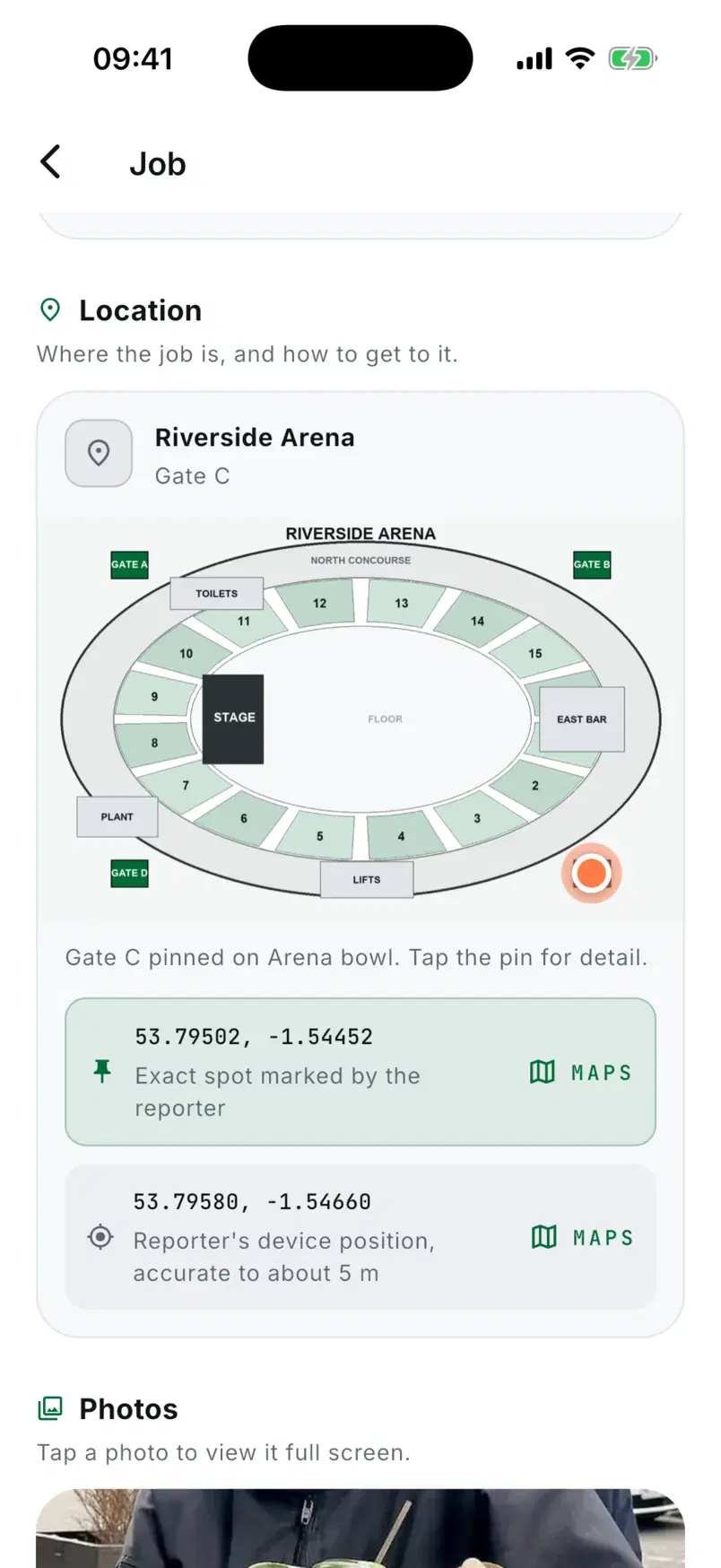
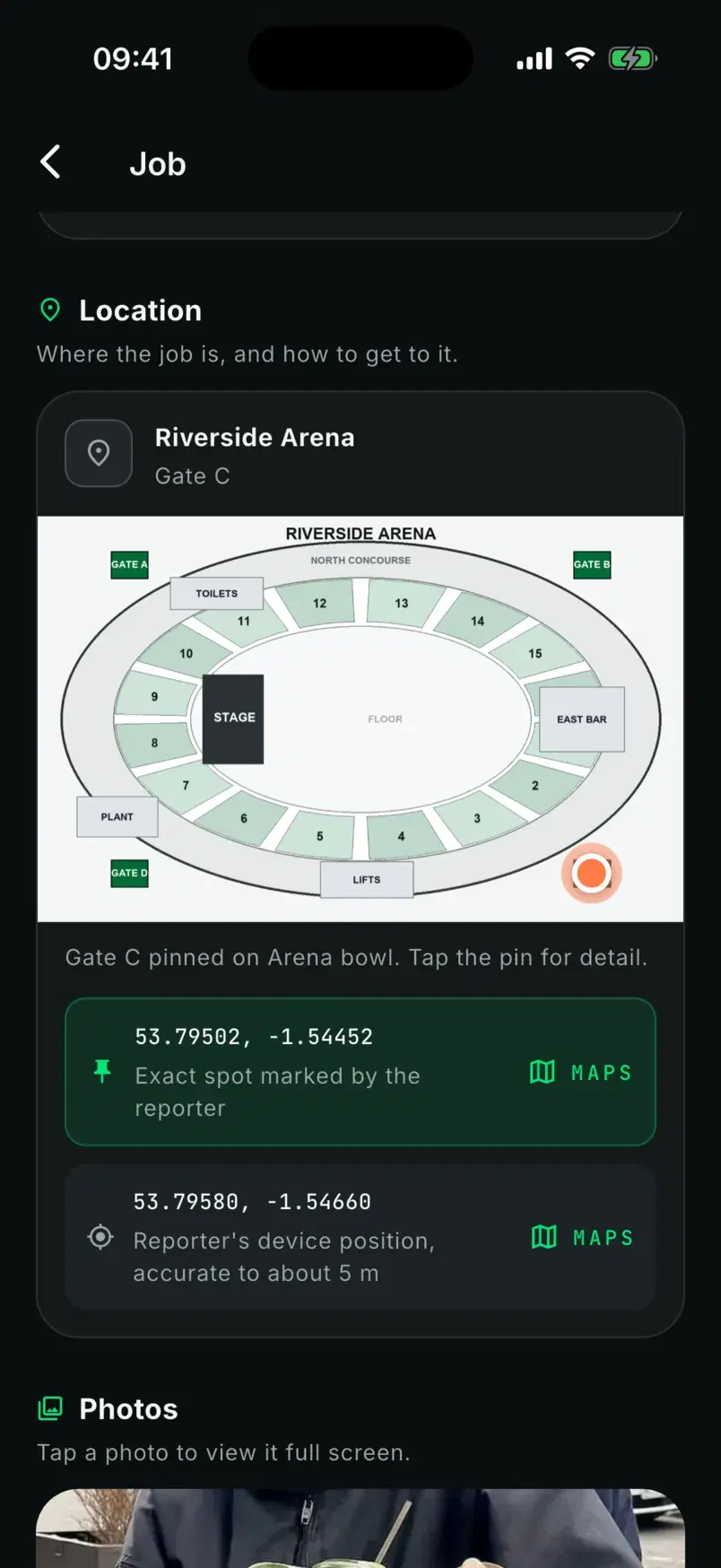
The location pinned on the site's own floor plan, plus the marked spot and the reporter's phone position when they were captured. Each position opens in Google Maps with one tap.
Step 5 of 6
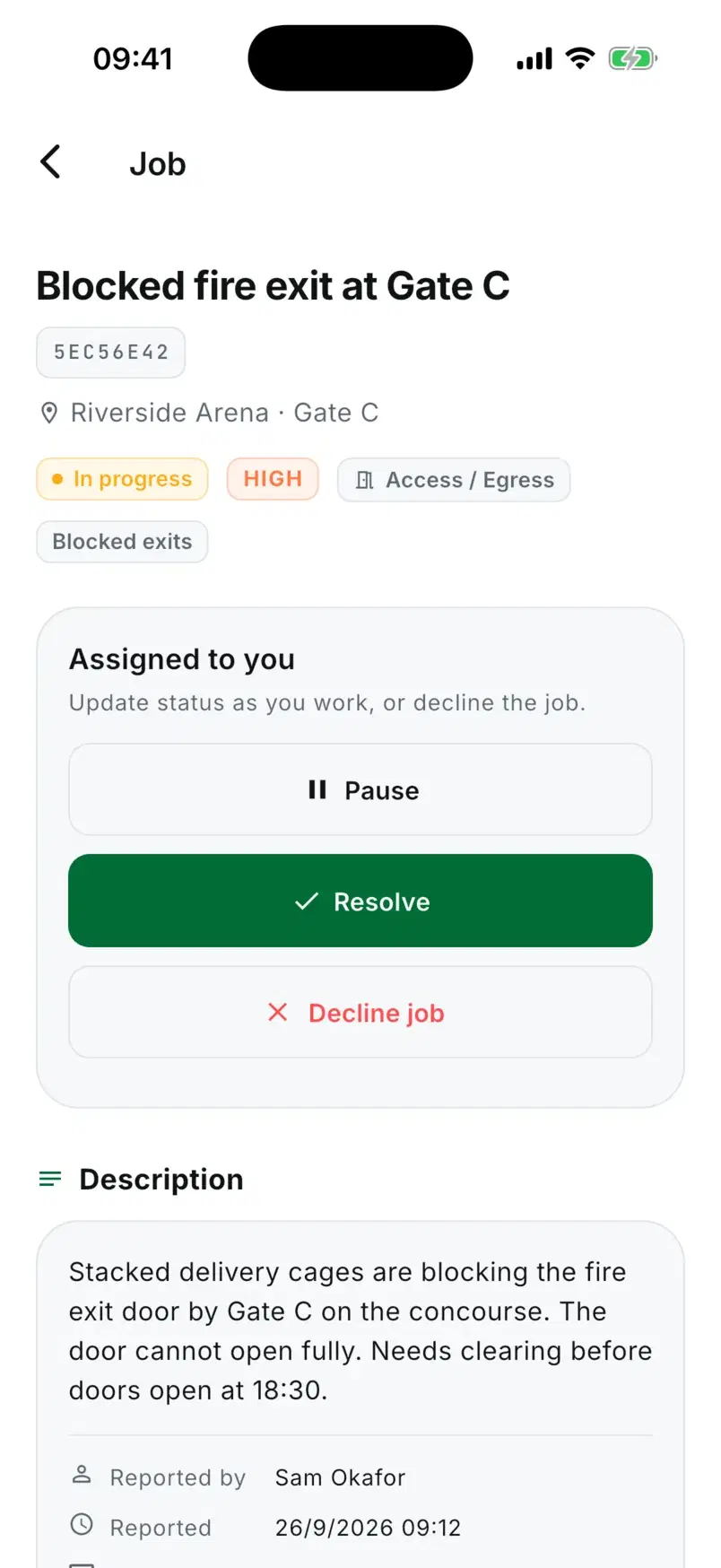
Move it to in progress, pause it if they need to, and resolve it when it is done.
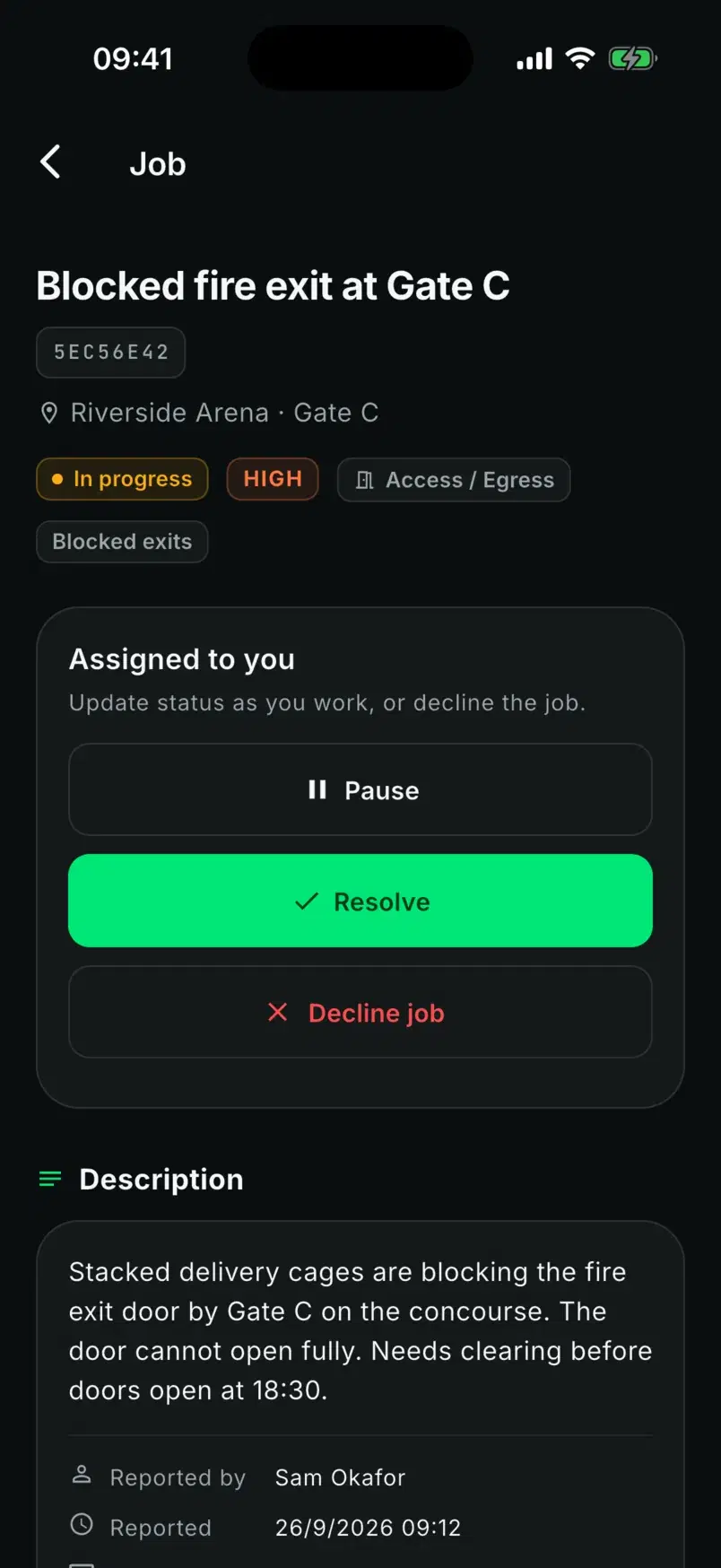
Step 6 of 6
Resolved jobs move to their own tab, and the control room sees the change the moment it happens.
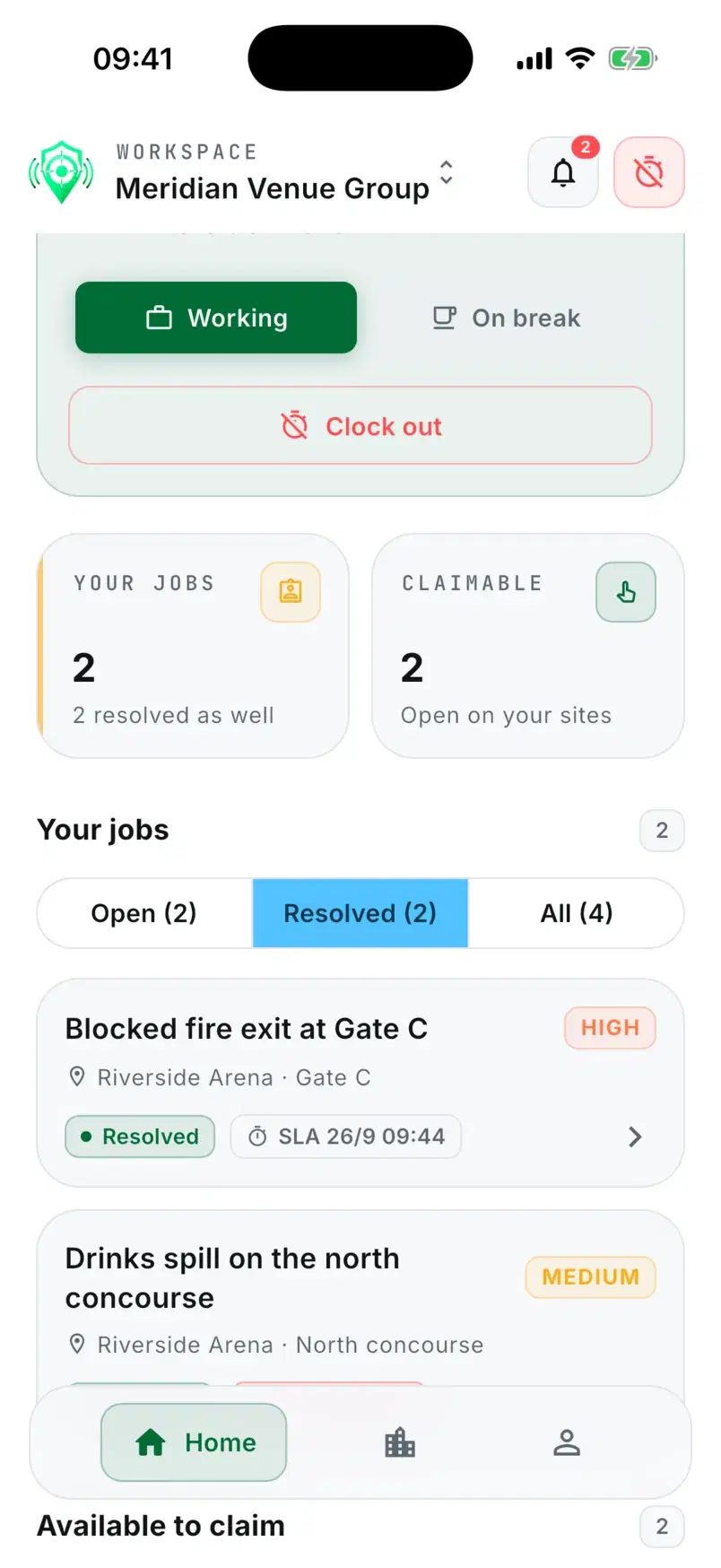
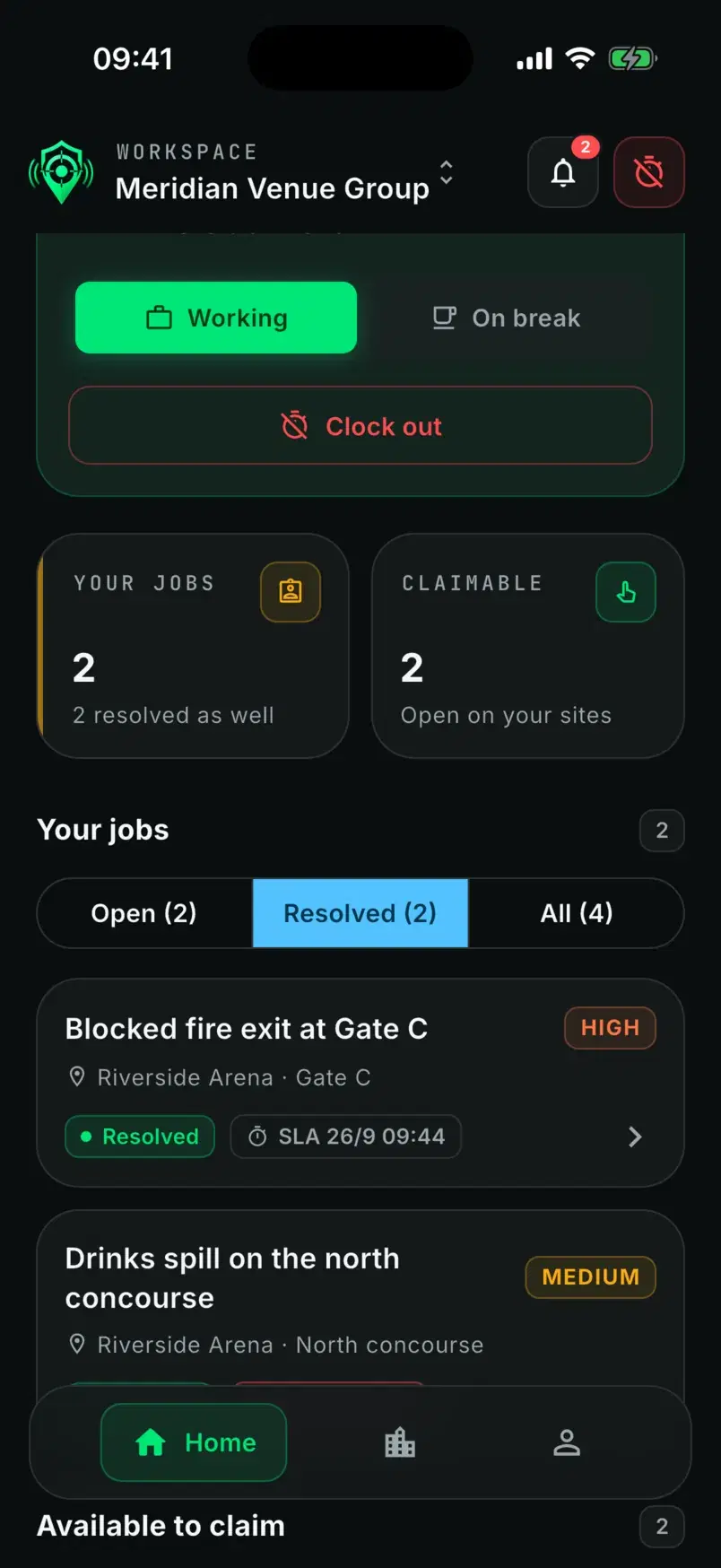
Side by side
Staff and contractors sign in to the same app. Each sees what their job needs.
Both start from their shift card. Staff then have the report button and their reports, and contractors have their job queue.
In between
A category can carry a safety notice that shows the moment it is picked.
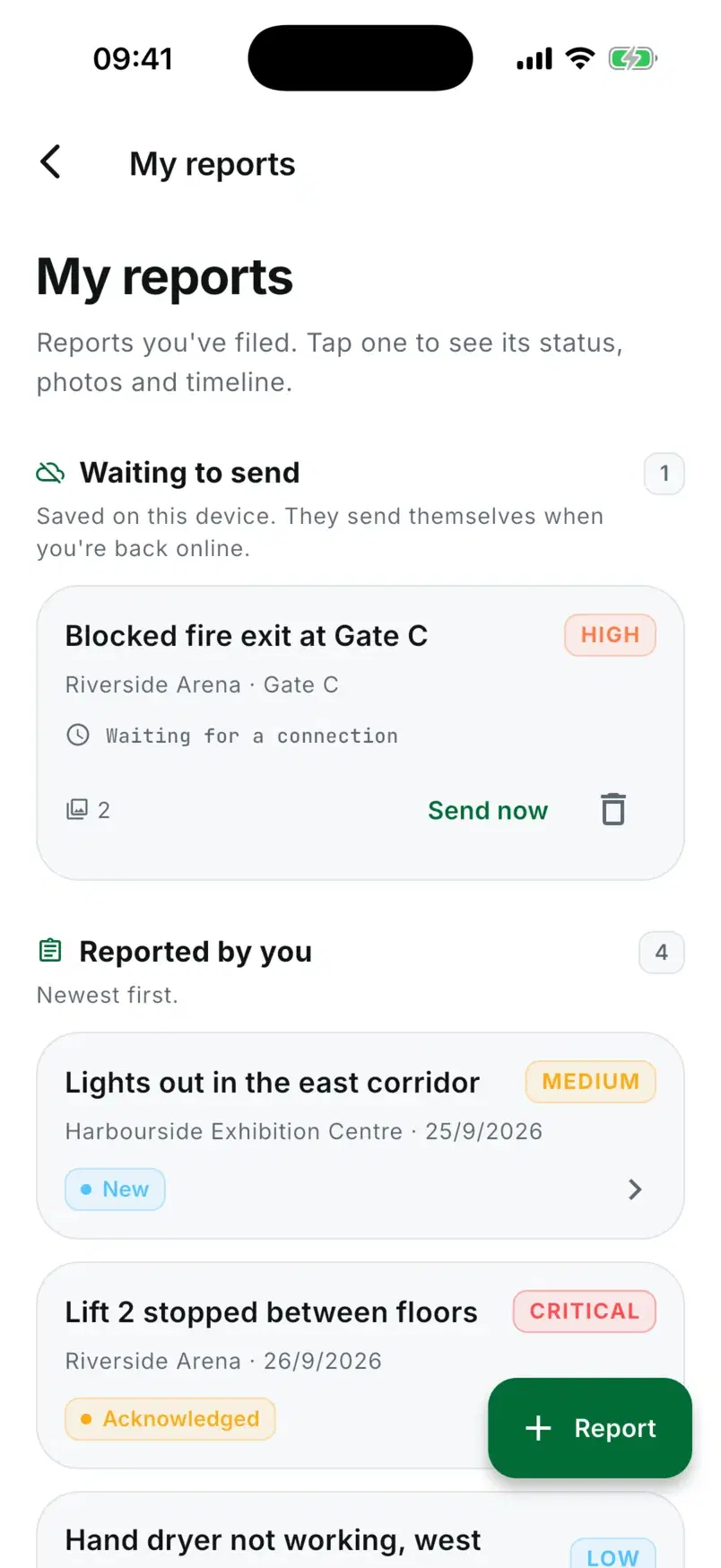
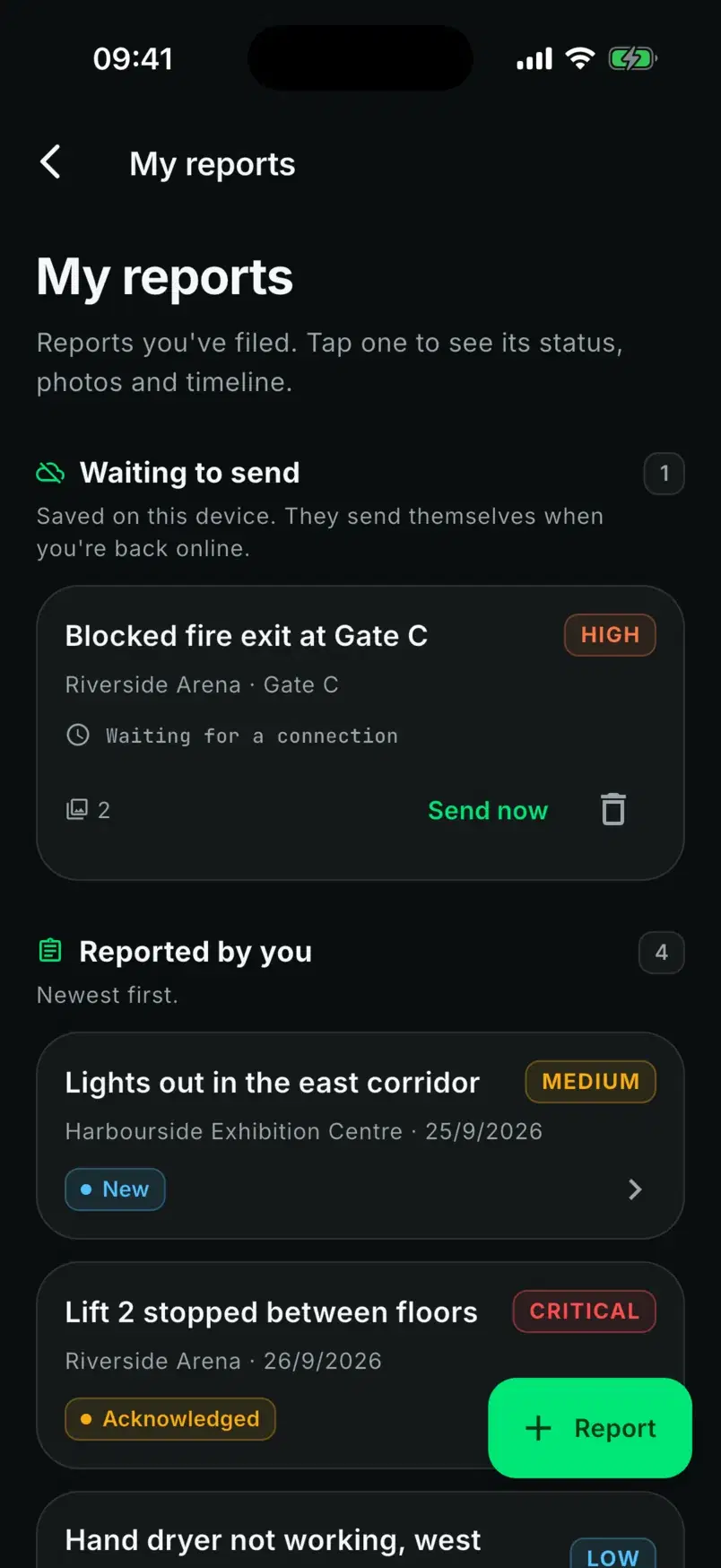
If the connection drops as a report is sent, it waits on the phone with its photos and sends itself the next time the app is open and online, or when they tap Send now.
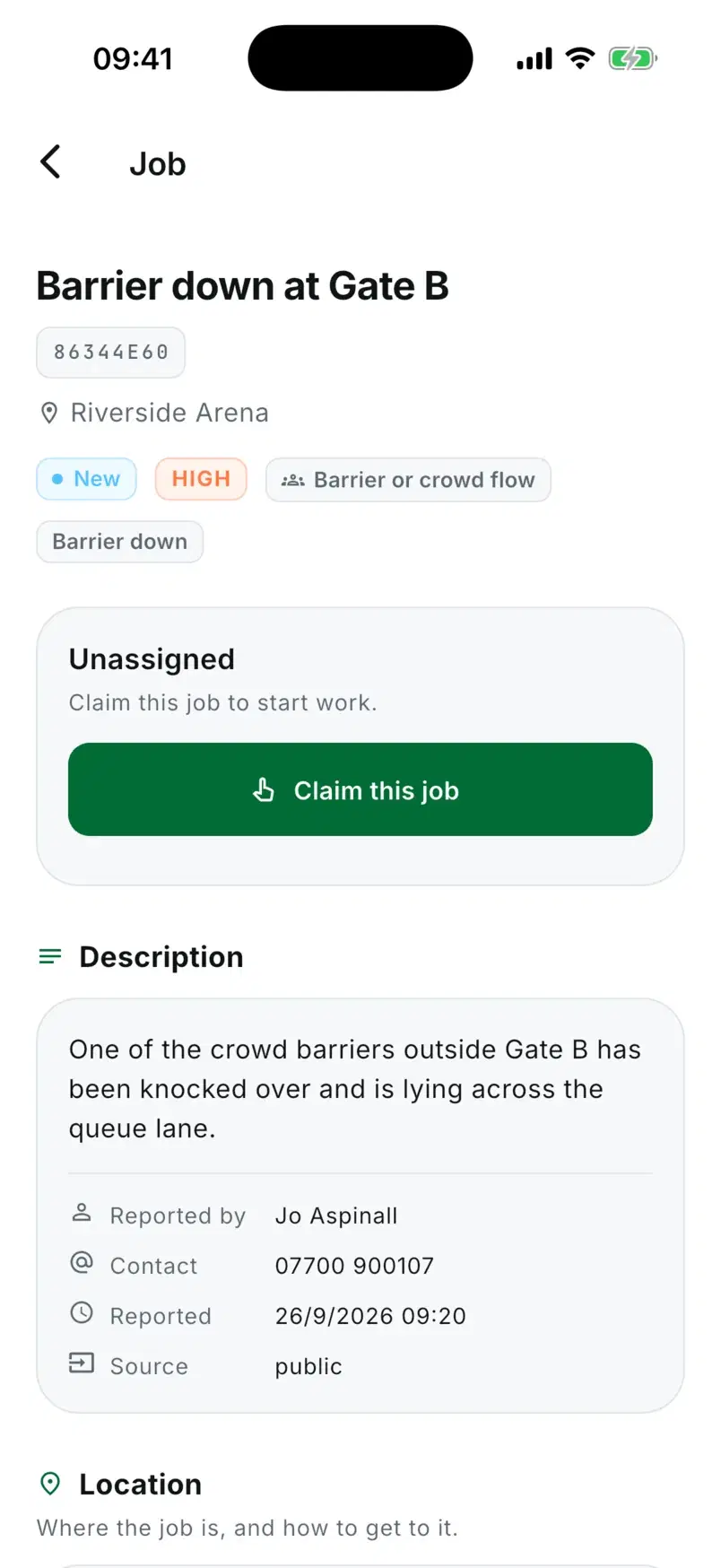
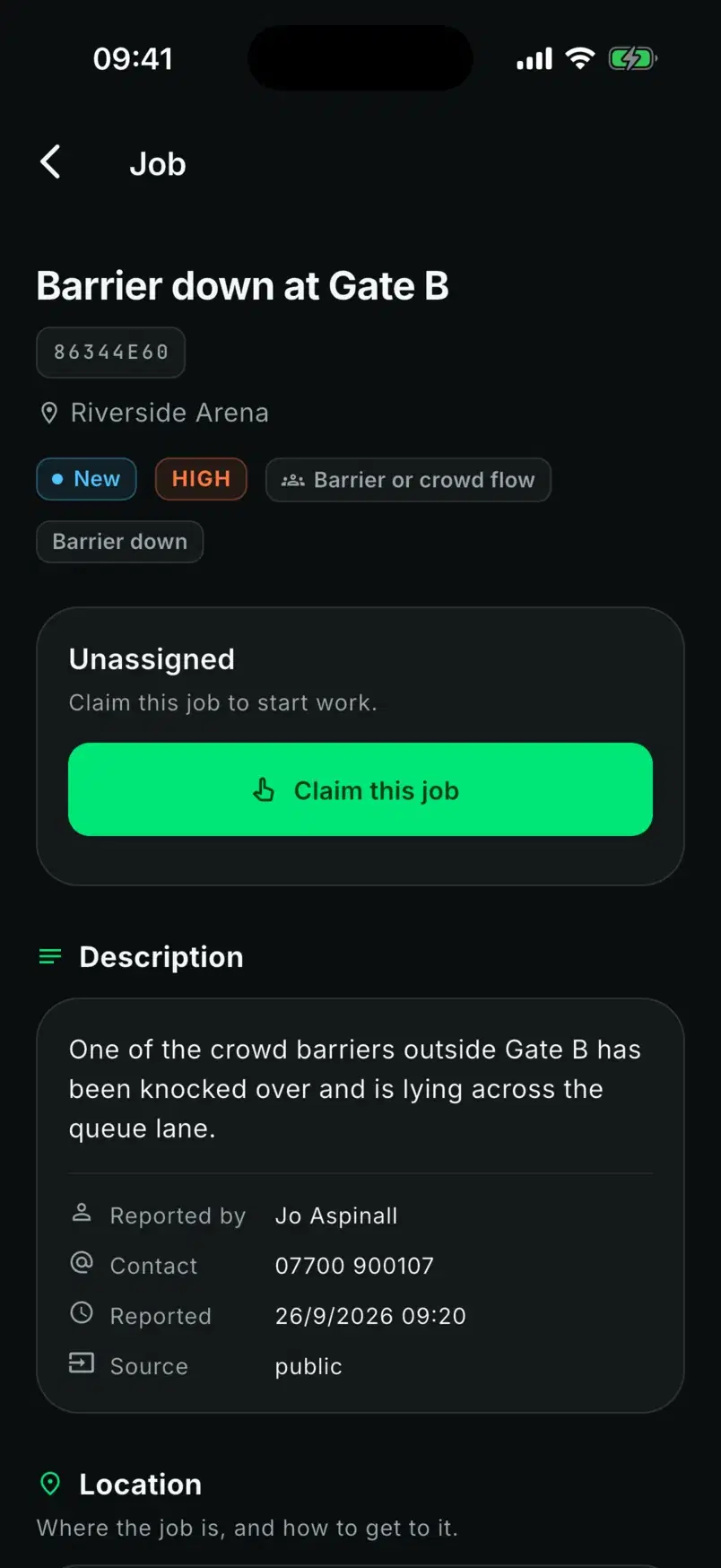
Unassigned jobs on their sites can be claimed in one tap, where the workspace allows it.
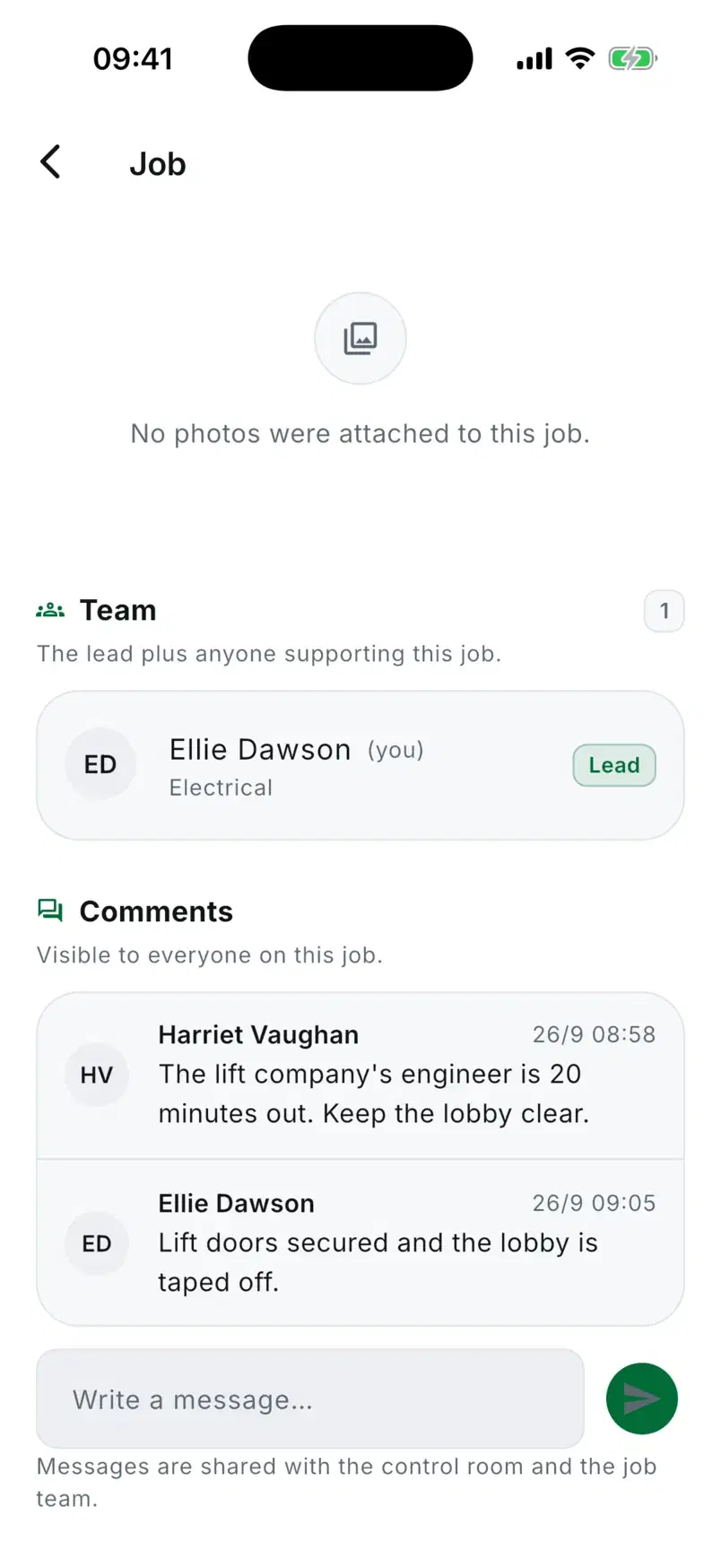
The lead and anyone helping are listed on the job, with a comment thread shared with the control room on plans with comments.
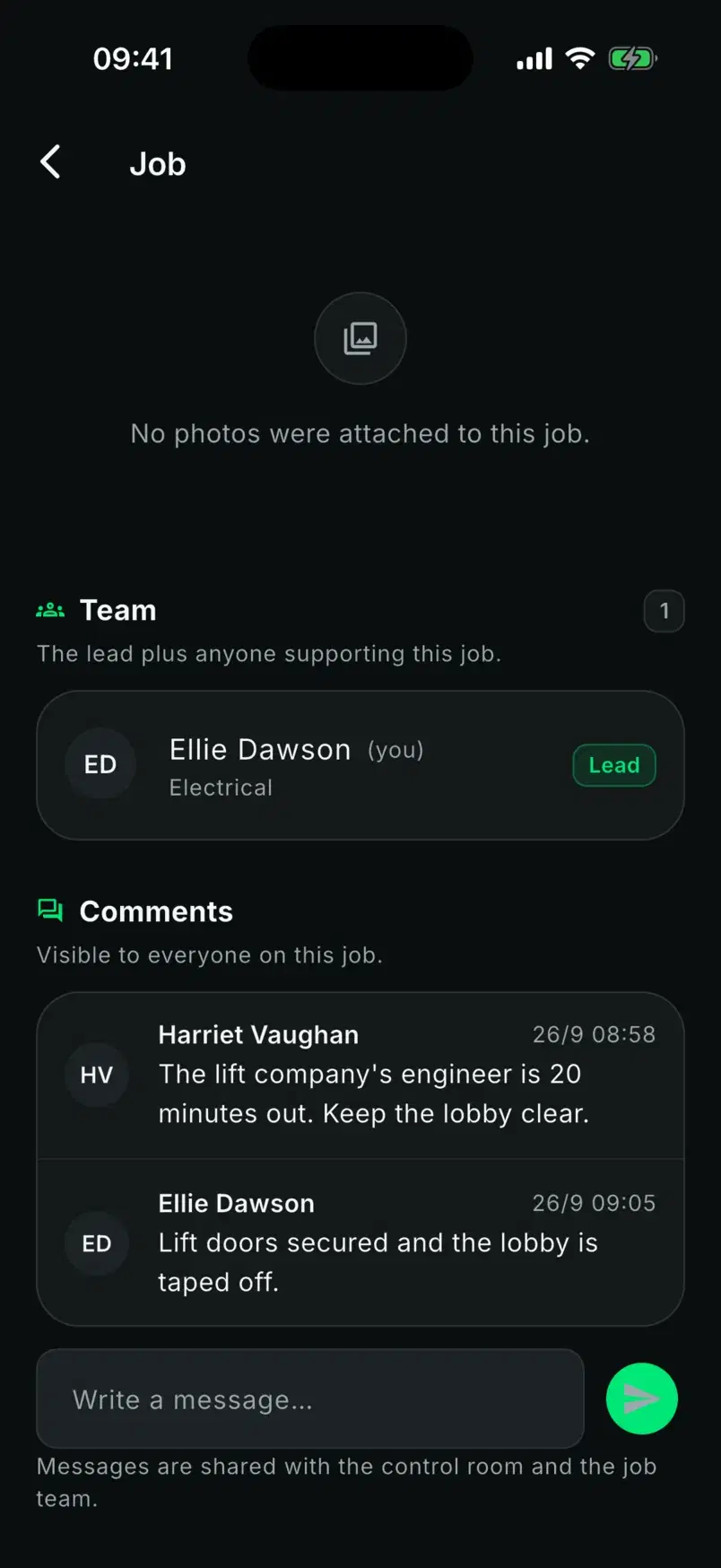
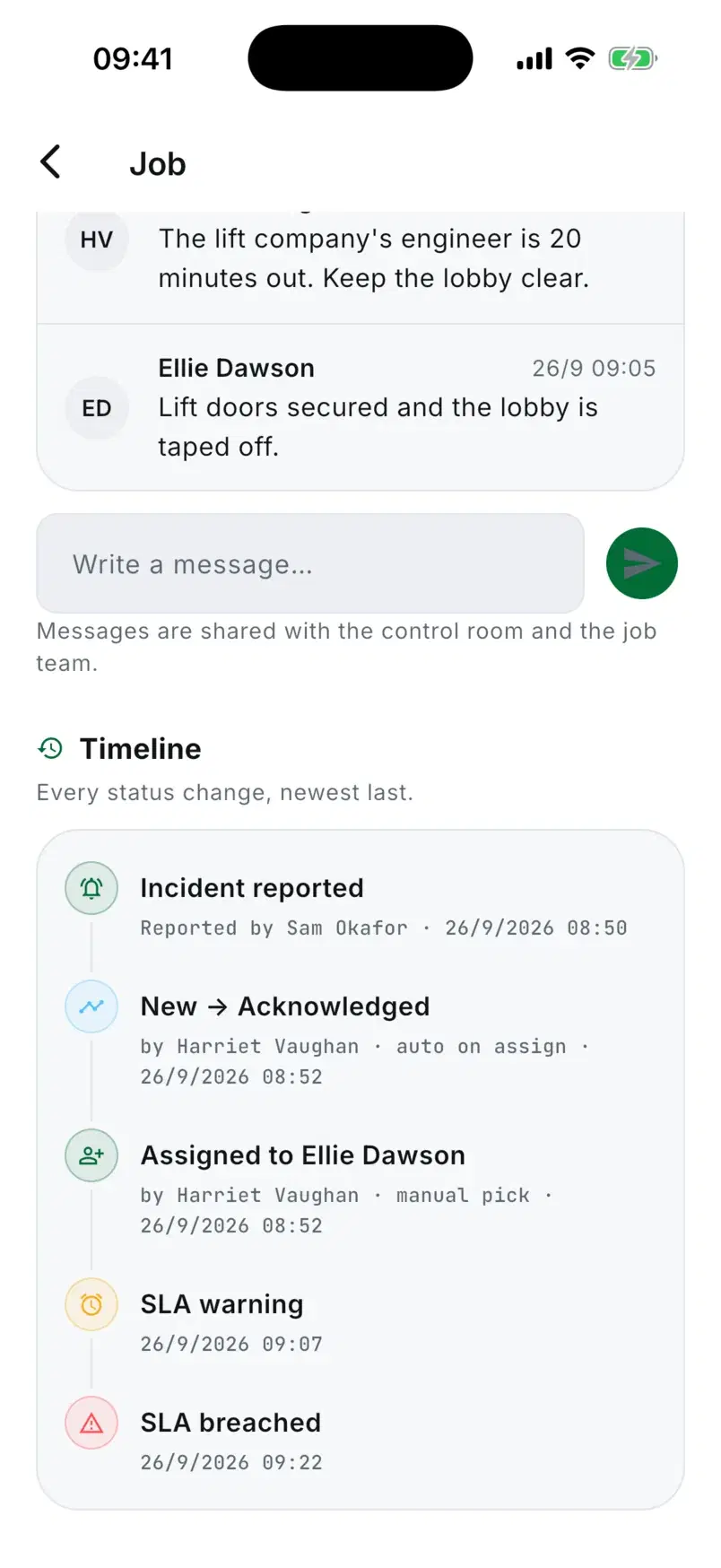
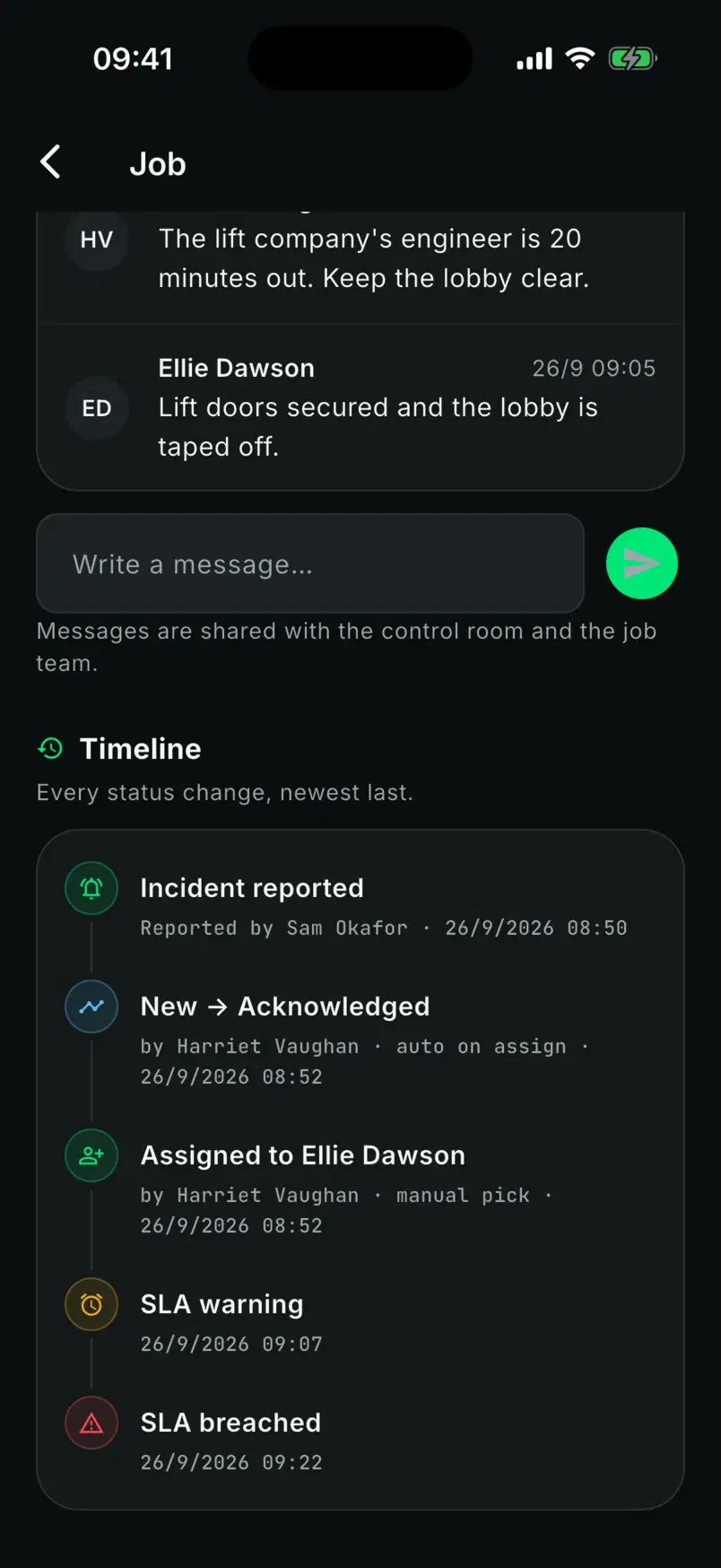
The job timeline shows each status change, with SLA warnings and breaches as they happen.
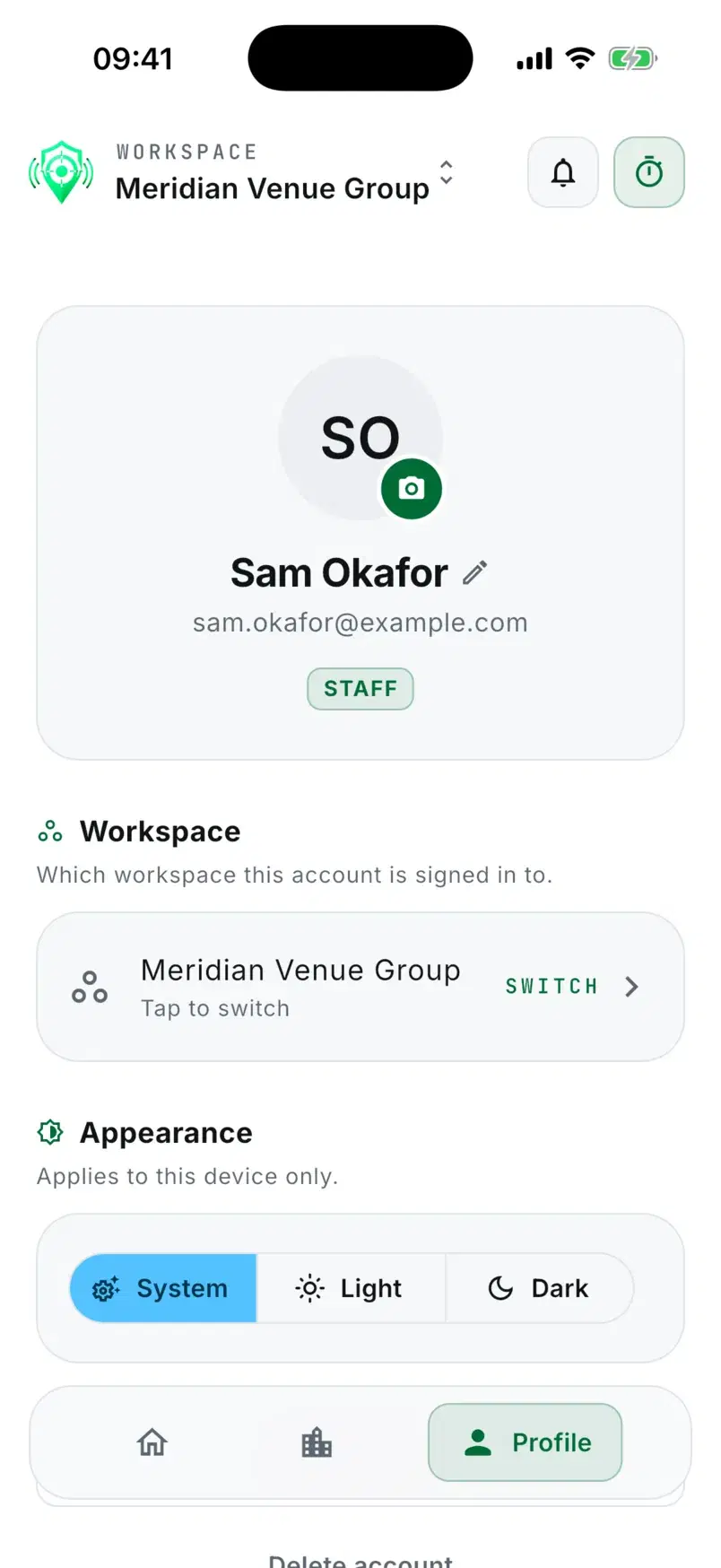
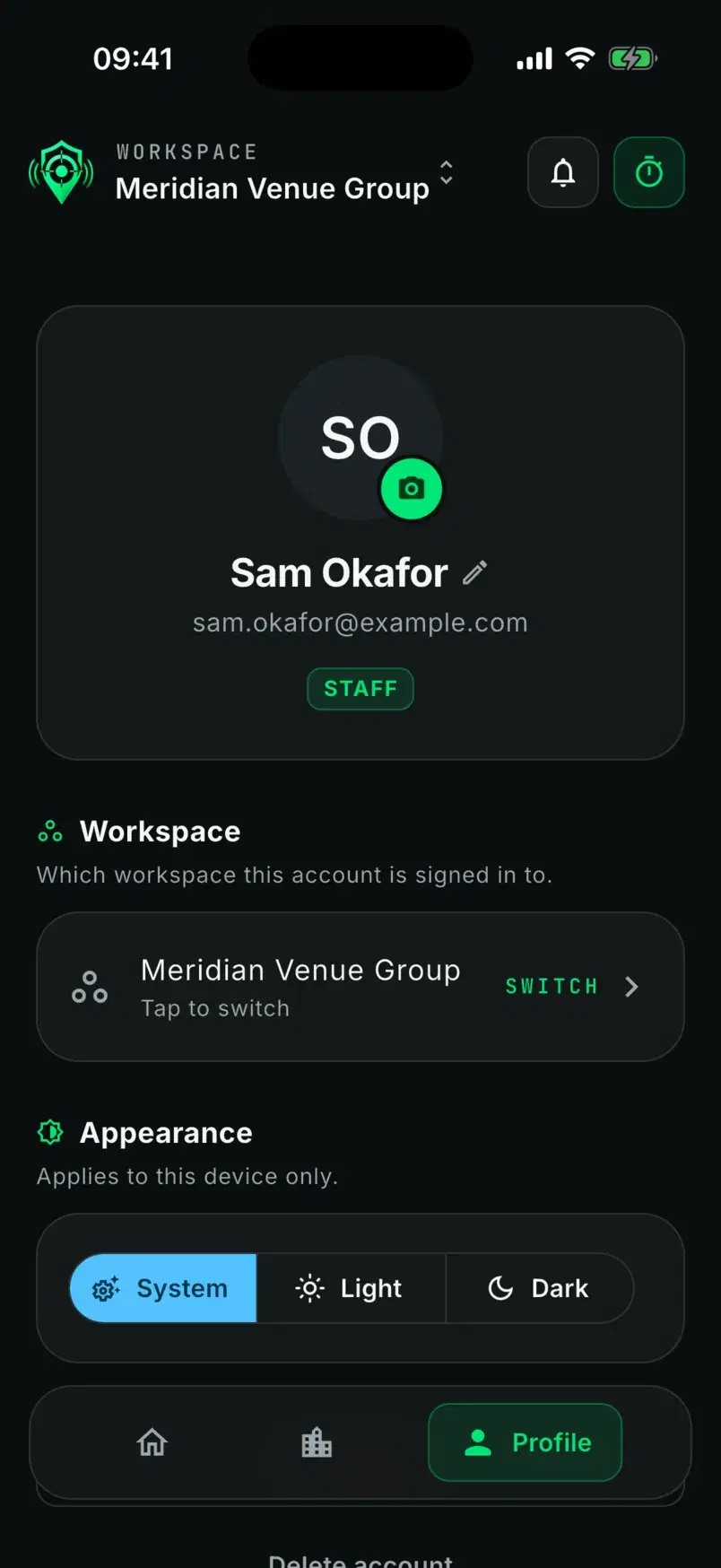
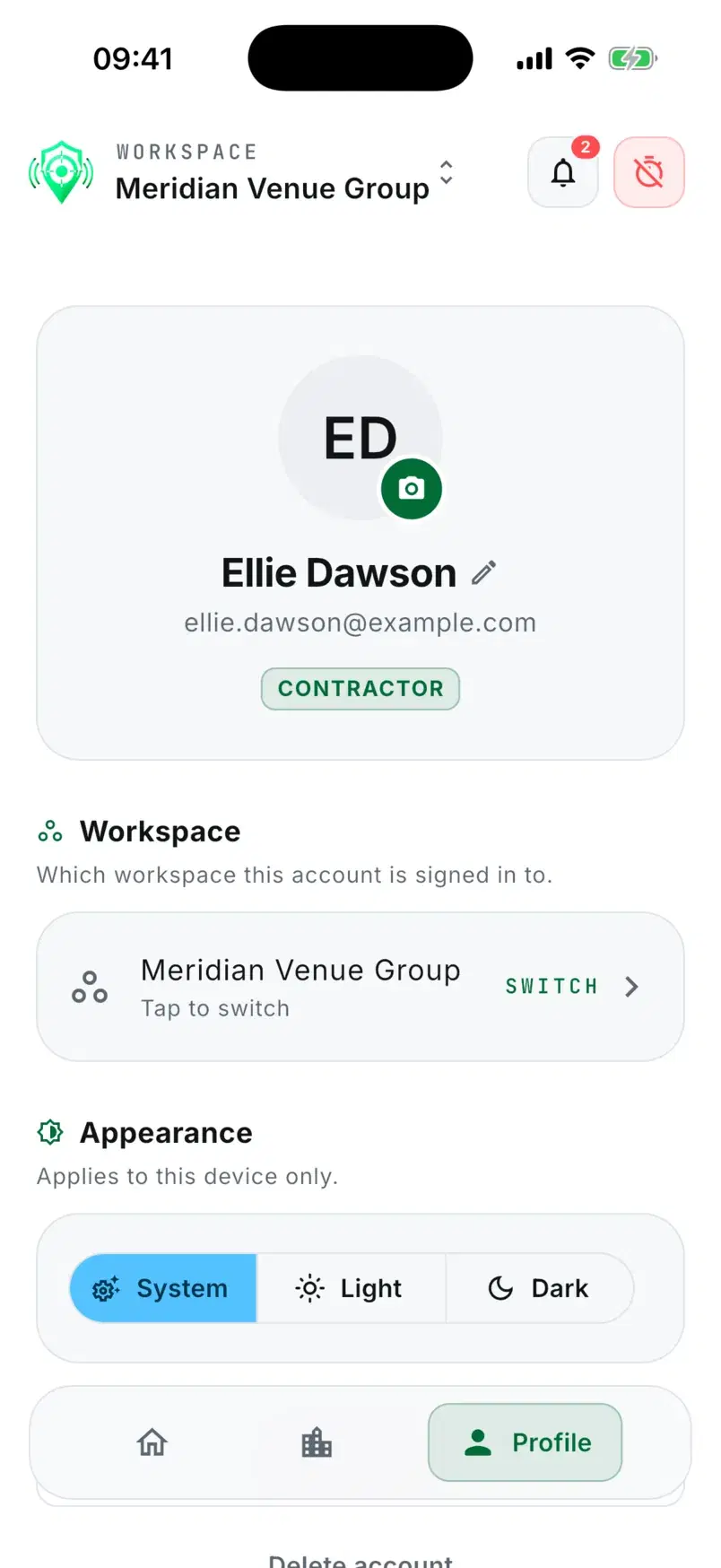
Staff and contractors who work for several organisations switch between them from their profile, without signing out.
Under the hood
A secure link to the email address they were invited with. No password to forget or reset.
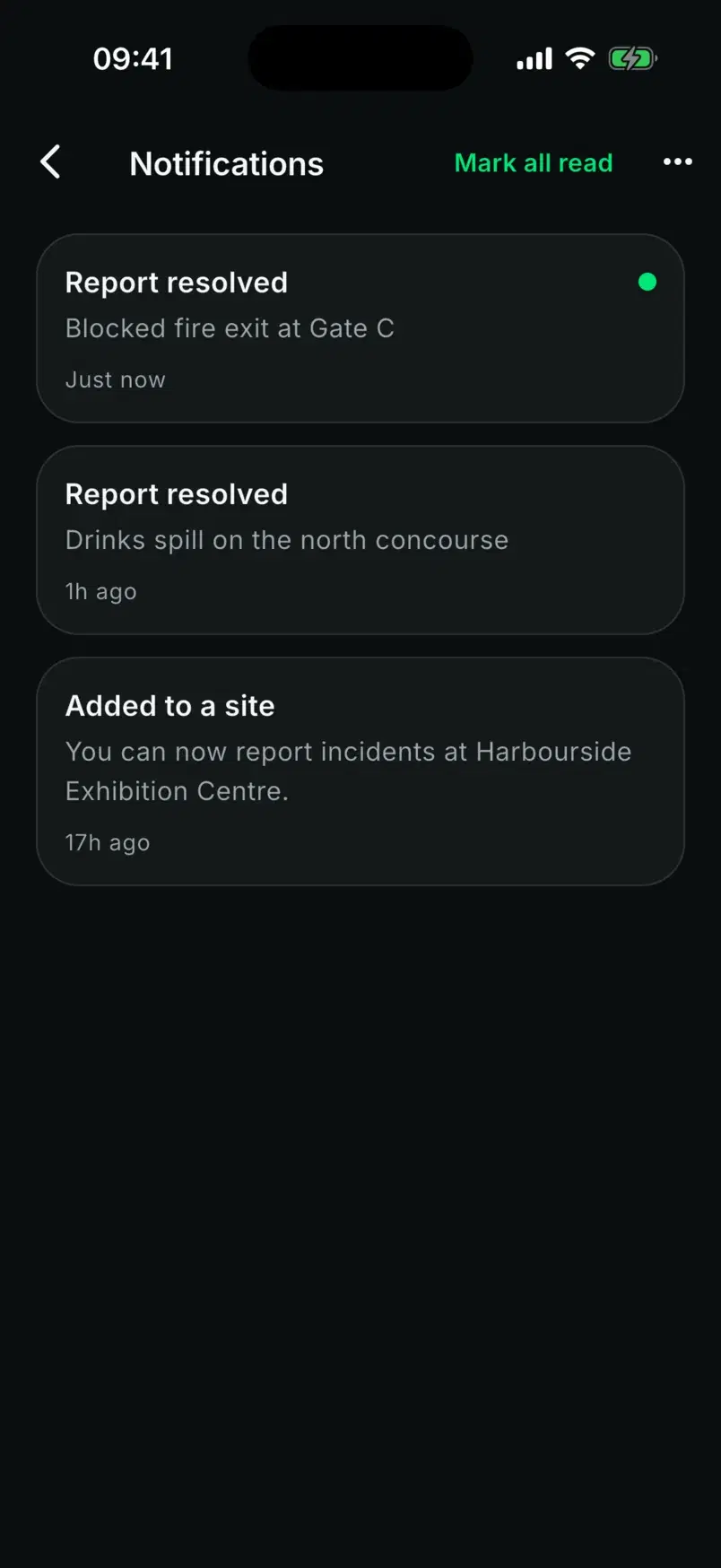
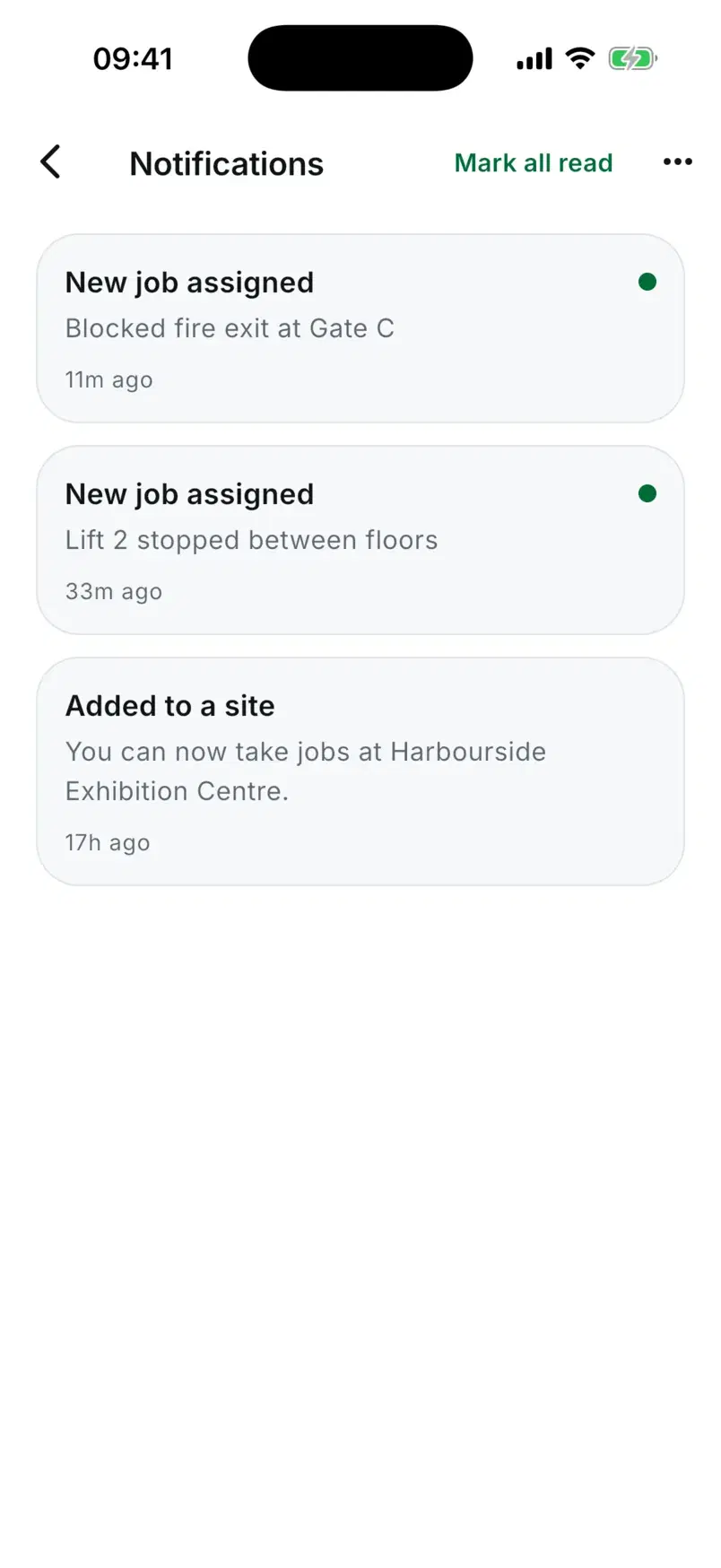
Pushes are also saved to an in-app list with an unread badge, so a missed push is not a missed job.
New jobs and status changes appear while the app is open, with no pull to refresh.
While the app is open, a new medical incident in the workspace plays the phone's notification sound.
Admin and controller accounts are turned away in the app and pointed to the web dashboard.
On plans with live location, a contractor's position is shared only while they are on shift and working. It stops on a break and at clock out. Staff are never tracked live, though a report they send carries the phone's position when it has one, unless they switch it off.
For iPhone and Android, coming to the app stores
Coming soon
App Store
Coming soon
Google Play
Some of what is on this page depends on your plan. See what each plan includes.
Get started
Start a trial and invite a contractor.