
Branded reporting
The record, in a form somebody else can read
Branded PDF reports on demand or on a schedule, an append-only audit log, and a full export of your data.
Branded PDF
The whole incident, in one document
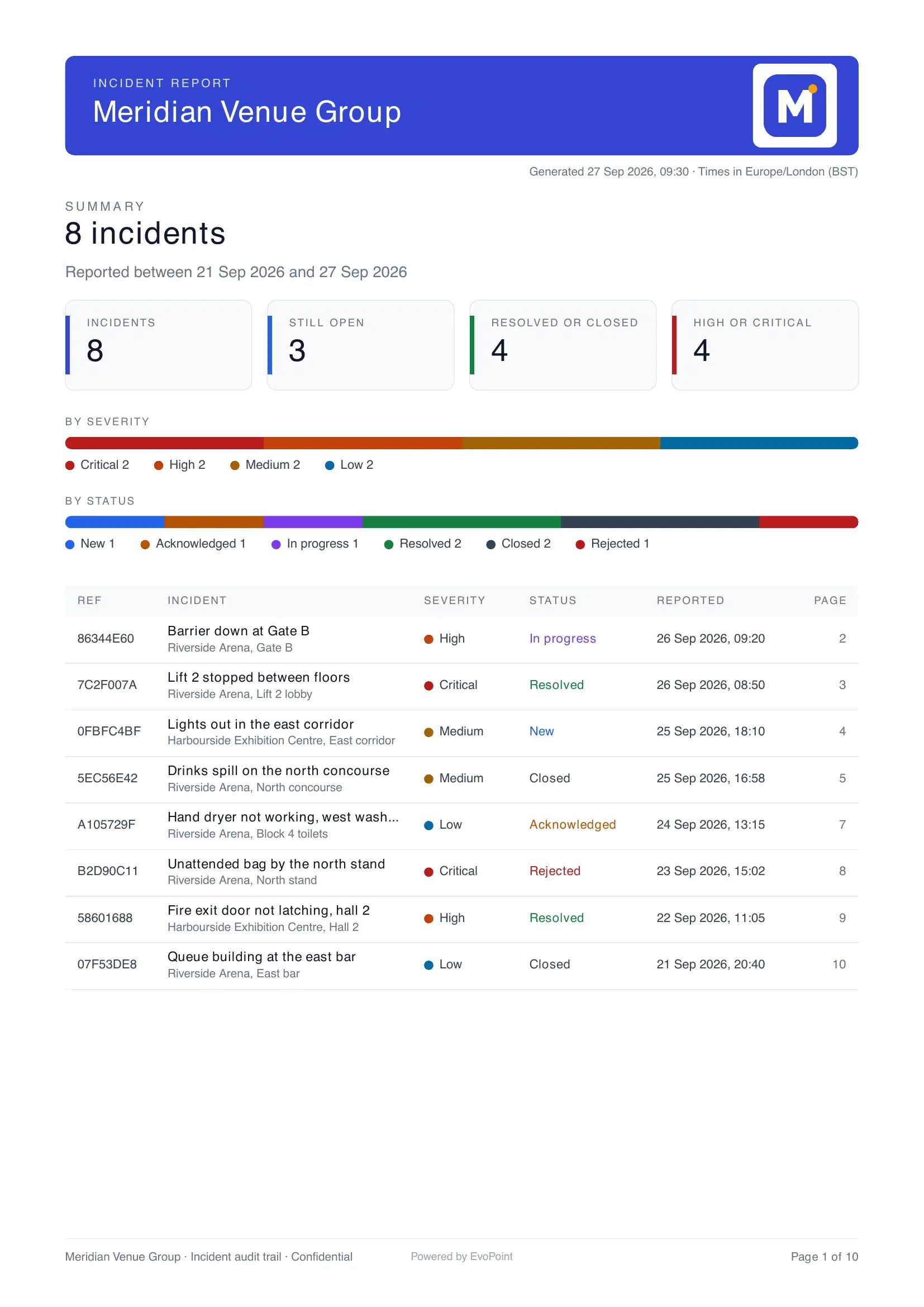
Pick a date range and narrow it by site, severity, status or category. Each incident starts on its own page, with your header on top. A report with more than one incident opens with a summary: the totals, a breakdown by severity and status, and an index with page numbers.
Inside a report
What each incident page holds
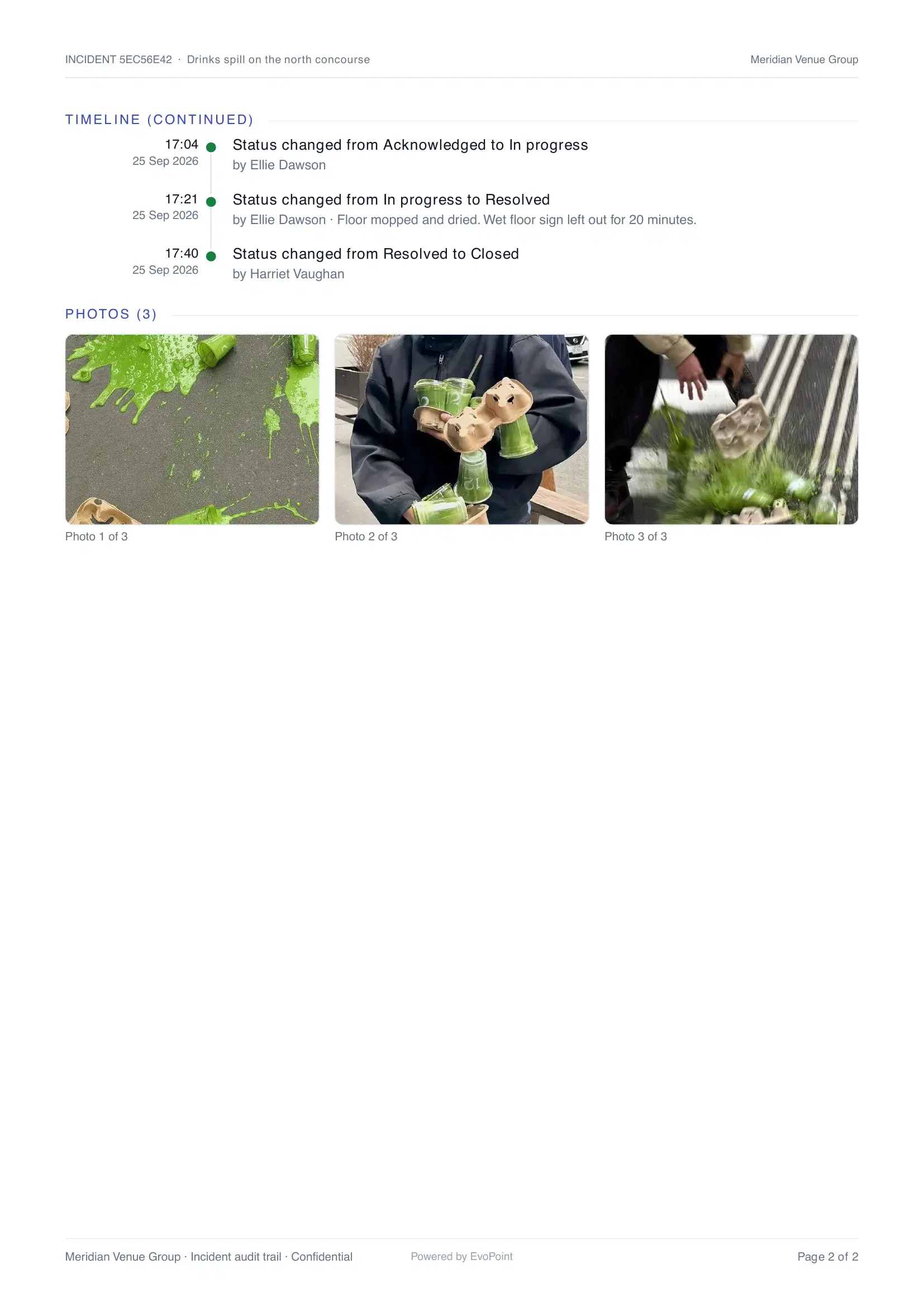
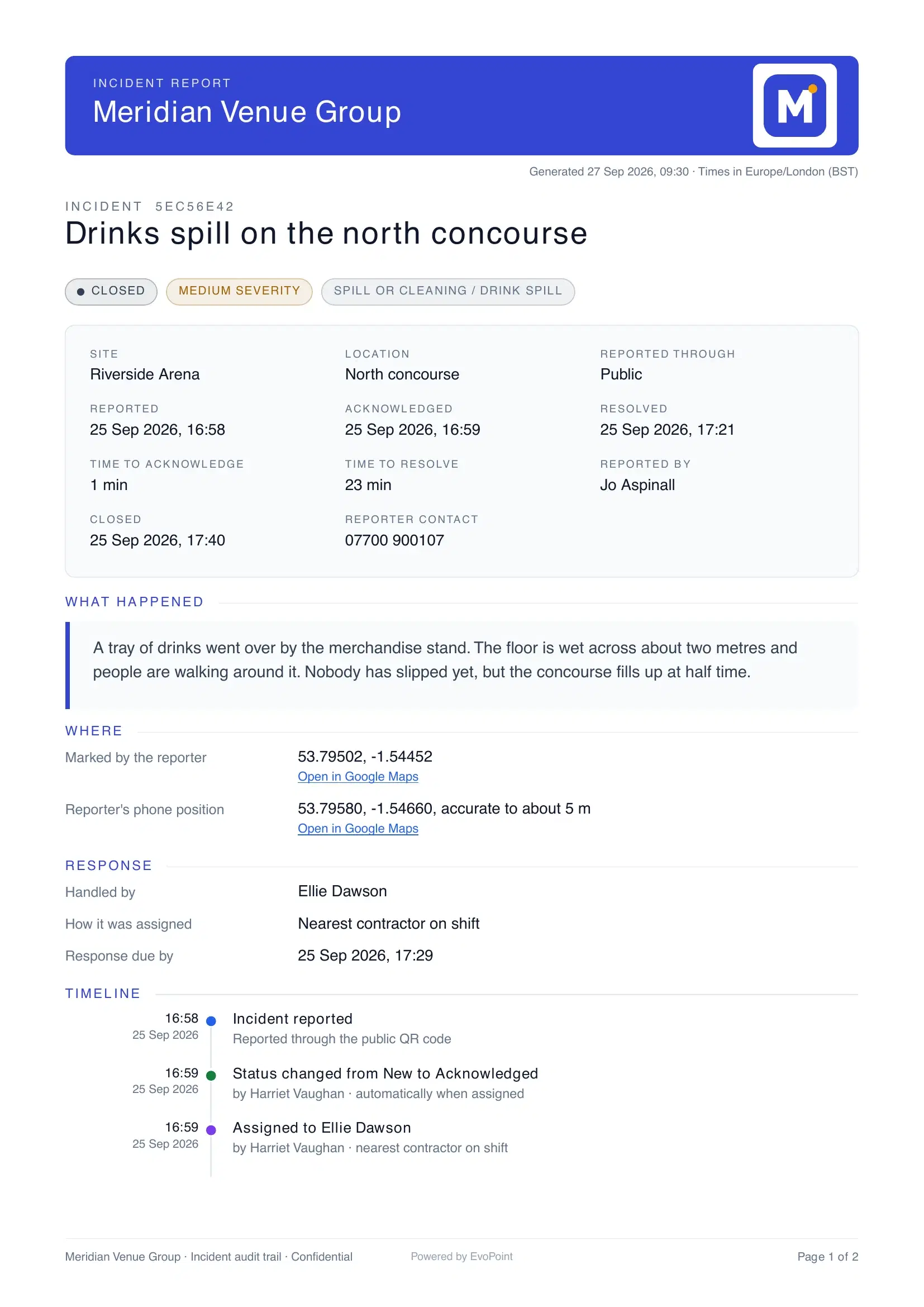
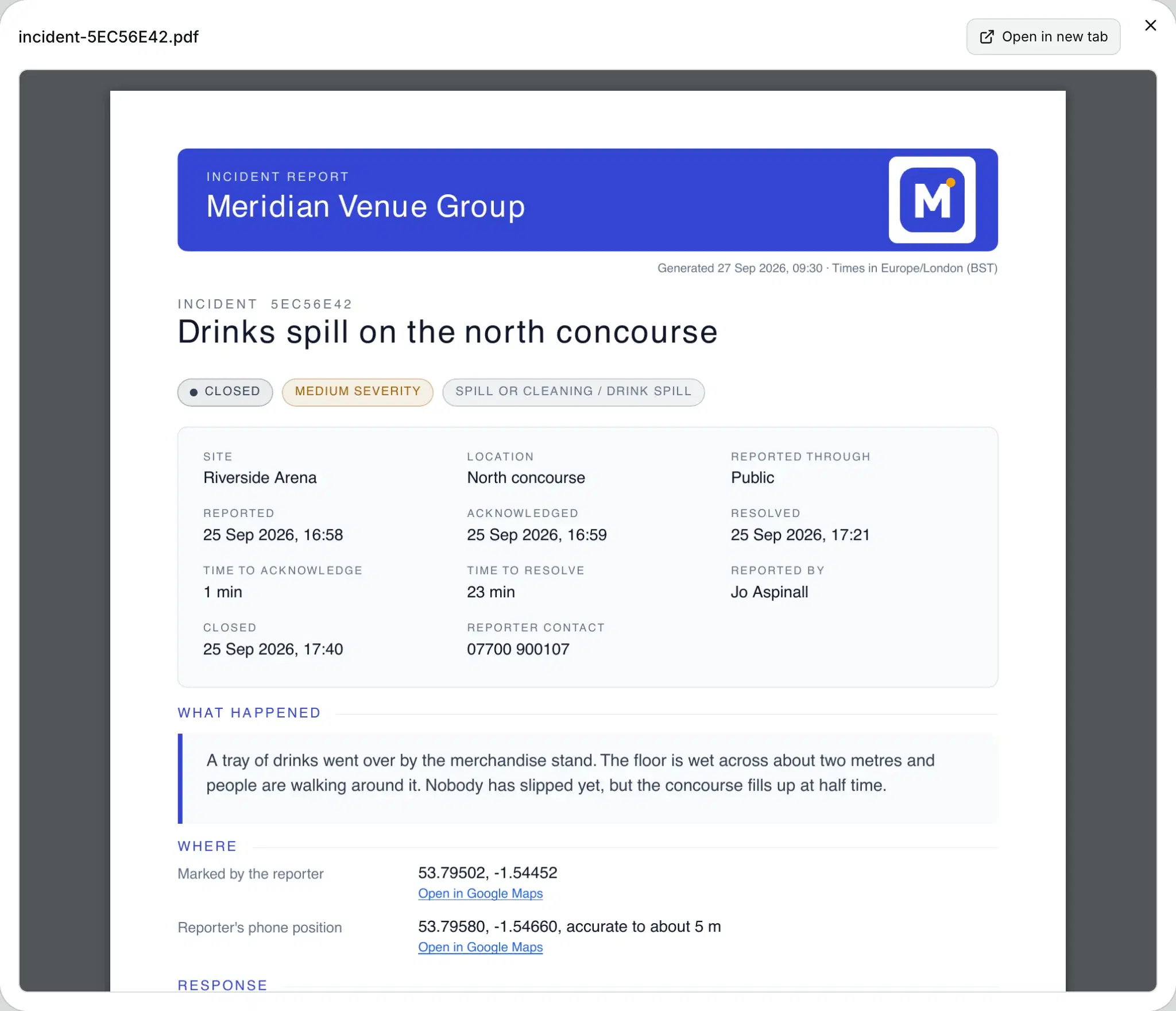
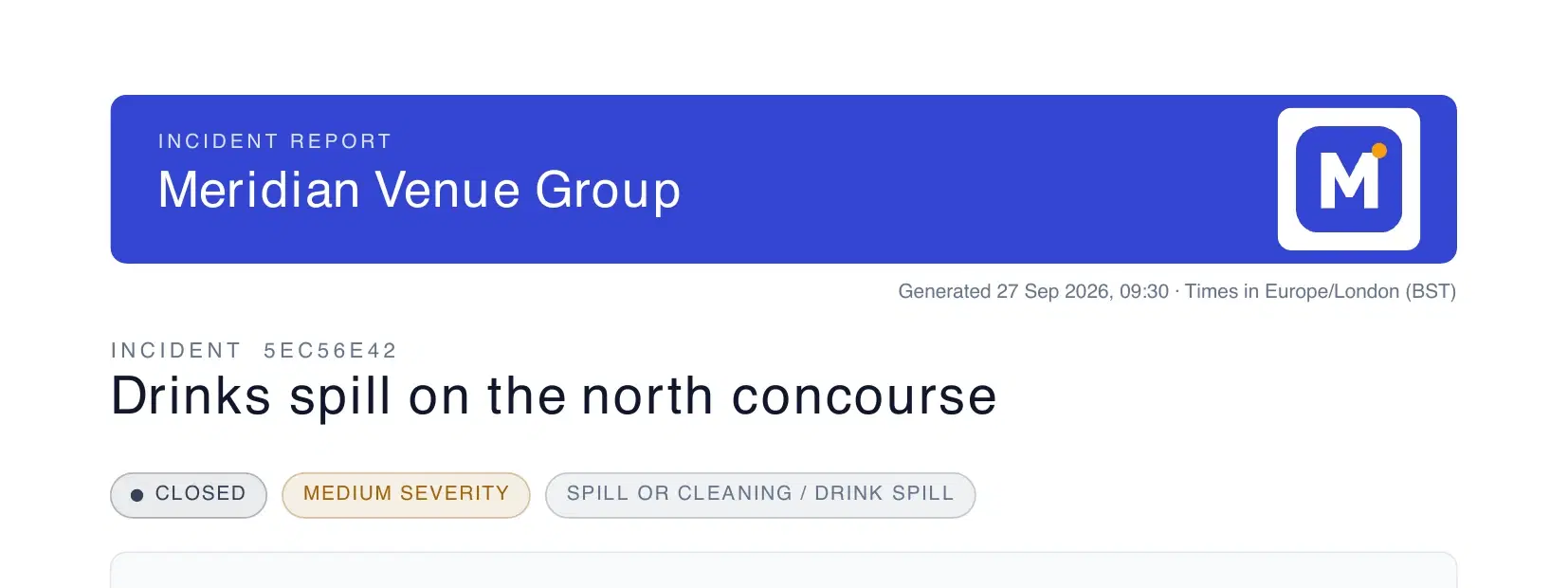
A real report, rendered by the product, for a drinks spill at a fictional arena.
Part 1 of 8
Your header
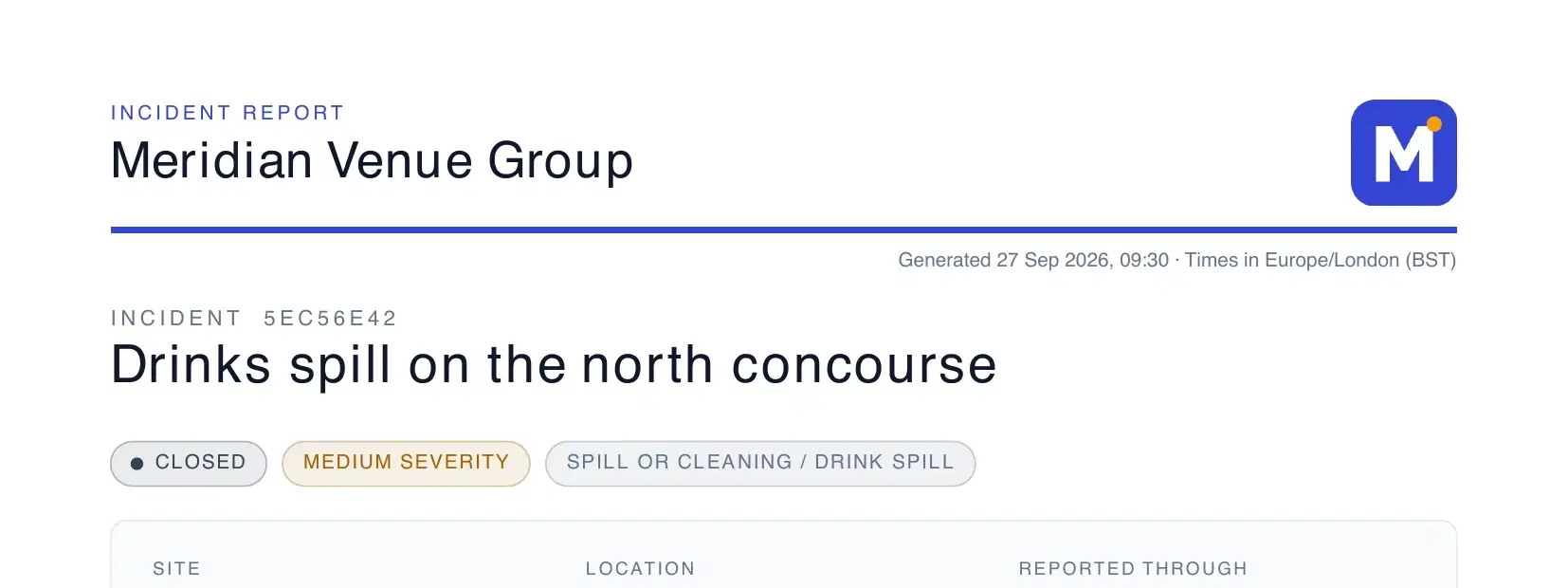
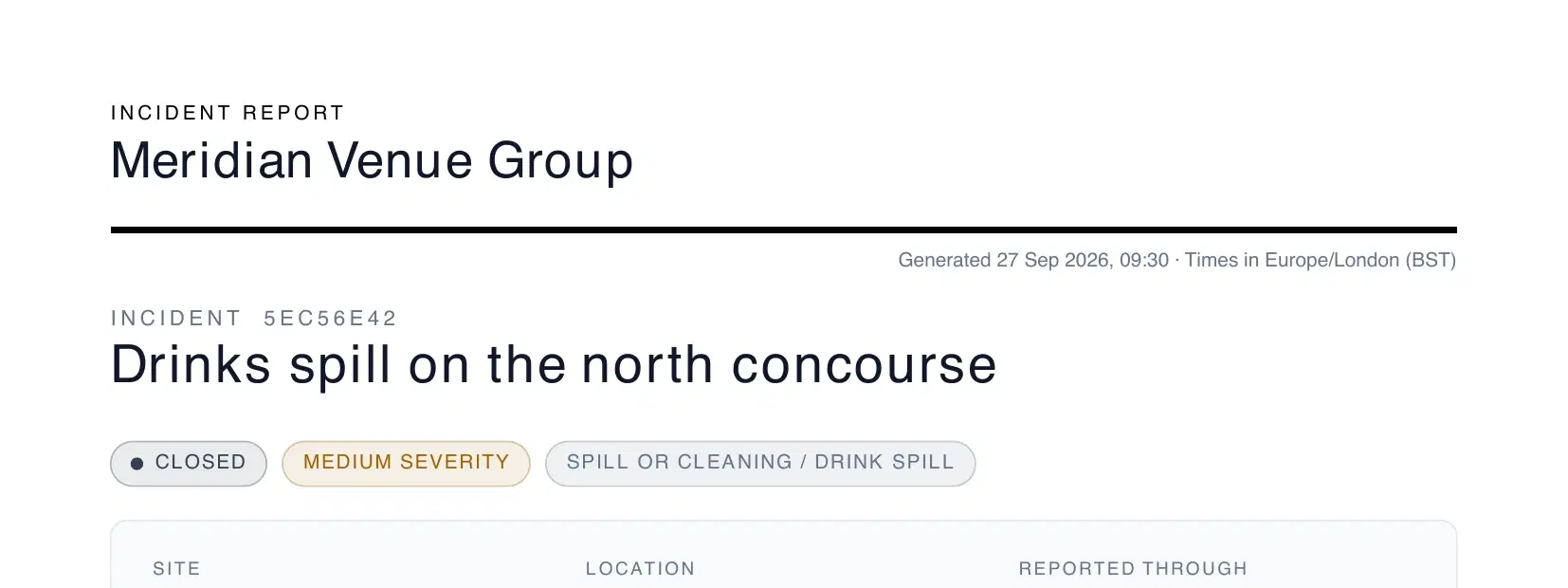
Your document title, workspace name and logo, in a filled band or above an accent rule. Under it, when the report was made and the time zone its times are in.
Part 2 of 8
The incident at a glance
Its reference and title, with the status, severity and category as coloured labels.
Part 3 of 8
The key facts
Site, location and how it came in. When it was reported, acknowledged and resolved, how long each step took, and who reported it with any contact they left.
Part 4 of 8
What happened
The description, set apart so it reads first.
Part 5 of 8
Where it is
The spot marked on the map and the reporter's phone position, each with a Google Maps link, whenever the report has them.
Part 6 of 8
Who responded
Who has the job, or who handled it, how it was assigned and when the response was due.
Part 7 of 8
Every event, in order
Each change in plain words, with its time and who made it. Times are in UK time, or in the schedule's time zone for a scheduled report. Up to six photos follow.
Part 8 of 8
A footer on every page
Your footer text, a small Powered by EvoPoint line and the page number. Later pages repeat the incident's reference and title at the top.
Summary page
More than one incident? It opens with the overview
- How many incidents are in it, how many are still open, how many are resolved or closed, and how many are high or critical.
- A bar for severity and one for status, so the mix shows at a glance.
- An index of every incident with its site, severity, status, when it was reported and the page it starts on.
- The dates it covers, newest incident first.
On demand
Pick a range, get a PDF
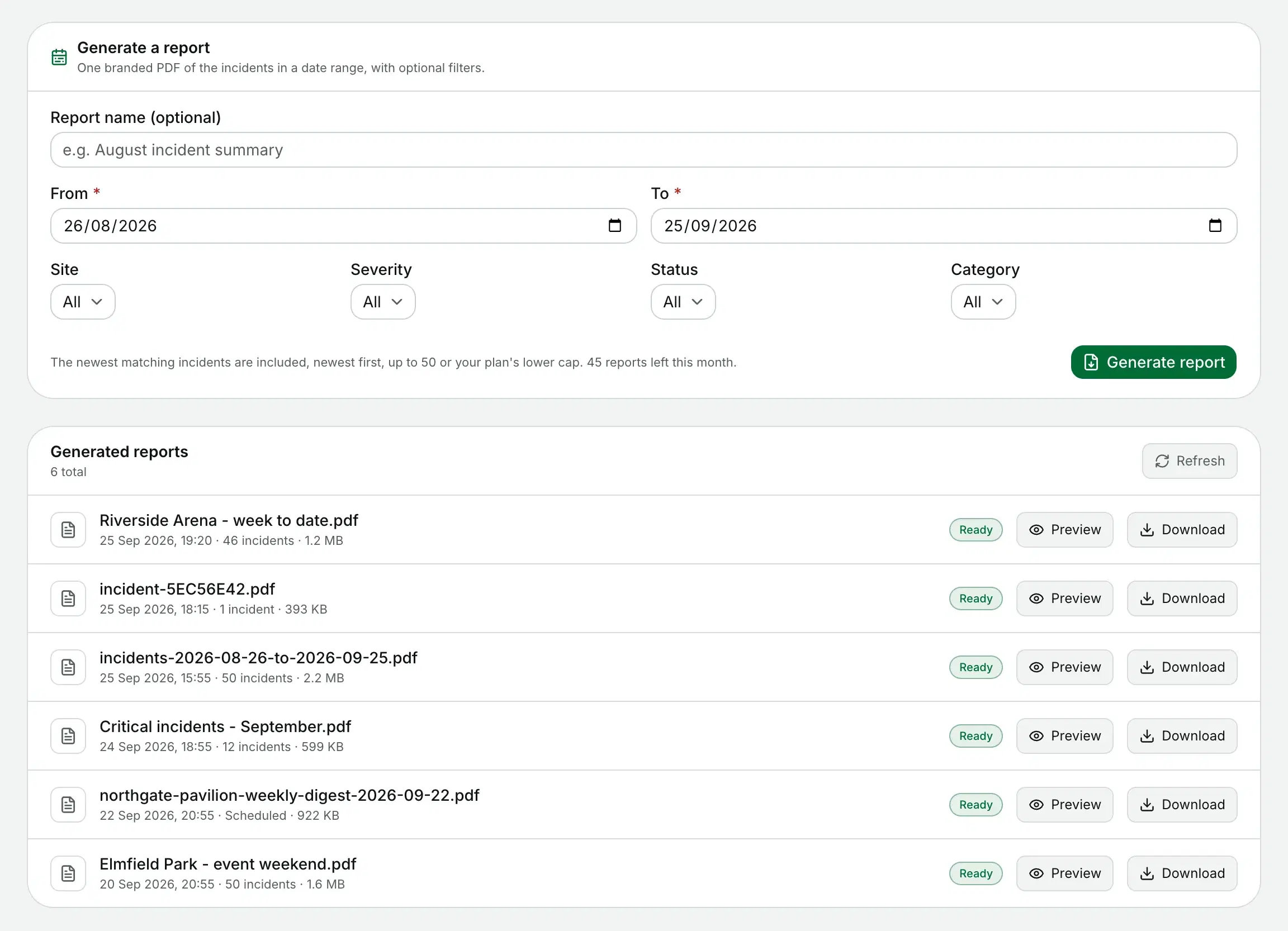
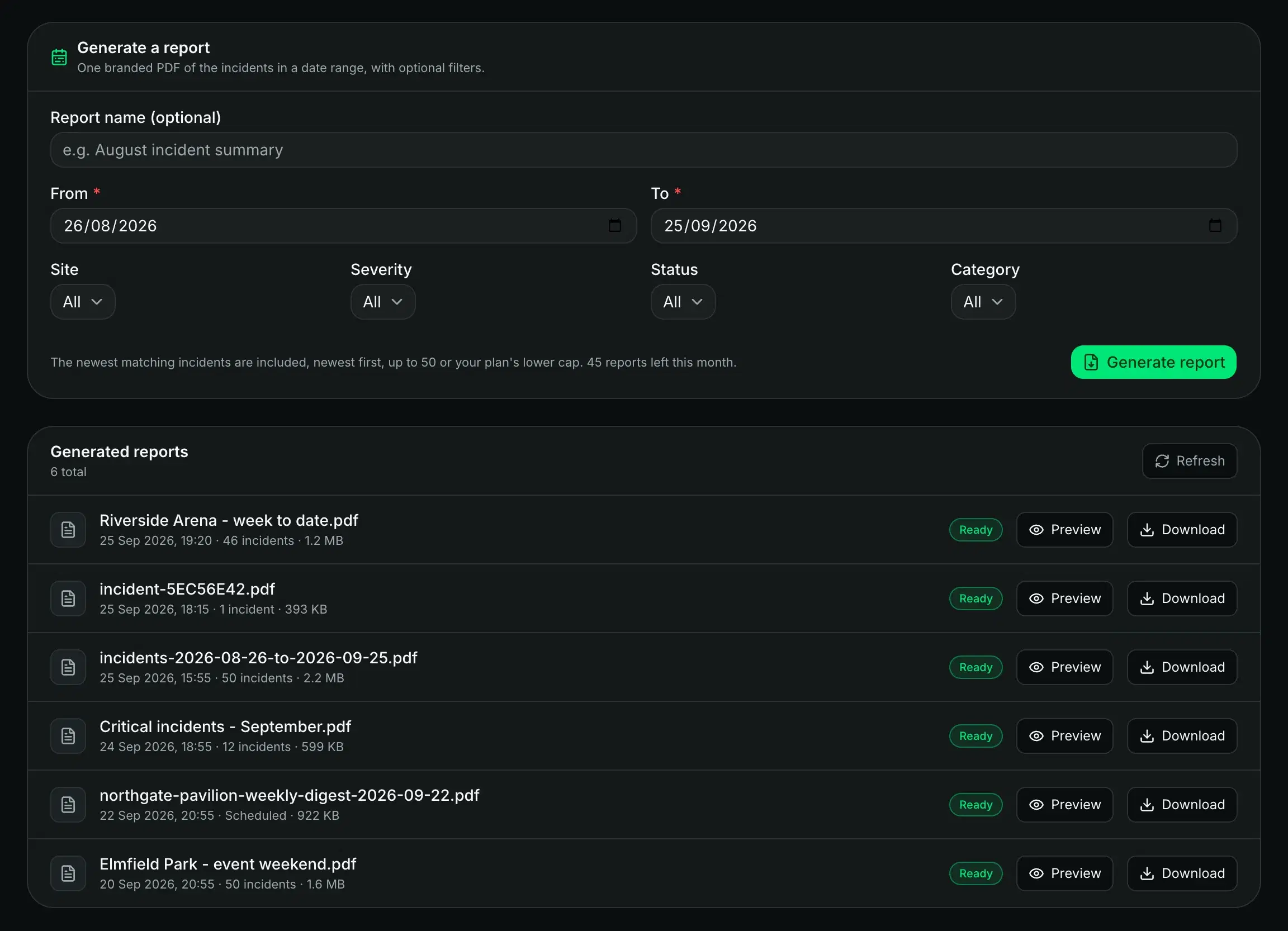
Choose the dates and any filters, give it a name if you like, and it goes in the queue. The newest matching incidents go in, up to 50 per report.
The page tells you when it is ready. Reports built on a schedule land in the same list.
Preview
Read it before you send it
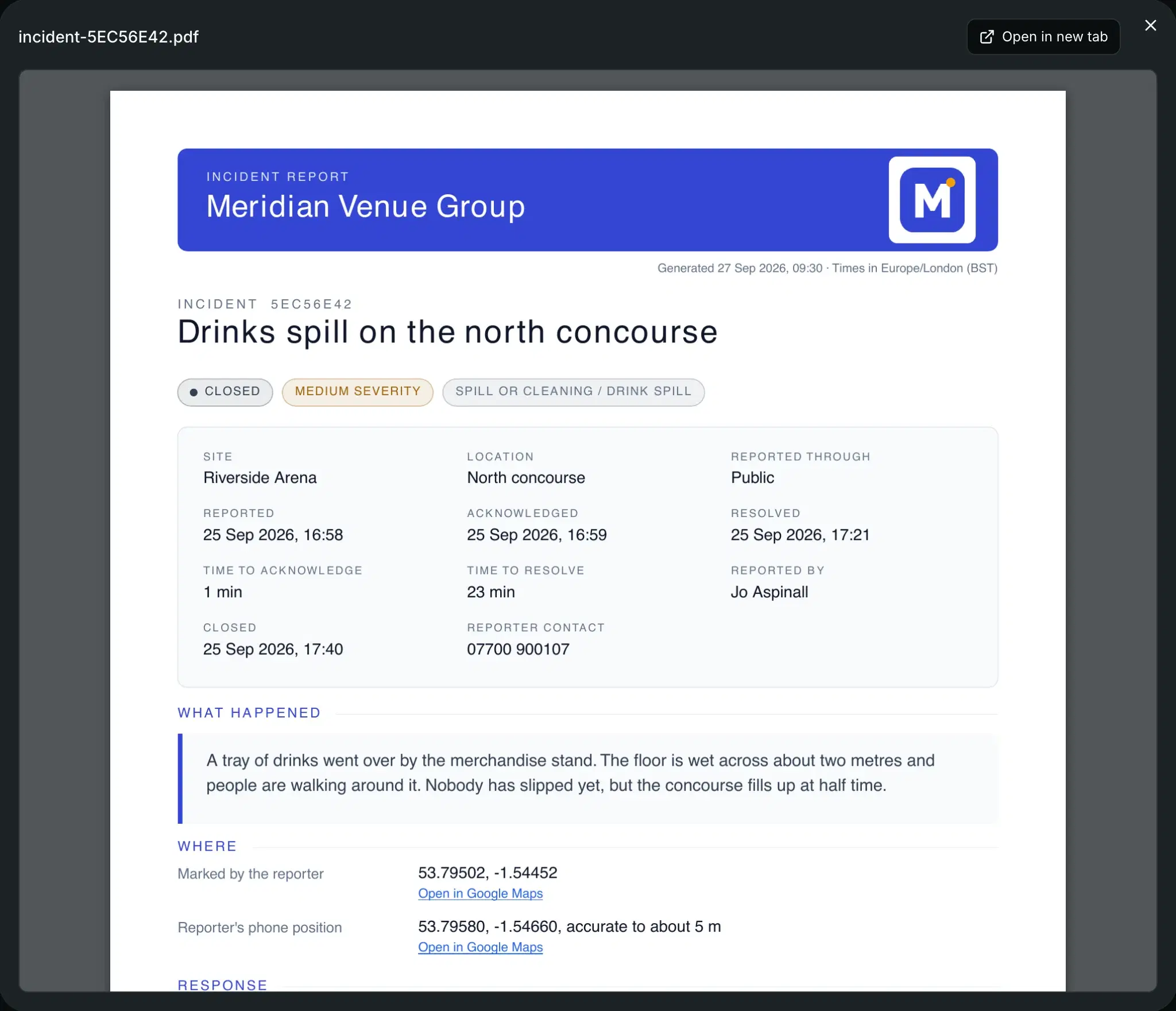
Open your recent finished reports in the browser, or download the PDF.
Need just one incident? Export timeline on the incident page builds the same PDF for that incident alone.
On a schedule
Reports that turn up on their own
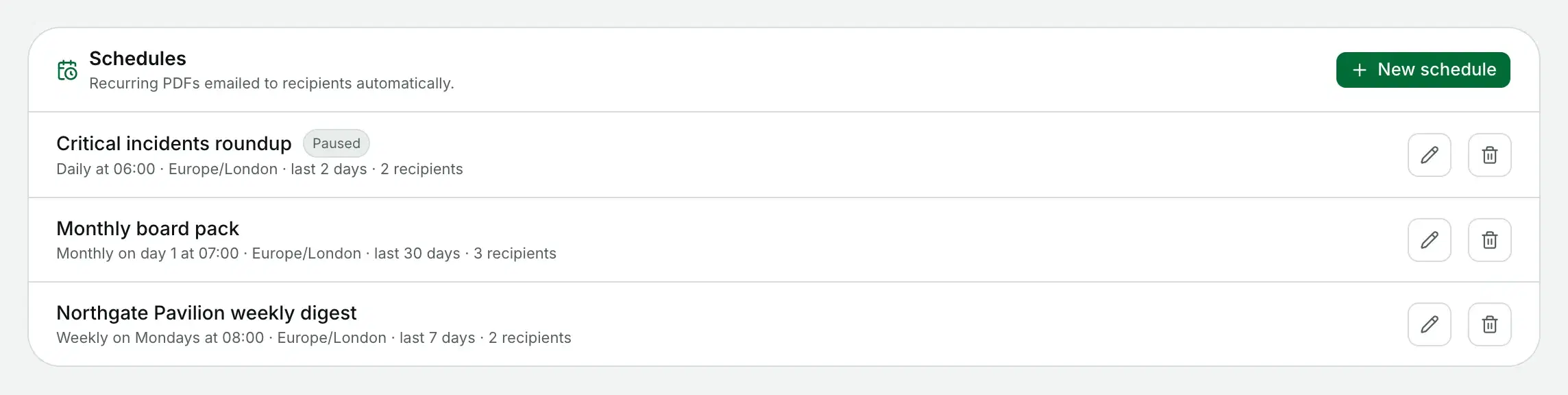
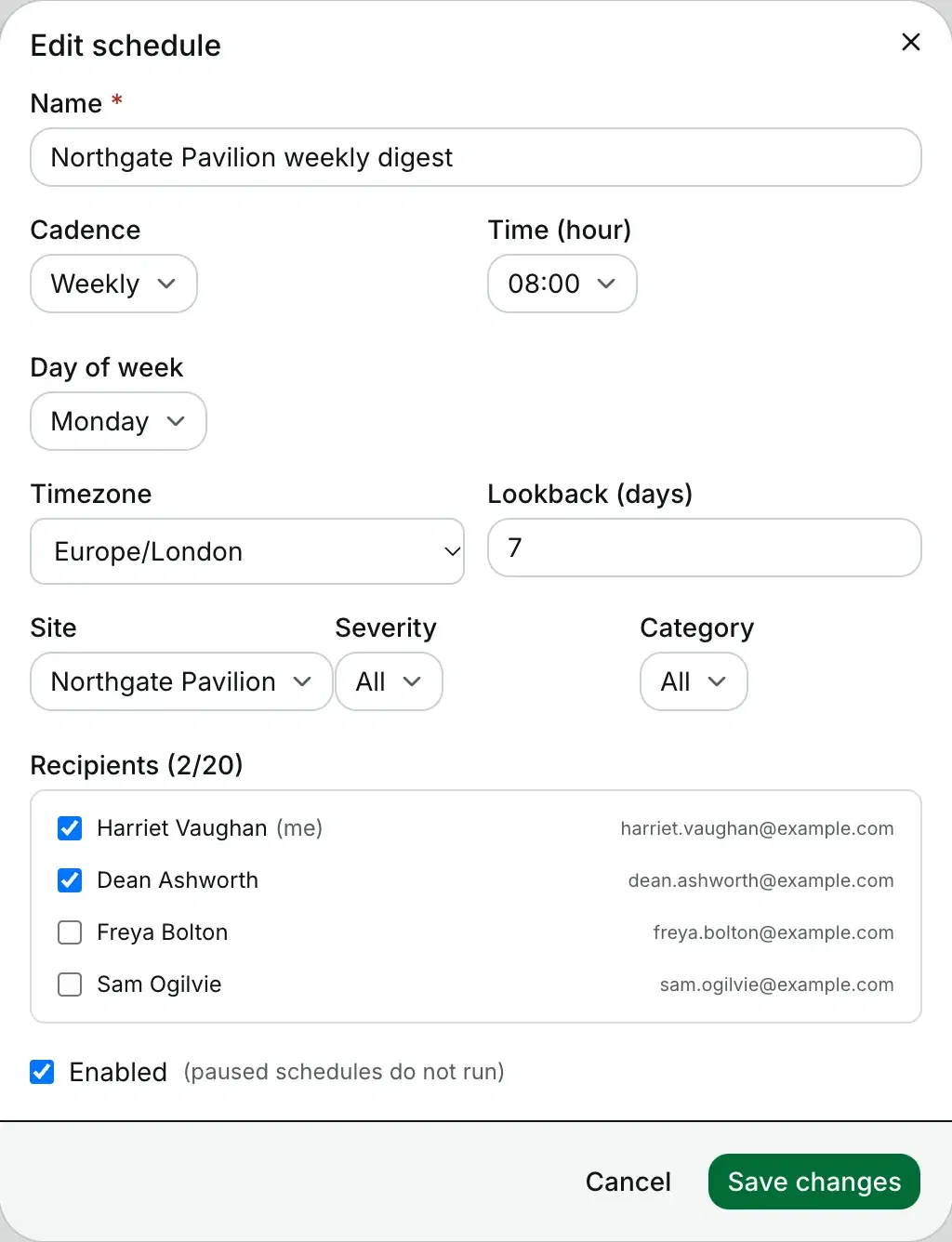
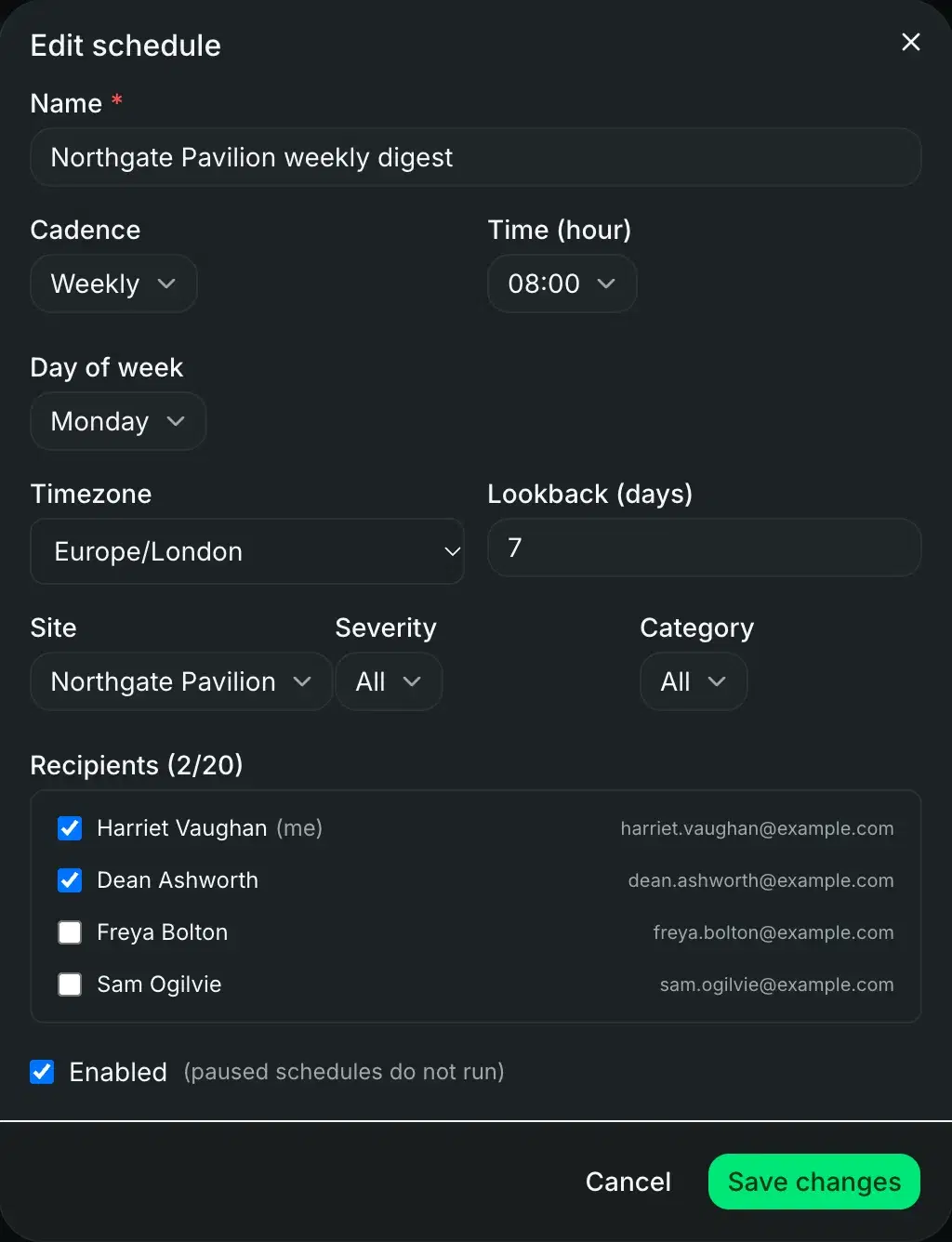
Daily, weekly or monthly, at the hour you pick in the timezone you pick.
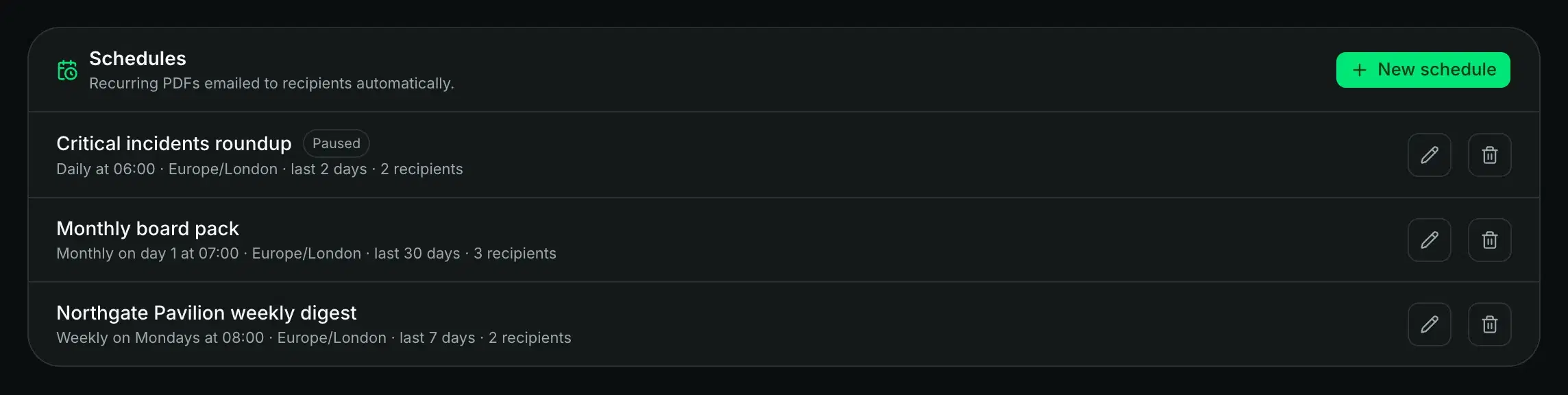
- Look back as far as you needAnything from the last day to the last 90, filtered by site, severity or category.
- The numbers, by emailEach run emails up to 20 controllers or admins with incidents logged, resolved and breached SLA. The PDF is never attached.
- Pause without deletingSwitch a schedule off and back on, and it keeps its settings.
- Nothing to send, nothing sentIf no incidents match, the run skips the PDF and the email.
Branding
It comes out looking like your organisation
Your document title, logo, accent colour and footer text on every report you generate.
Settings
Set it once for every report
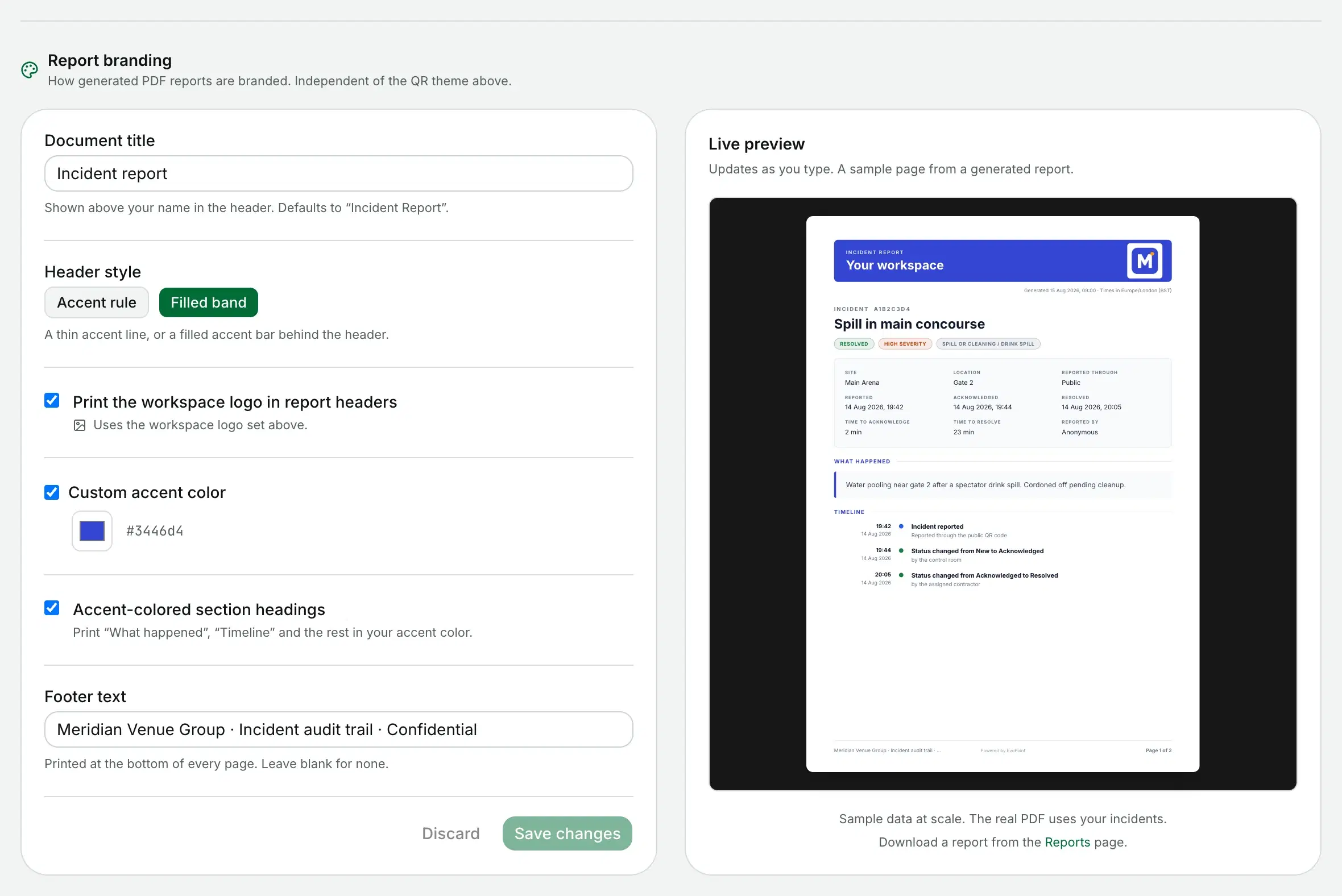
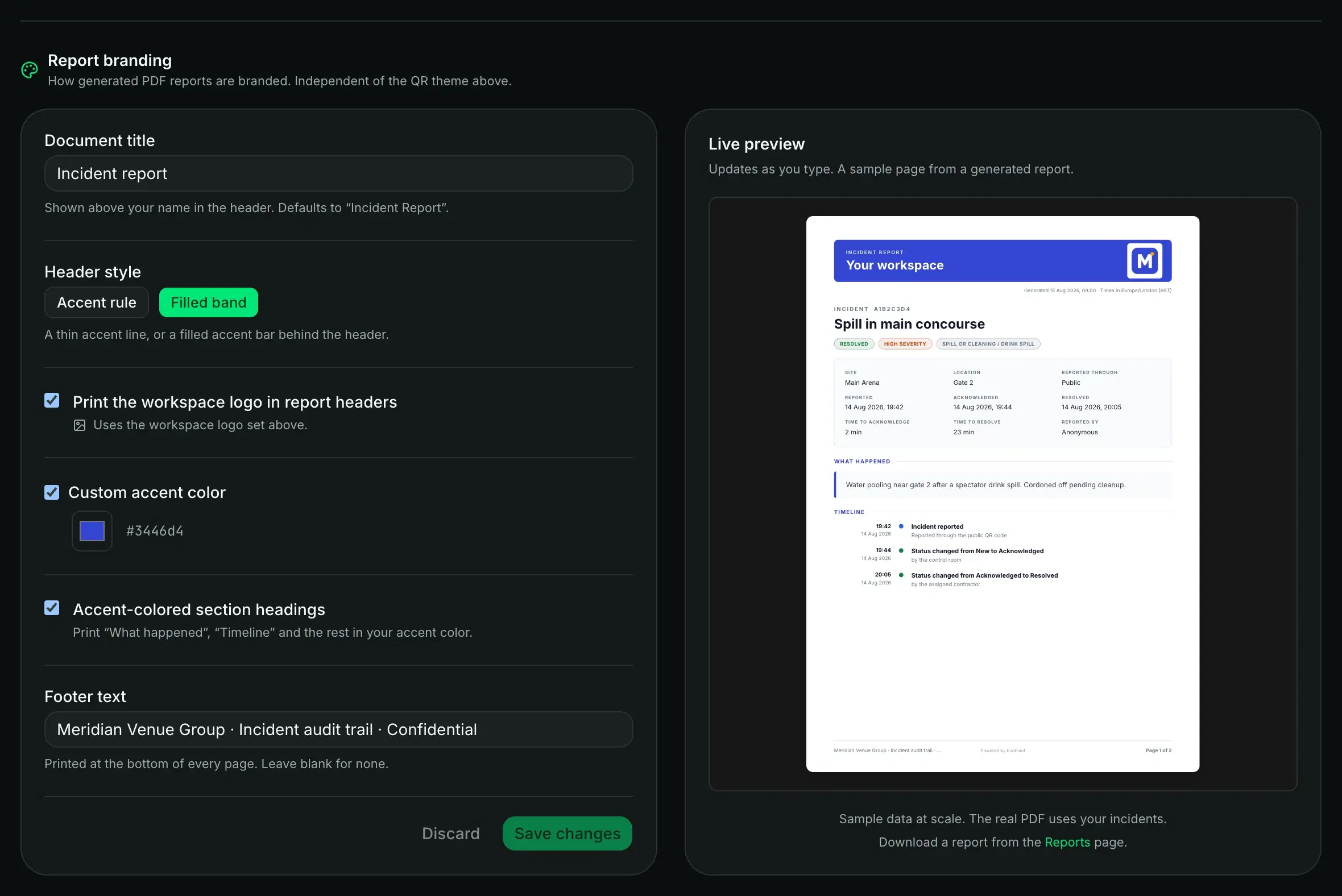
- A document title shown above your workspace name.
- A filled band or a thin accent rule for the header.
- Your logo, your accent colour and accent headings.
- Footer text printed at the bottom of every page.
Audit trail
Who did what, and when they did it
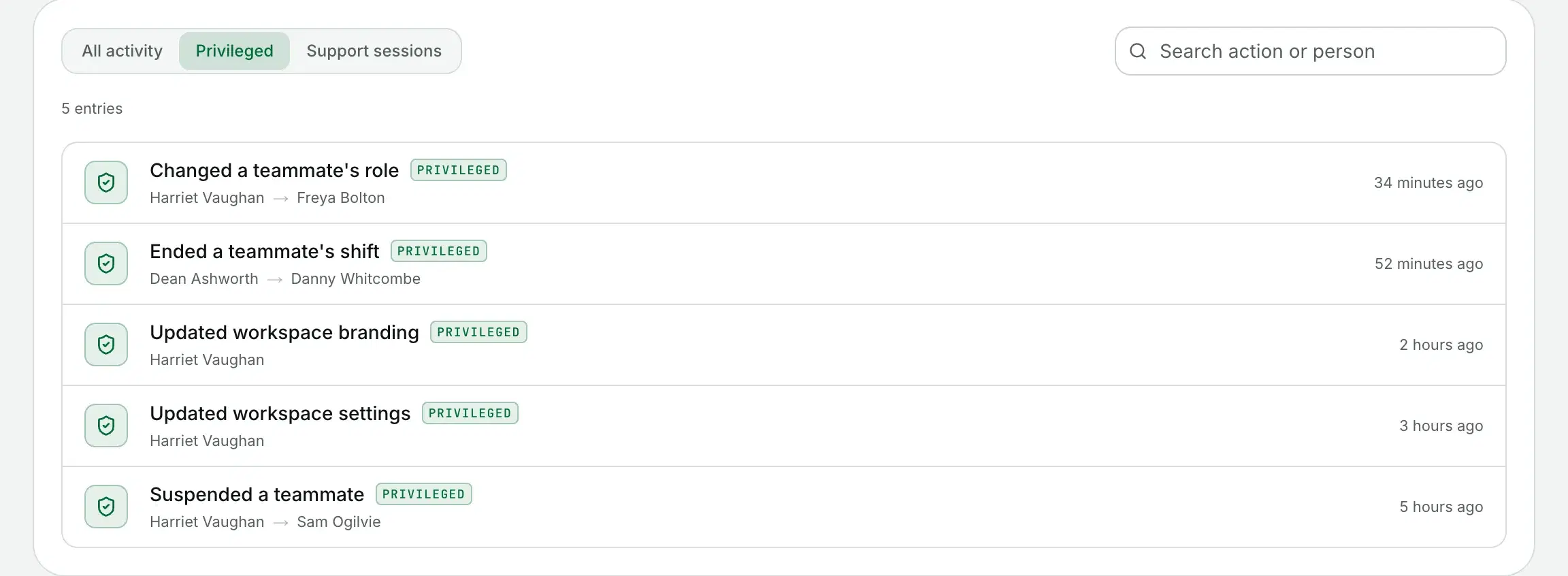
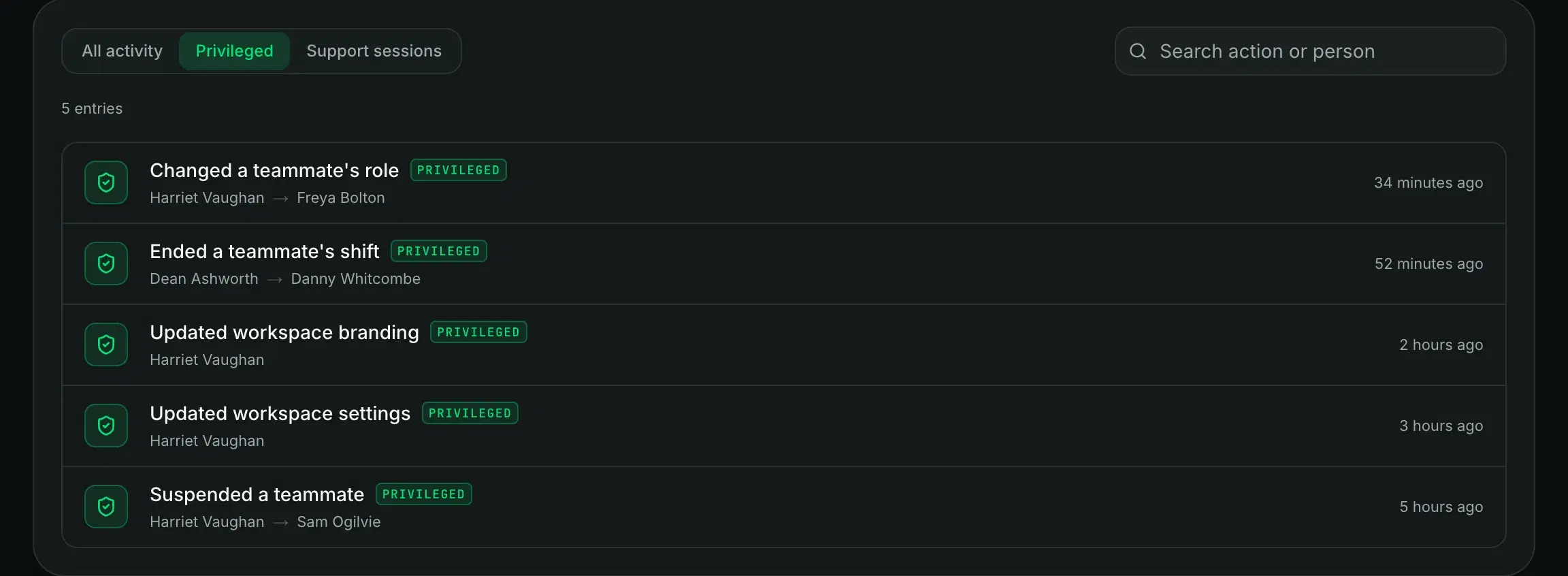
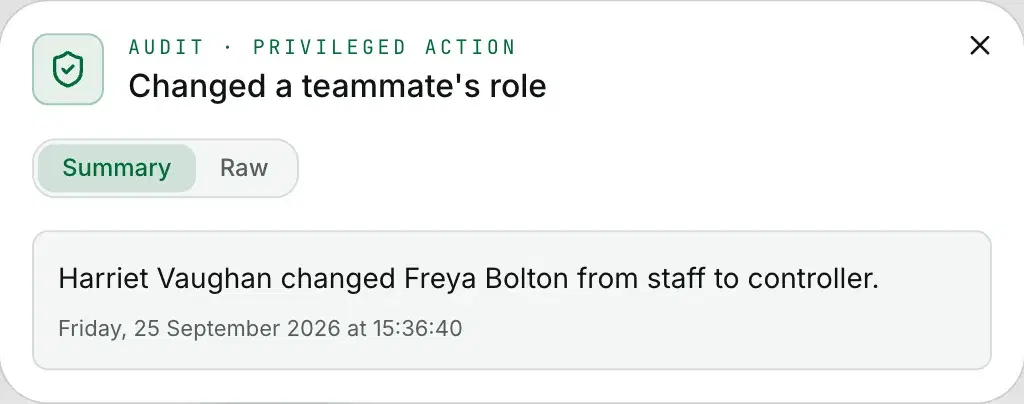
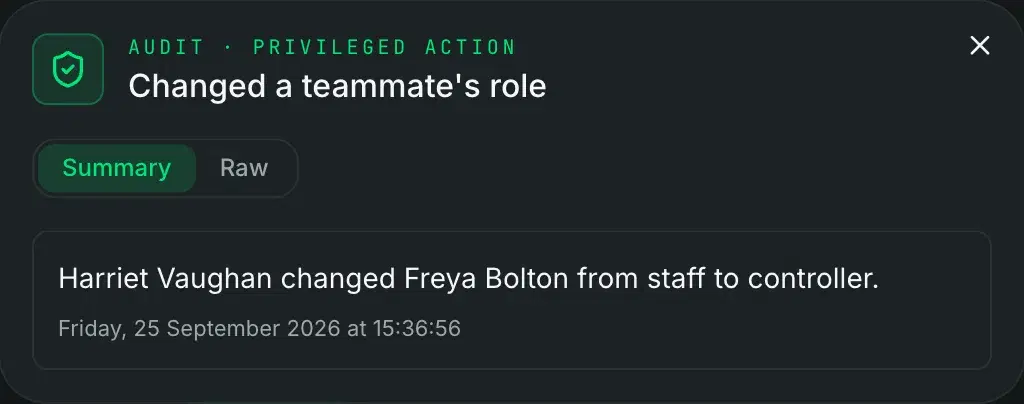
Team changes, sites, dispatch settings, branding and exports are written to the workspace audit log with the person who made them. There is no way to edit or delete an entry.
Search by action or person, switch to privileged actions only, and open any entry for the full detail.
Your data
It is your data, and you can take it
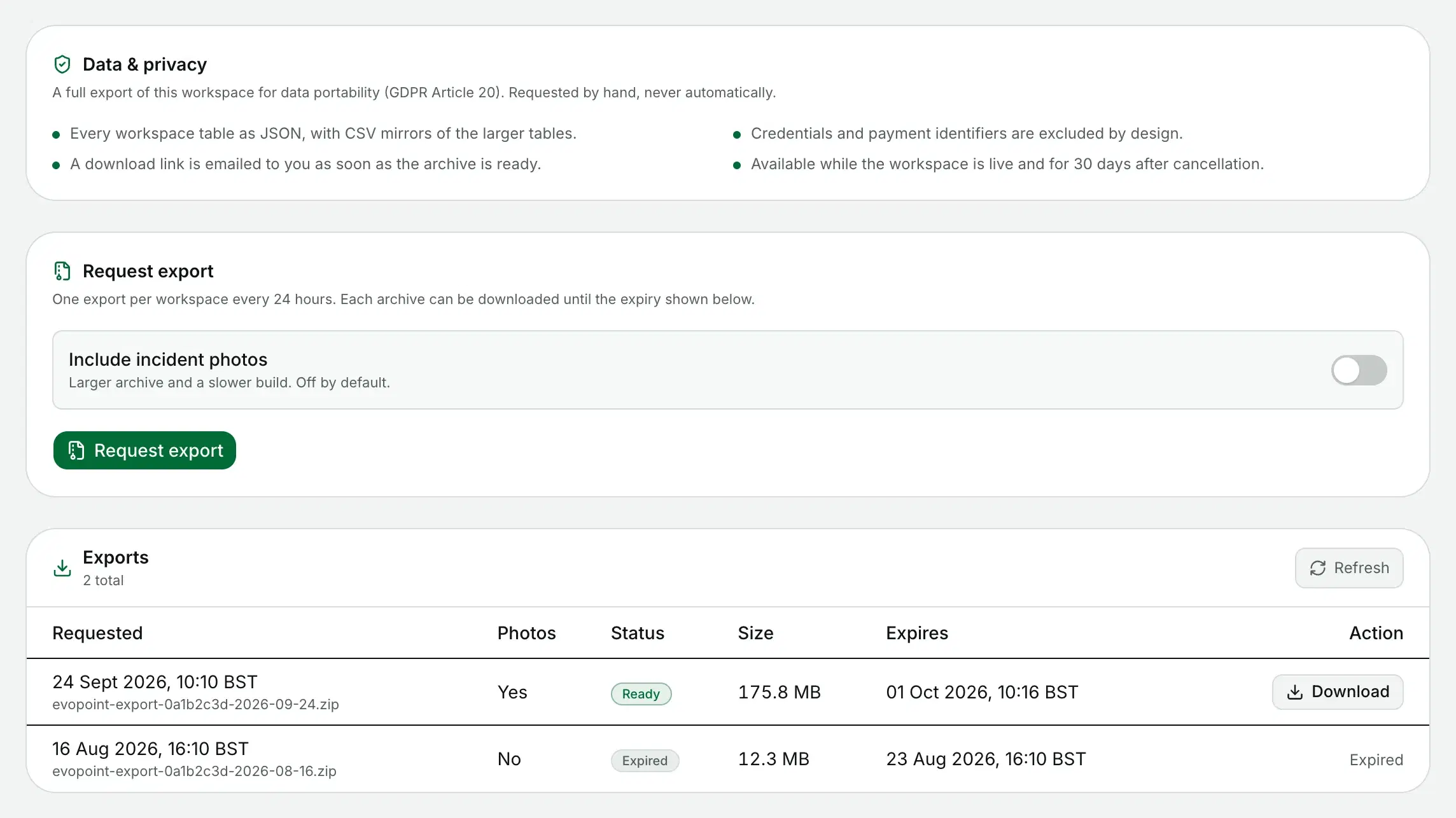
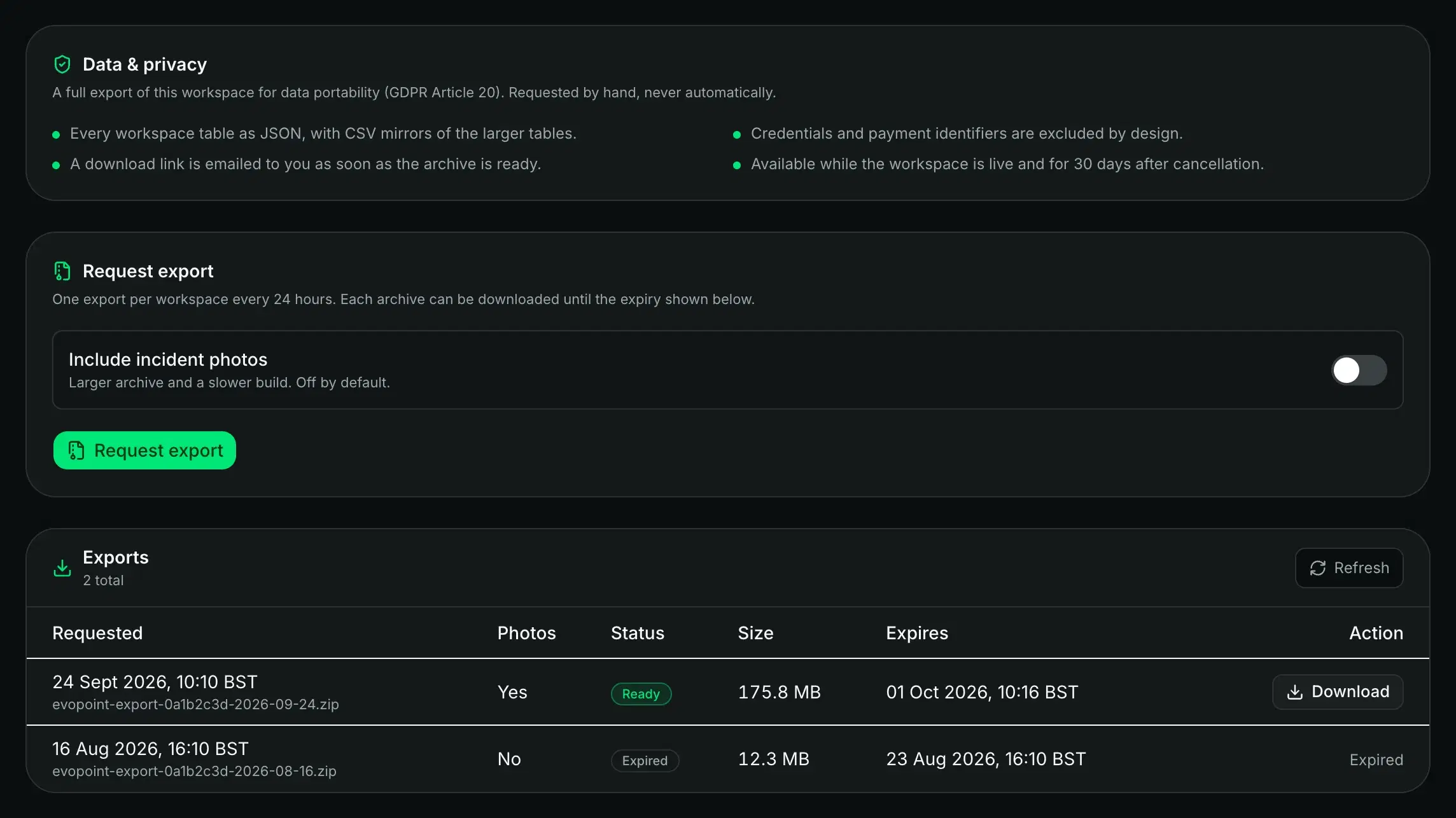
A company admin can export the whole workspace as JSON, with CSV copies of the larger tables and photos if you want them. We email you when the archive is ready to download.
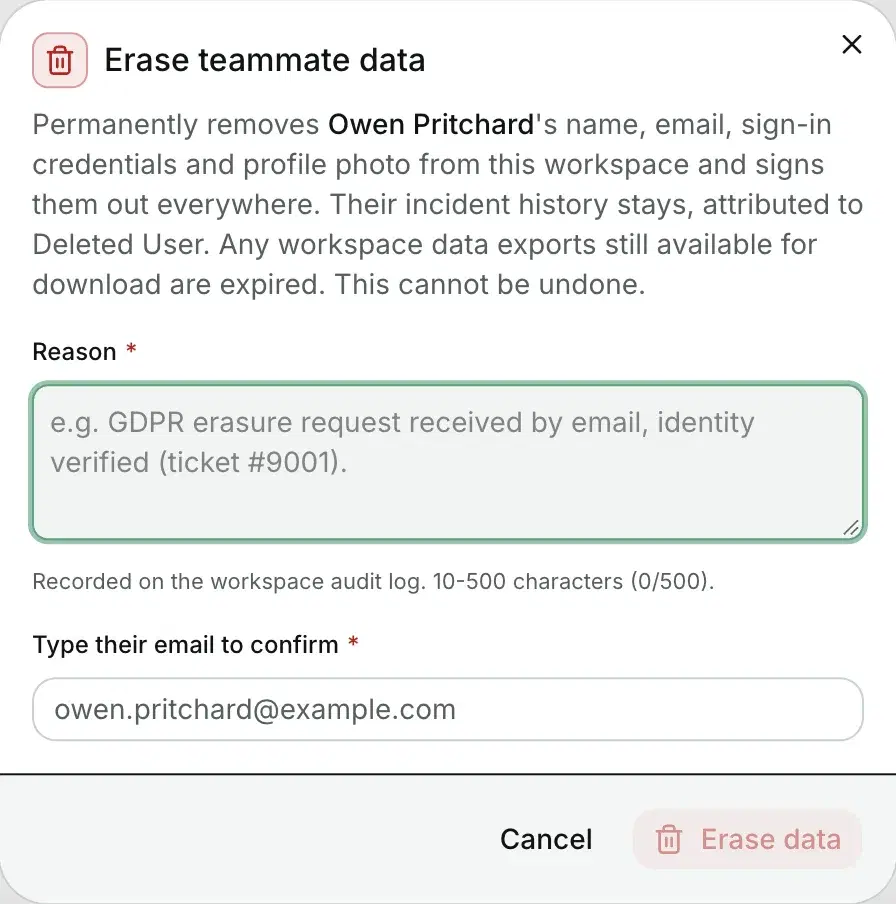
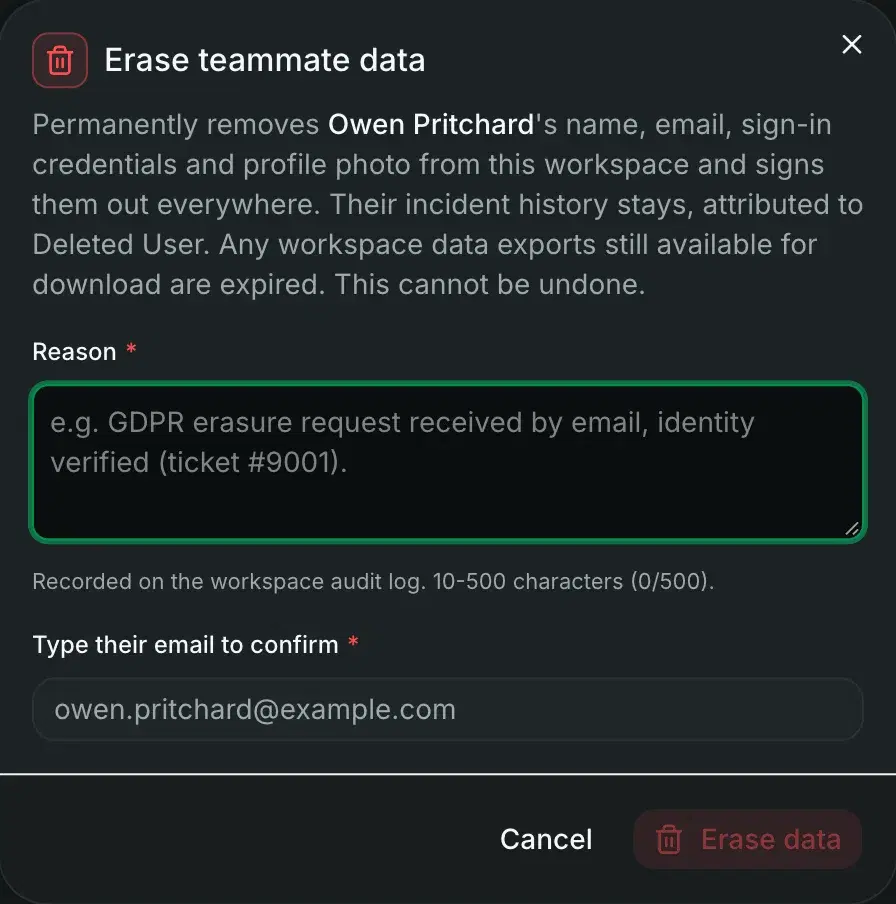
Erasing a person scrubs the name, email and sign-in on their account. Their incident history stays, under Deleted User.
Being straight about it
What a report is, and what it is not
A printable summary of each incident: the details, the people, the timeline and up to six photos.
Not a regulatory submission, not legal advice, no RIDDOR form.
Some of what is on this page depends on your plan. See what each plan includes.