
Branded QR solutions
Your brand on every code, poster and report page
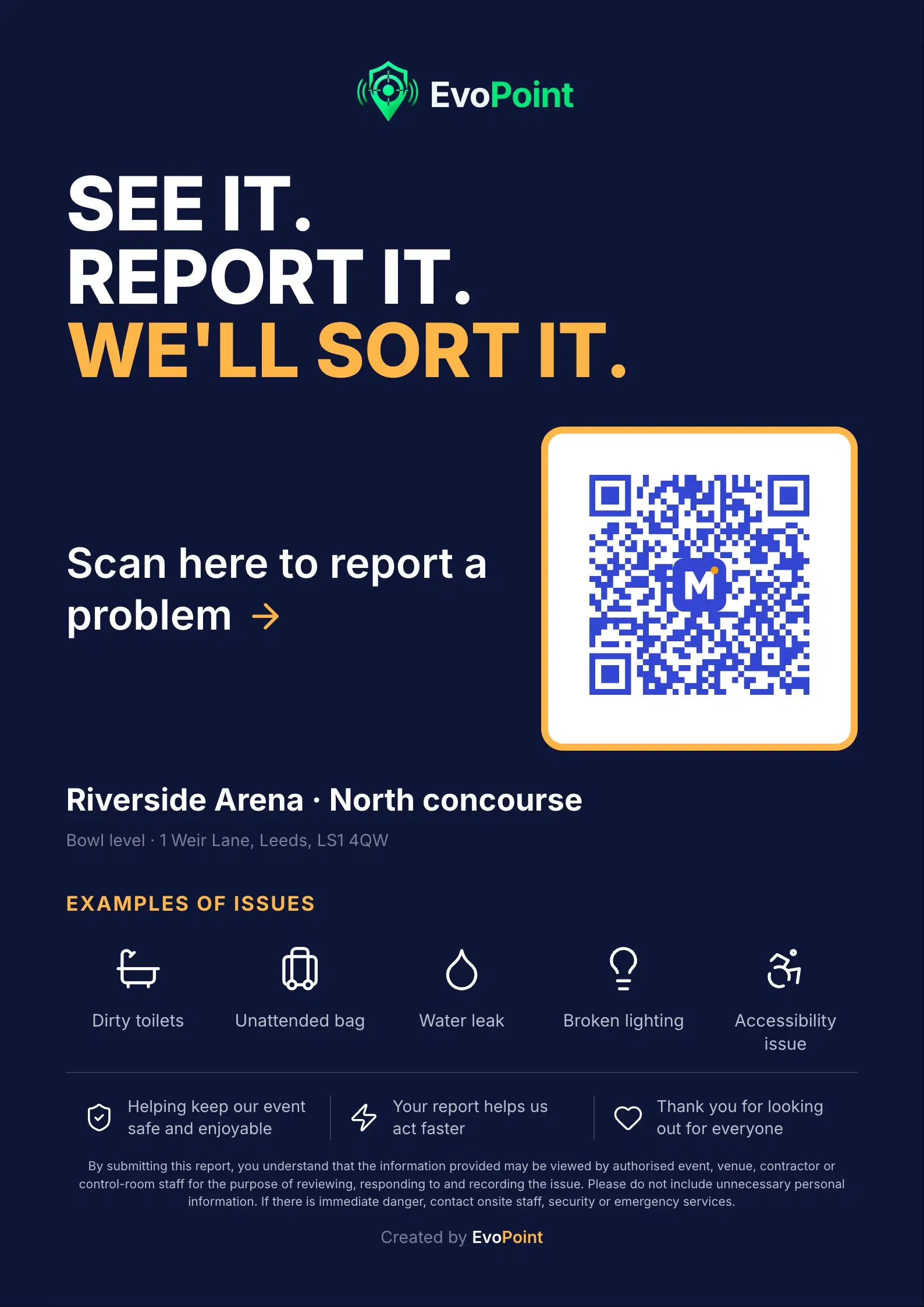
Put a poster at every location. A scan opens a report page with your logo and colour, and the report reaches your control room with its location.
Scan · report · route
From a poster on the wall to your control room
Each code belongs to one location, so every report arrives already knowing where it came from.
Public reporting
What the person with the phone sees
One page, made to be finished on the move. Nothing to install and no account to make.
Step 1 of 8
Scan the code
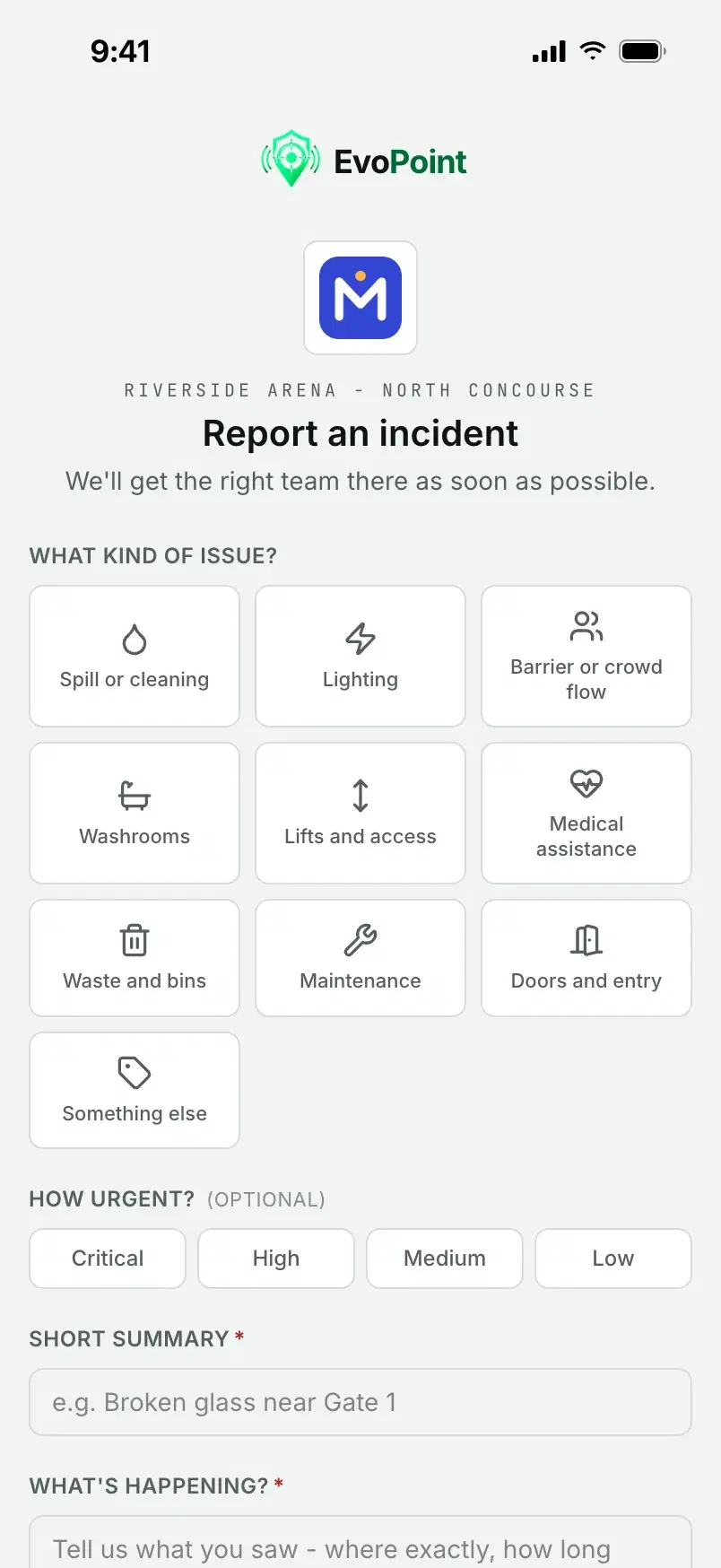
The phone's camera opens a web page for that exact spot, showing your logo and the name of that spot.
Step 2 of 8
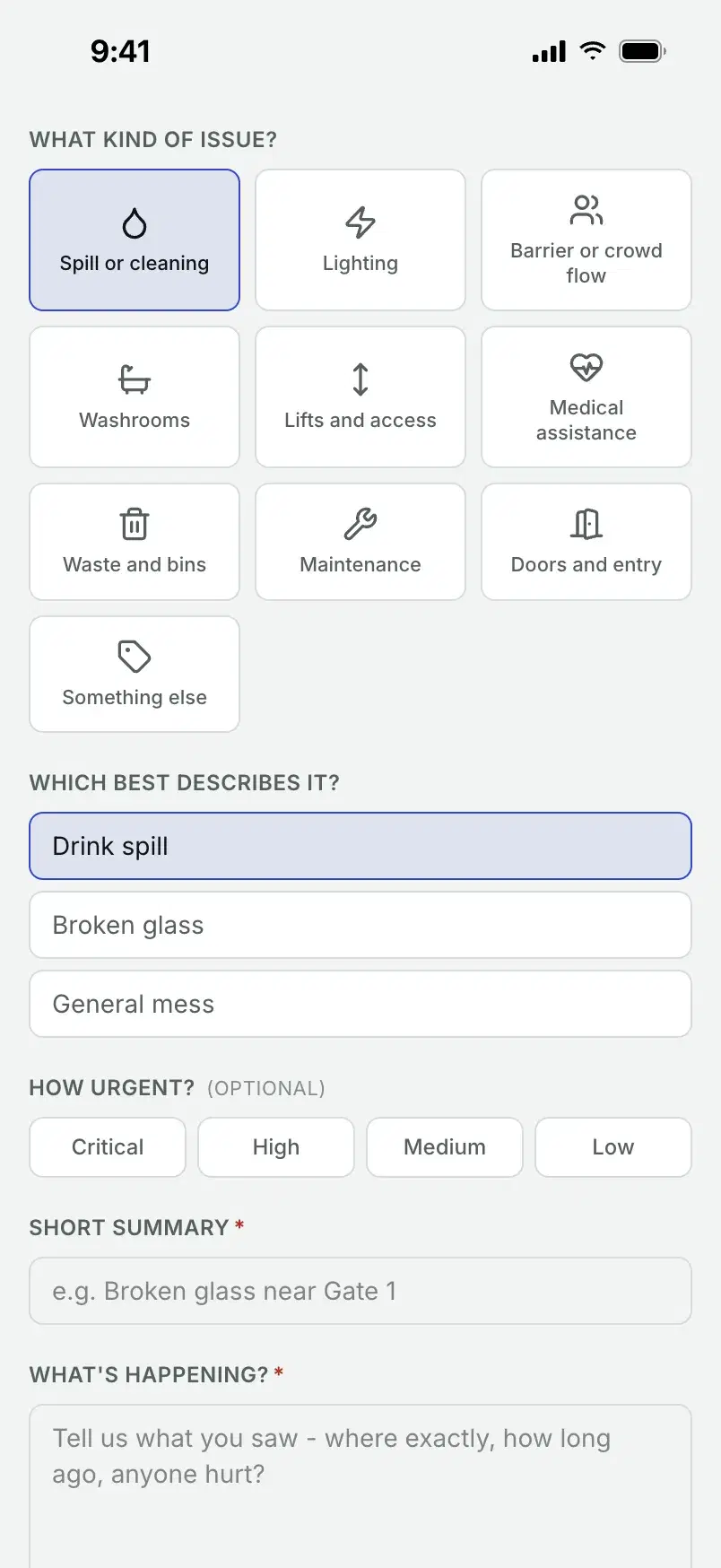
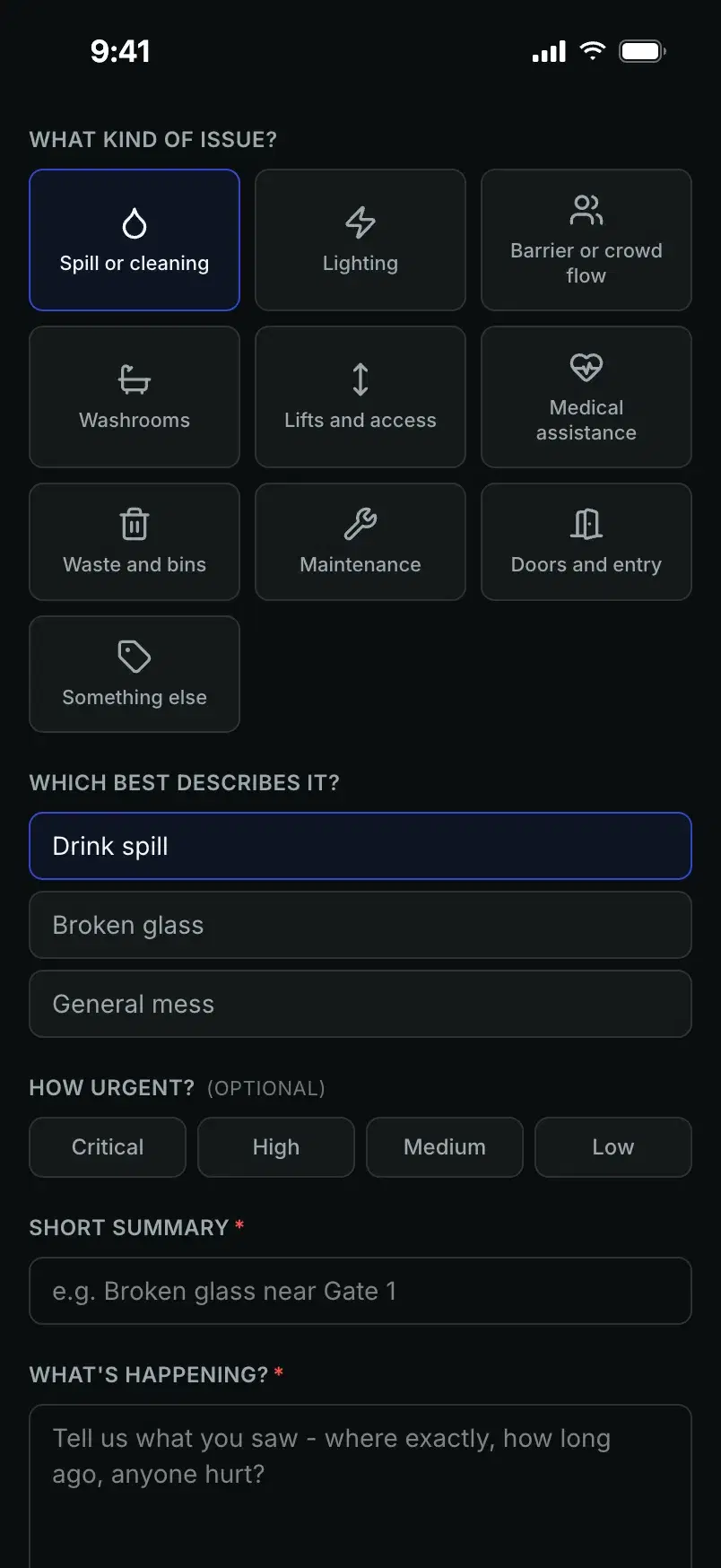
Pick what is wrong
Your own categories and subcategories. The one they pick lights up in your brand colour.
Step 3 of 8
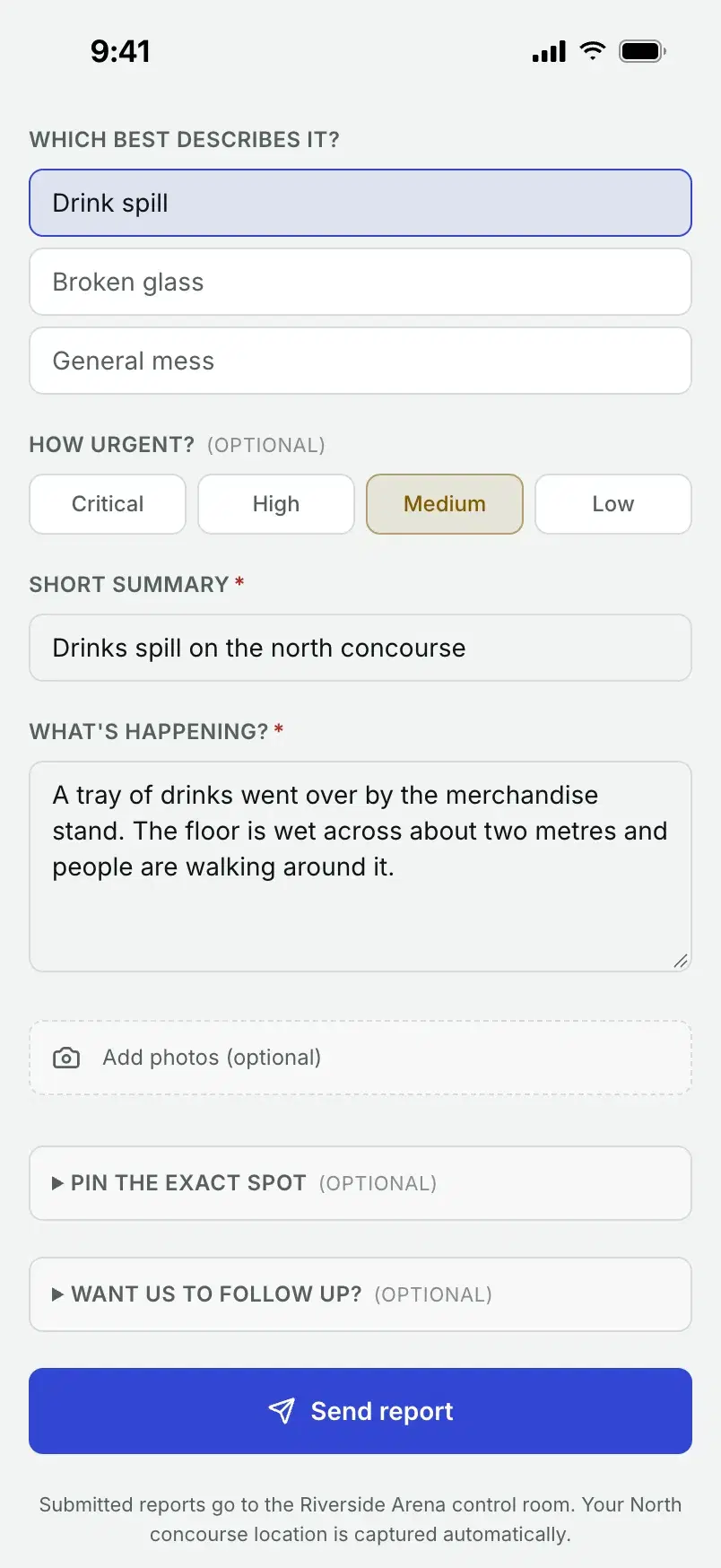
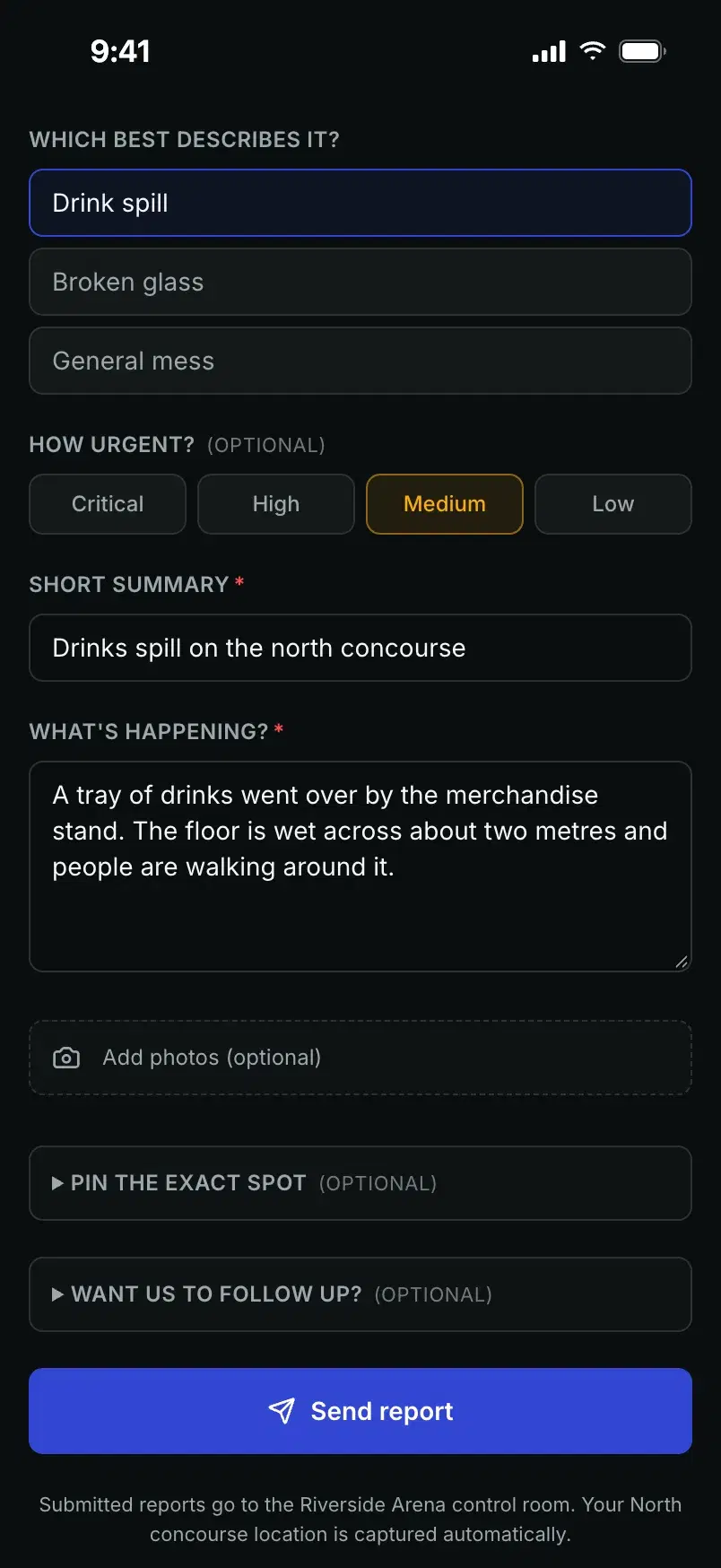
Say what happened
A short summary and a few words on what they saw. Urgency is optional. What they type is saved on the phone as they go.
Step 4 of 8
Add photos
Up to five photos per report, straight from the camera. Large photos are shrunk on the phone before they upload.
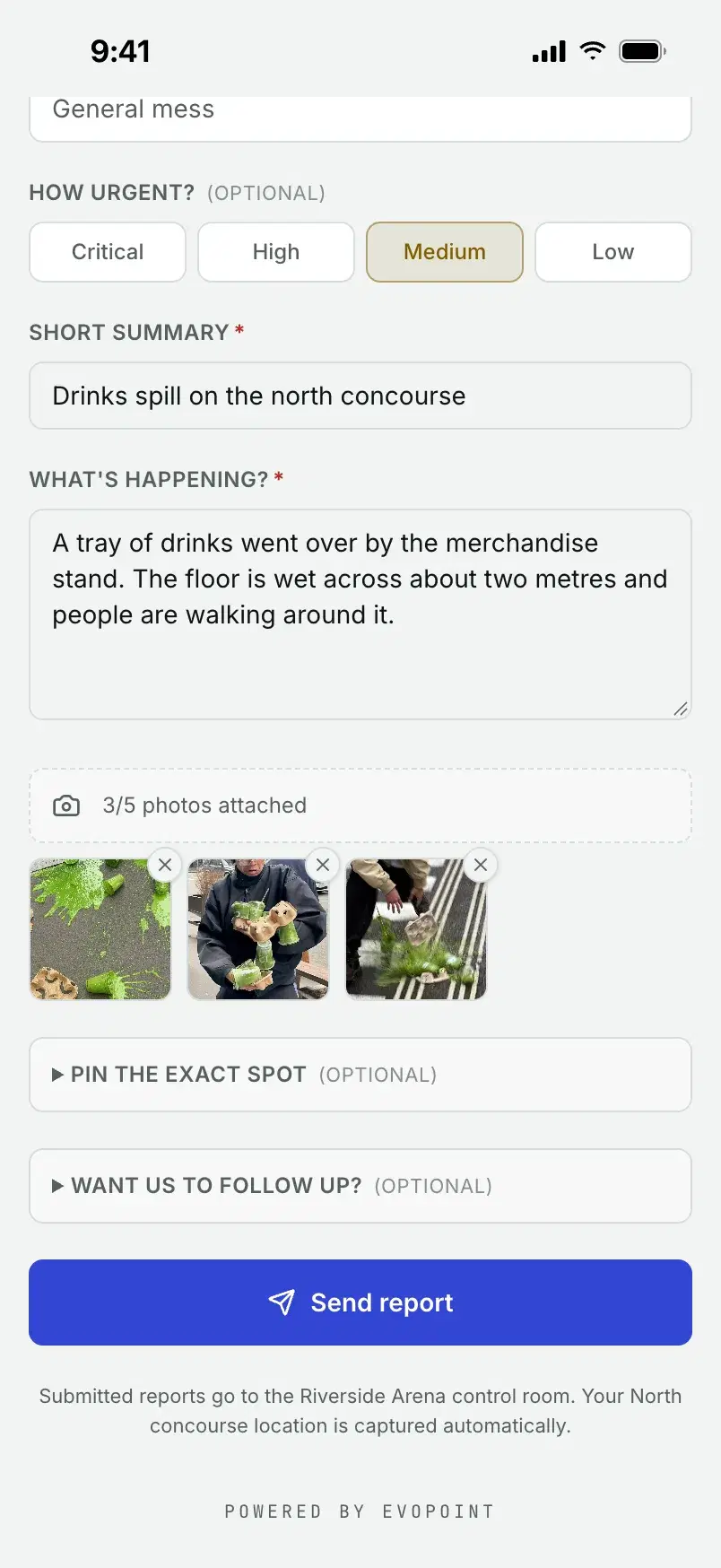
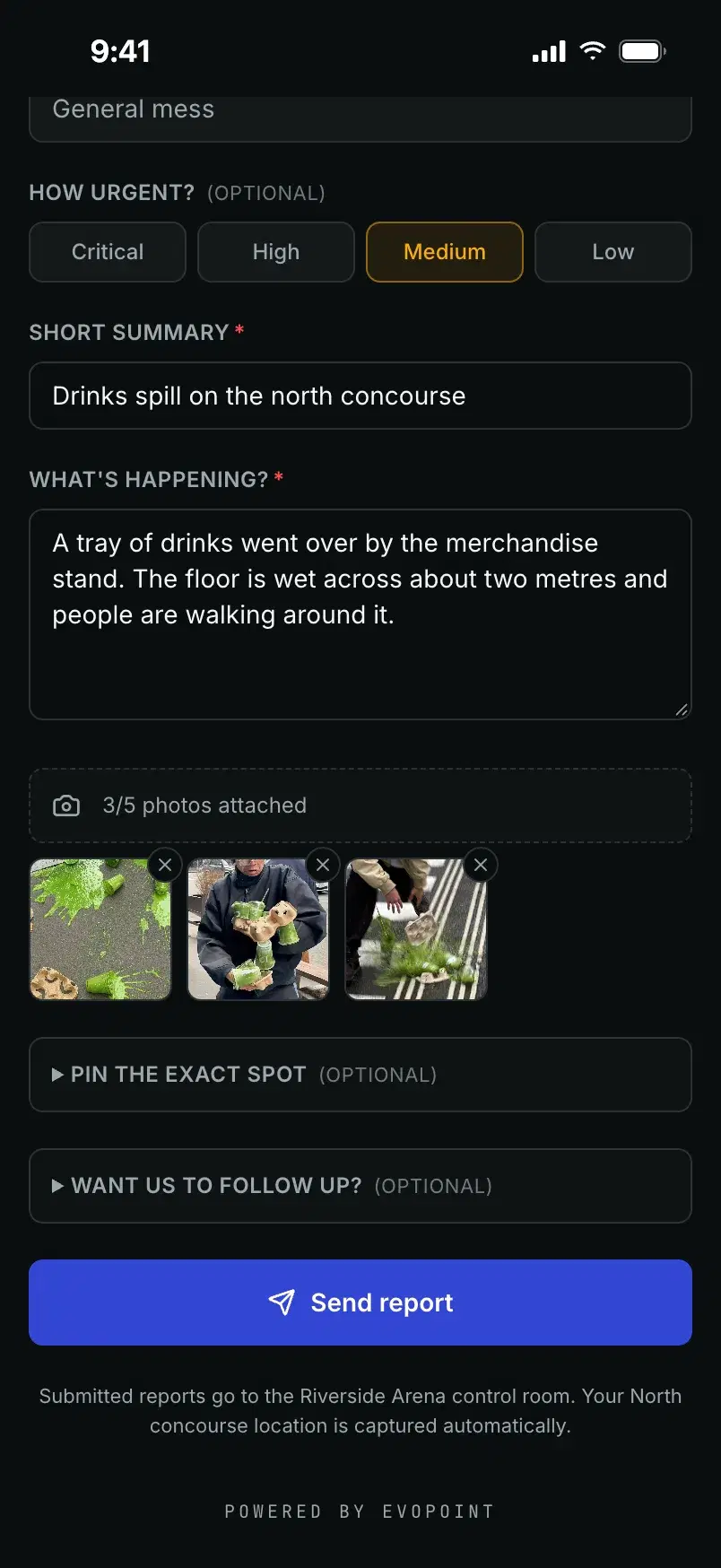
Step 5 of 8
Pin the exact spot
A map to drop a pin on, if the spot needs pinning down. If they allow it, the phone's location comes with the report too.
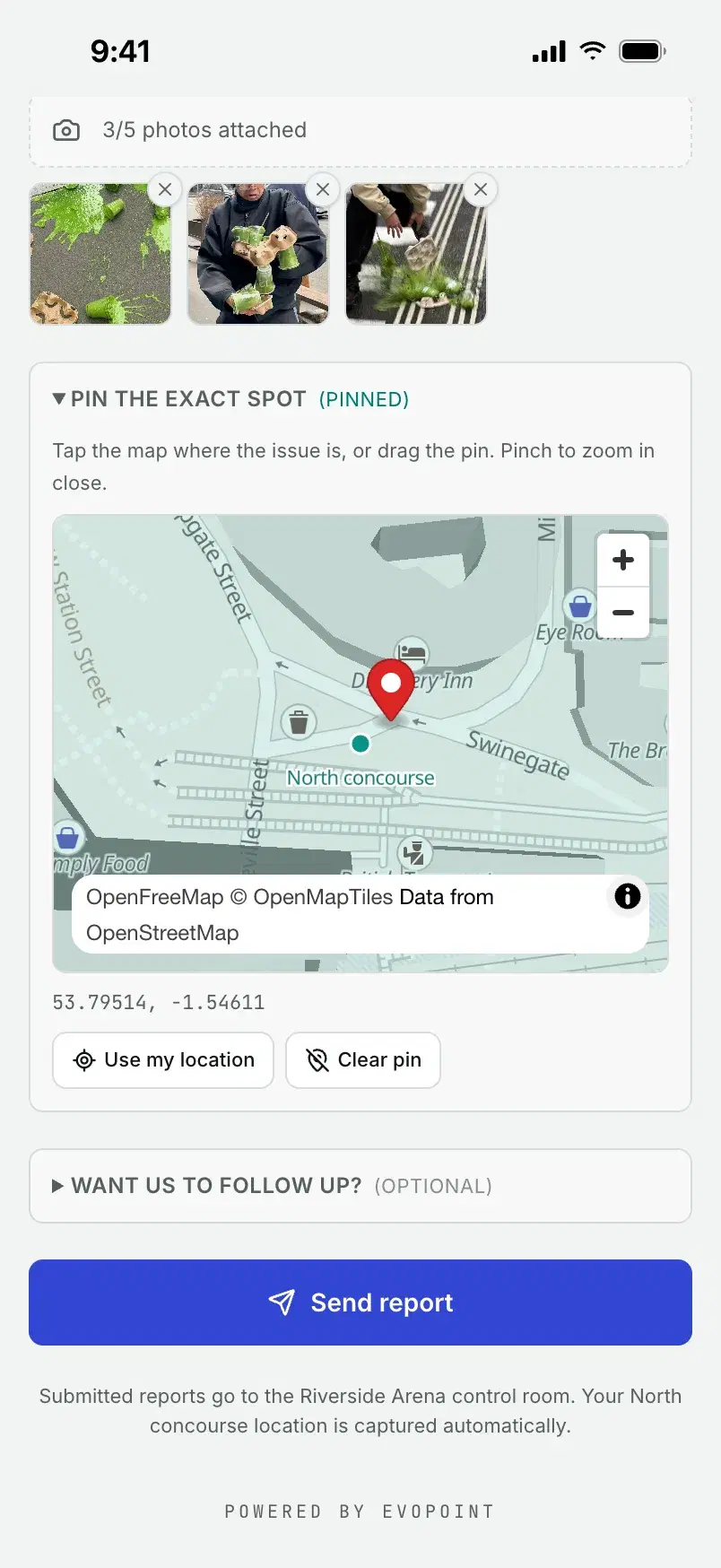
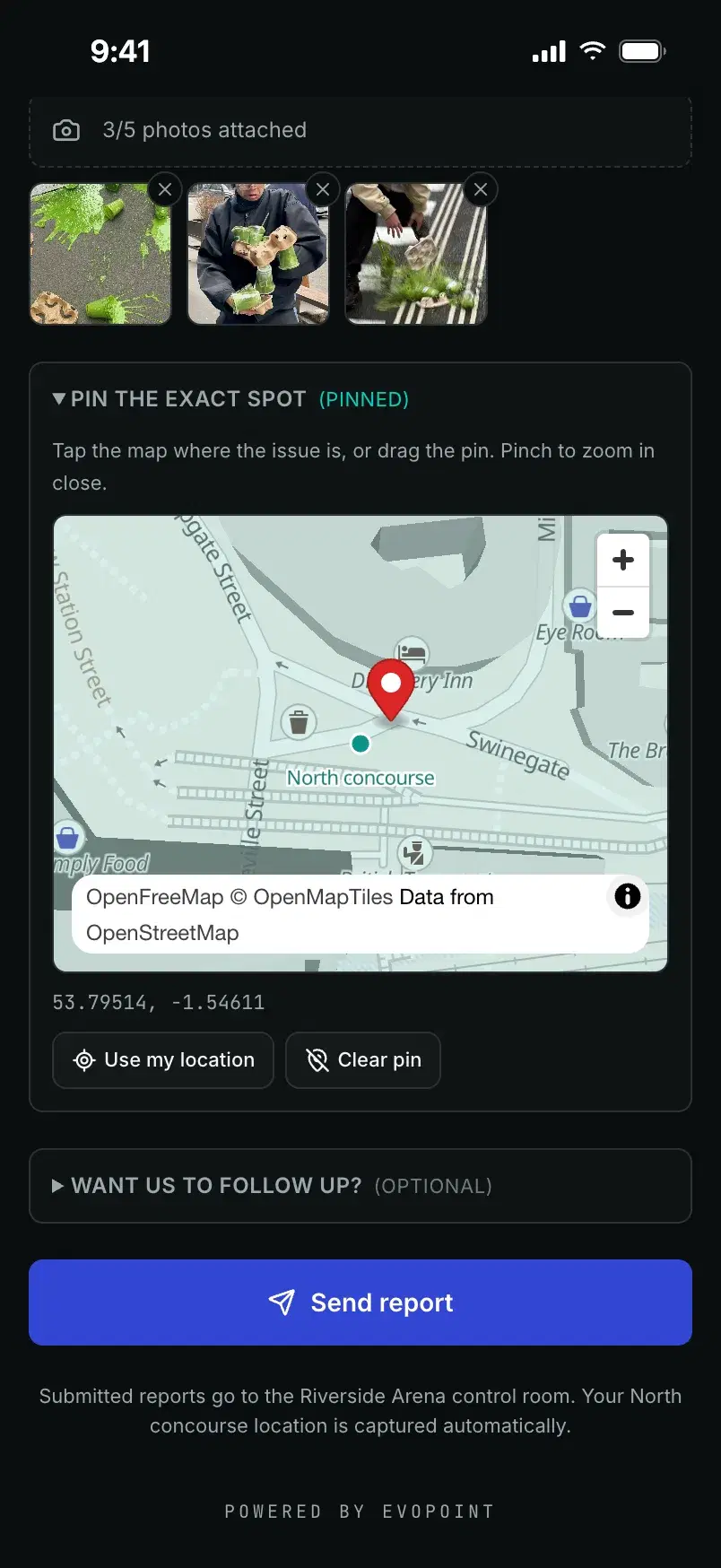
Step 6 of 8
Leave a way back
A name and an email or phone number, only if they want a reply.
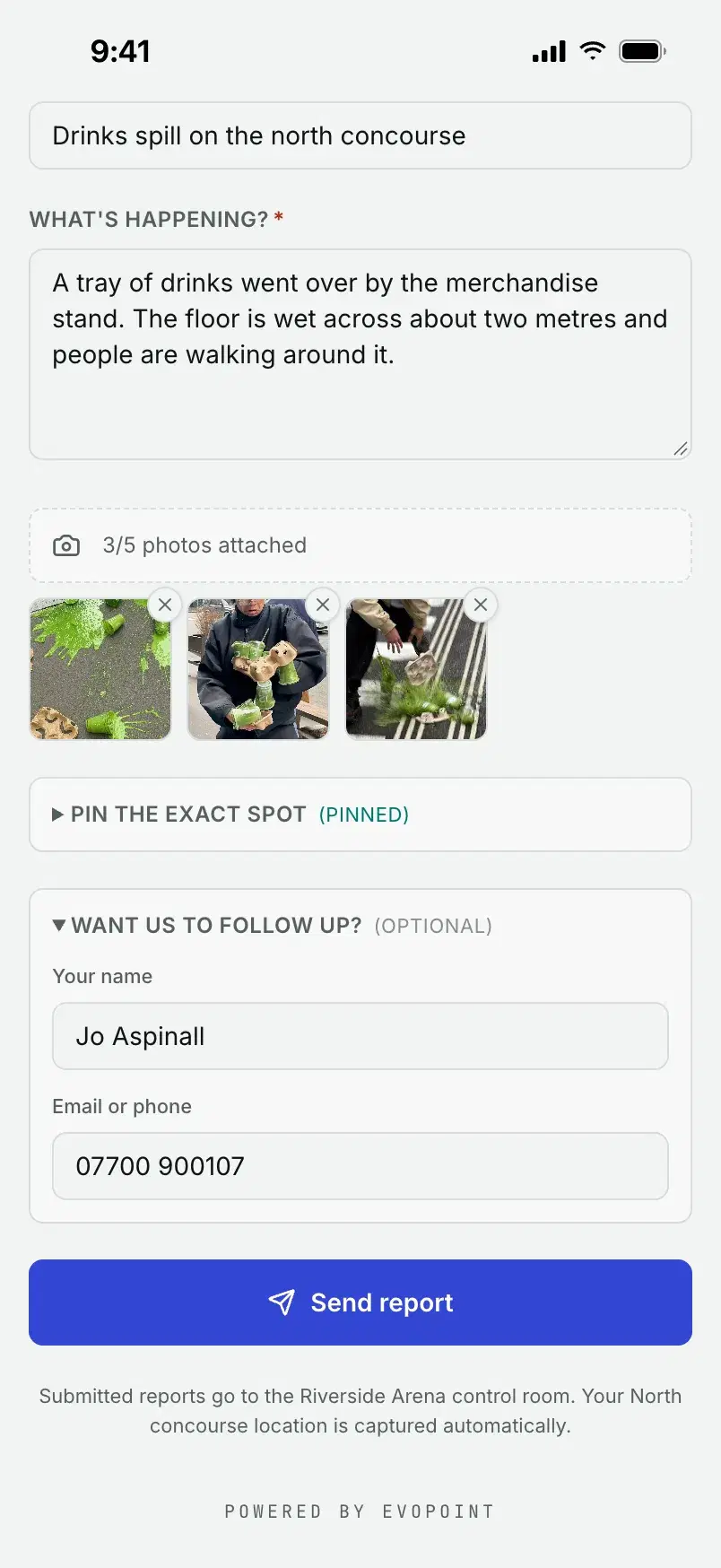
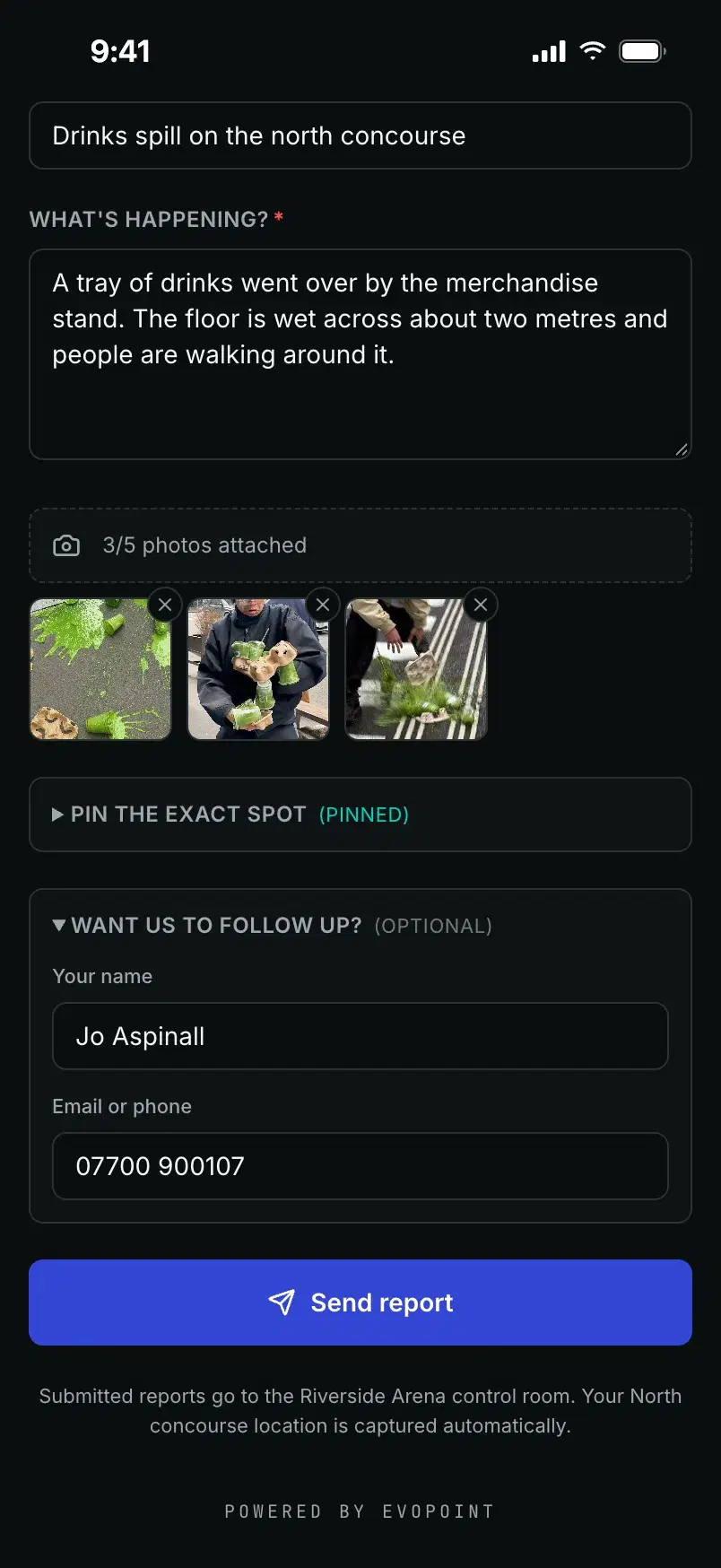
Step 7 of 8
Sent, with a reference
The report reaches your control room as they press send. They get a reference, and an email with a tracking link if they left an email address.
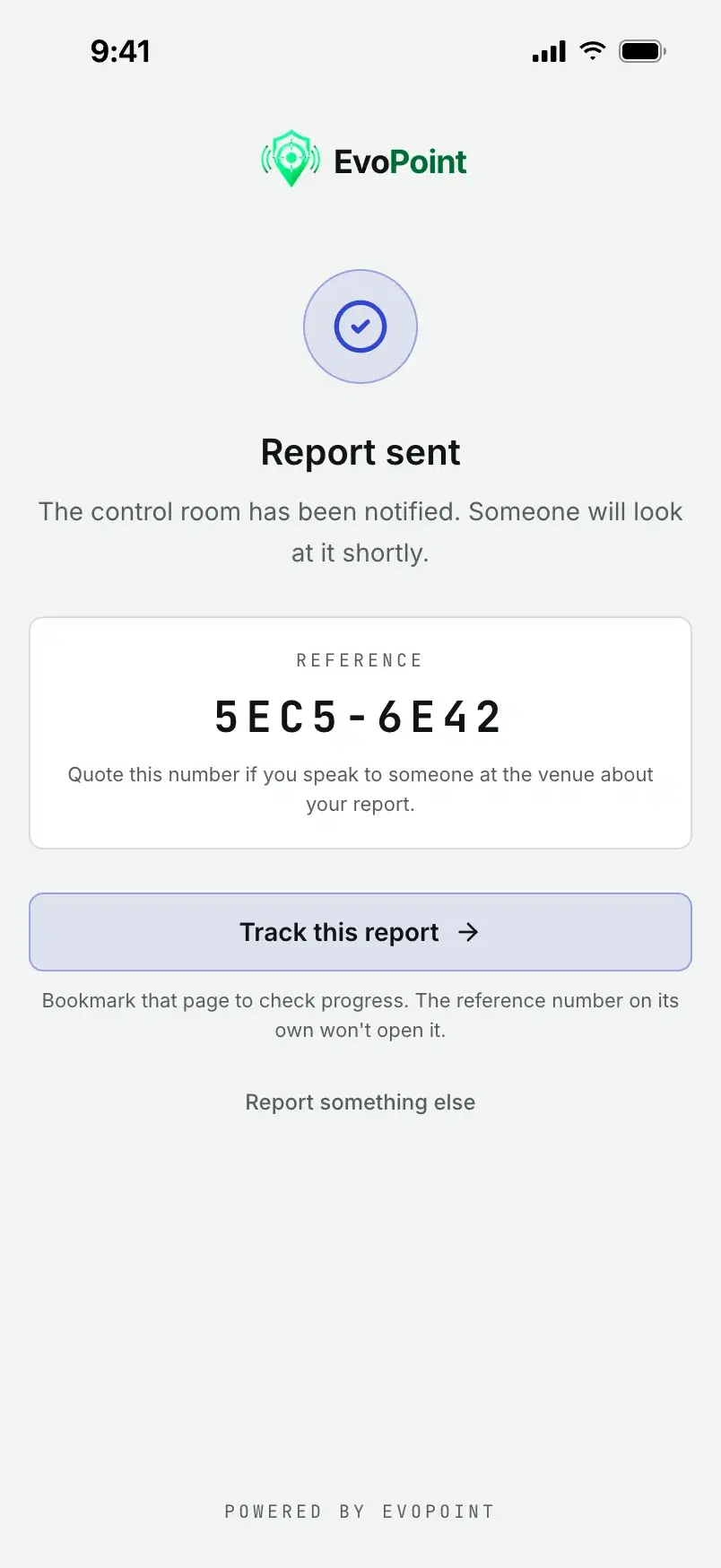
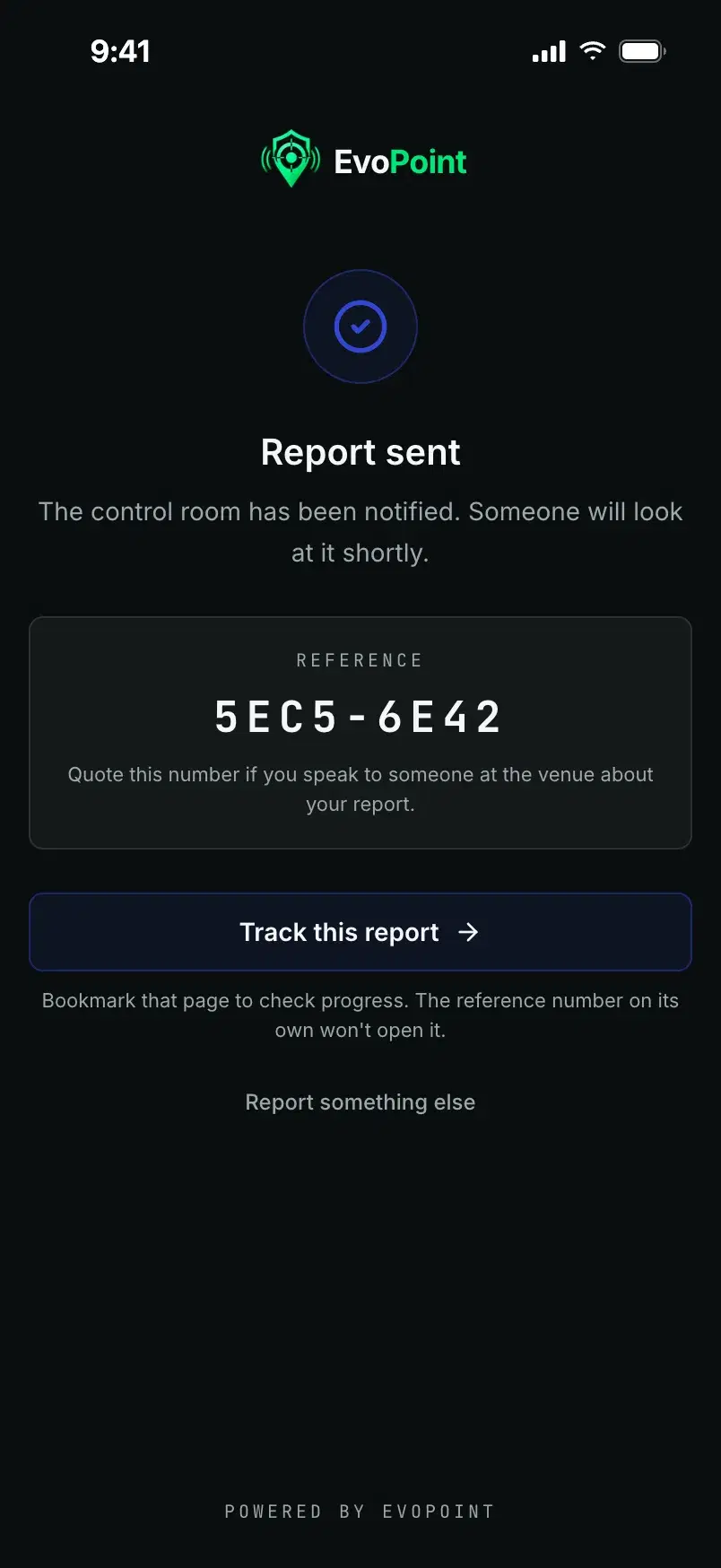
Step 8 of 8
Track it
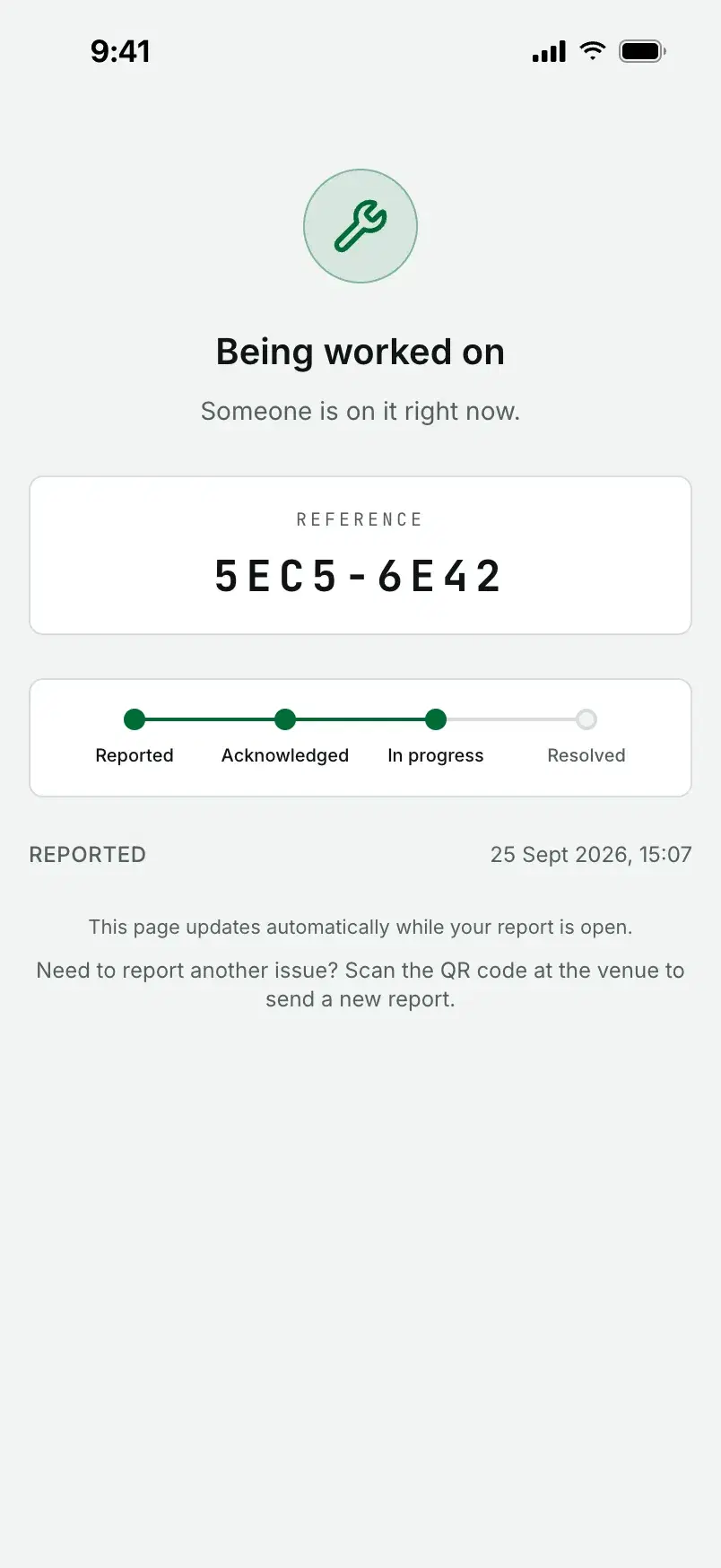
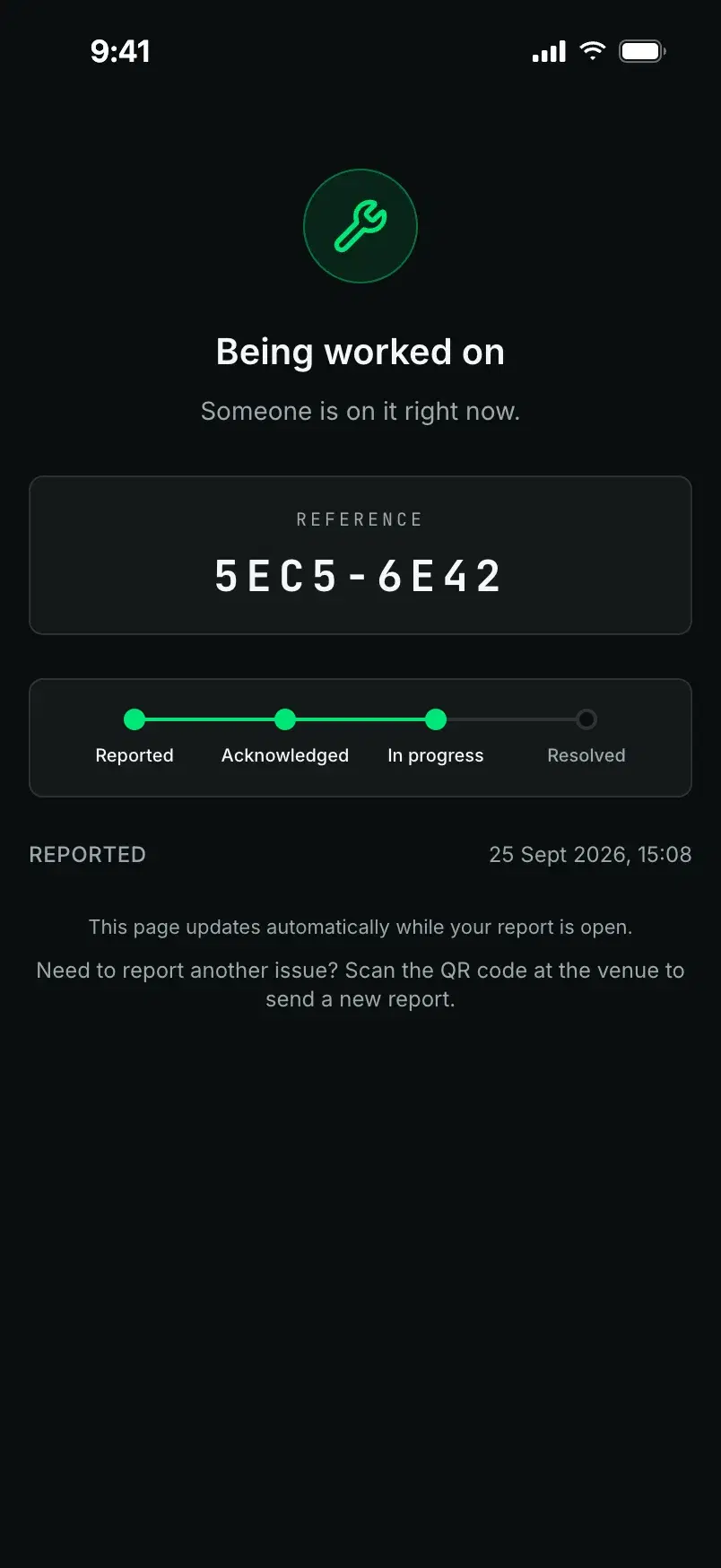
The tracking page shows how far the report has got, and updates by itself while it is open.
In the control room
The same report, ready to act on
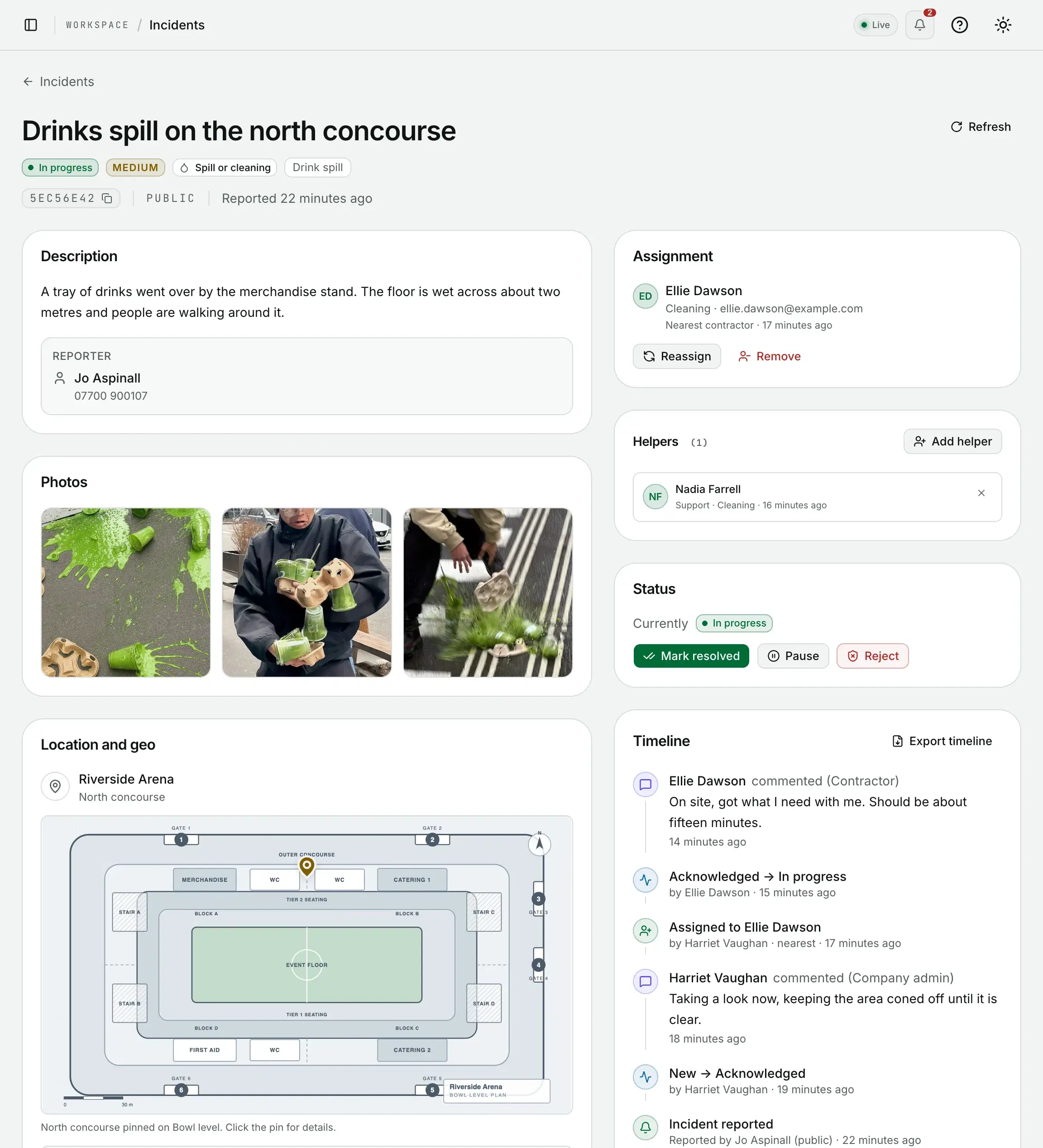
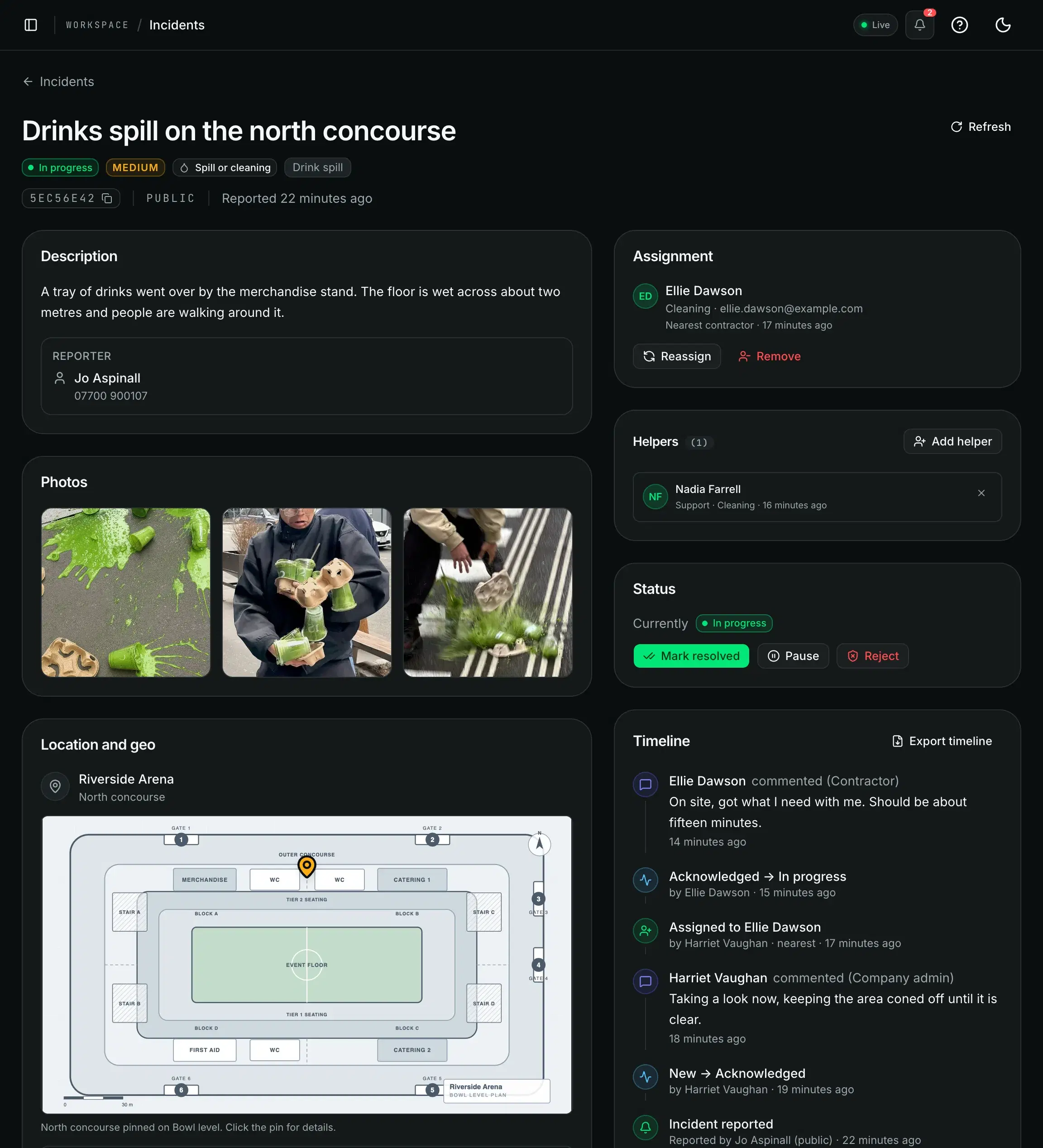
It lands in the queue with its site, location, pin and photos, tagged as a public report.
From there it is dispatched like any other incident, and the reporter's tracking page follows along.
Your branding
Your logo and colour on every scan
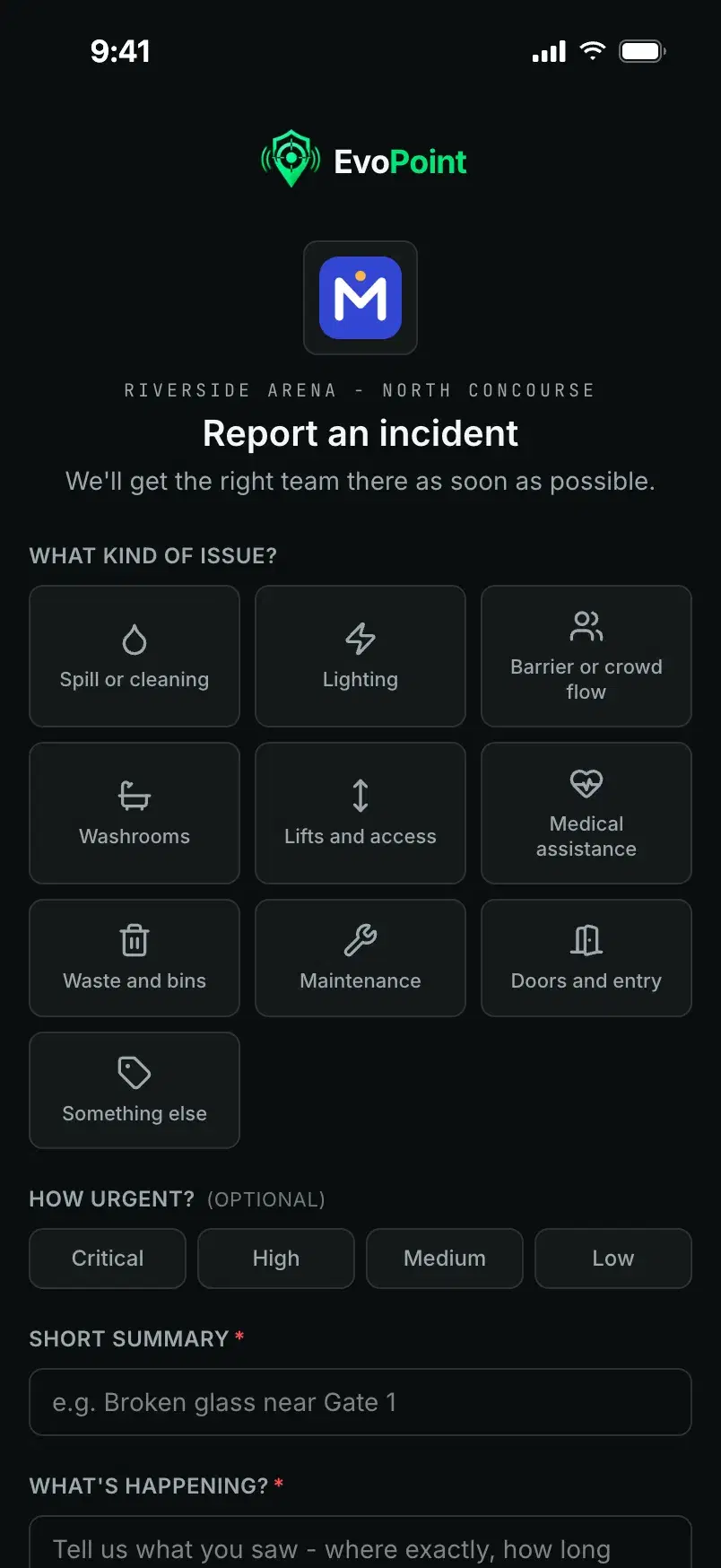
Set them once. The report page shows your logo, and your colour marks what they pick and the send button.
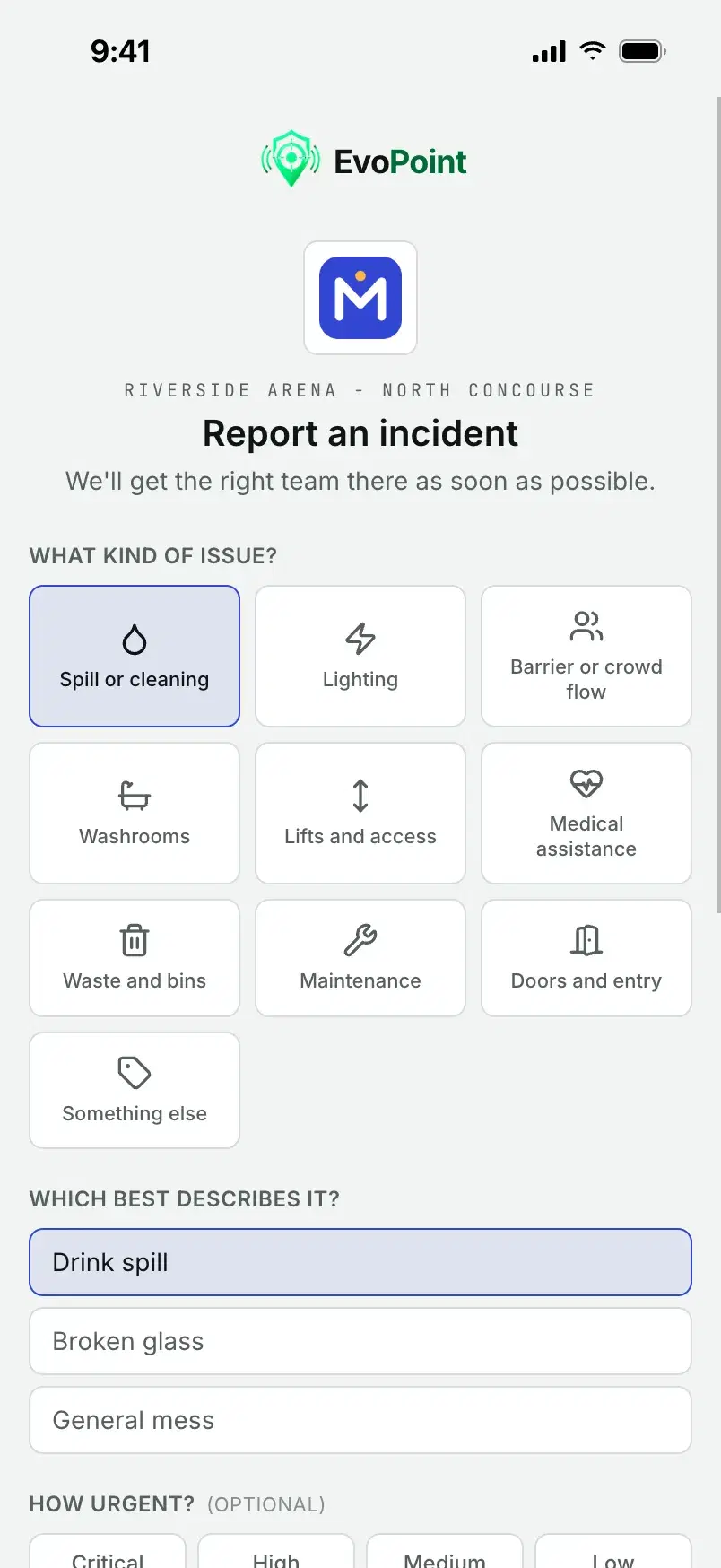
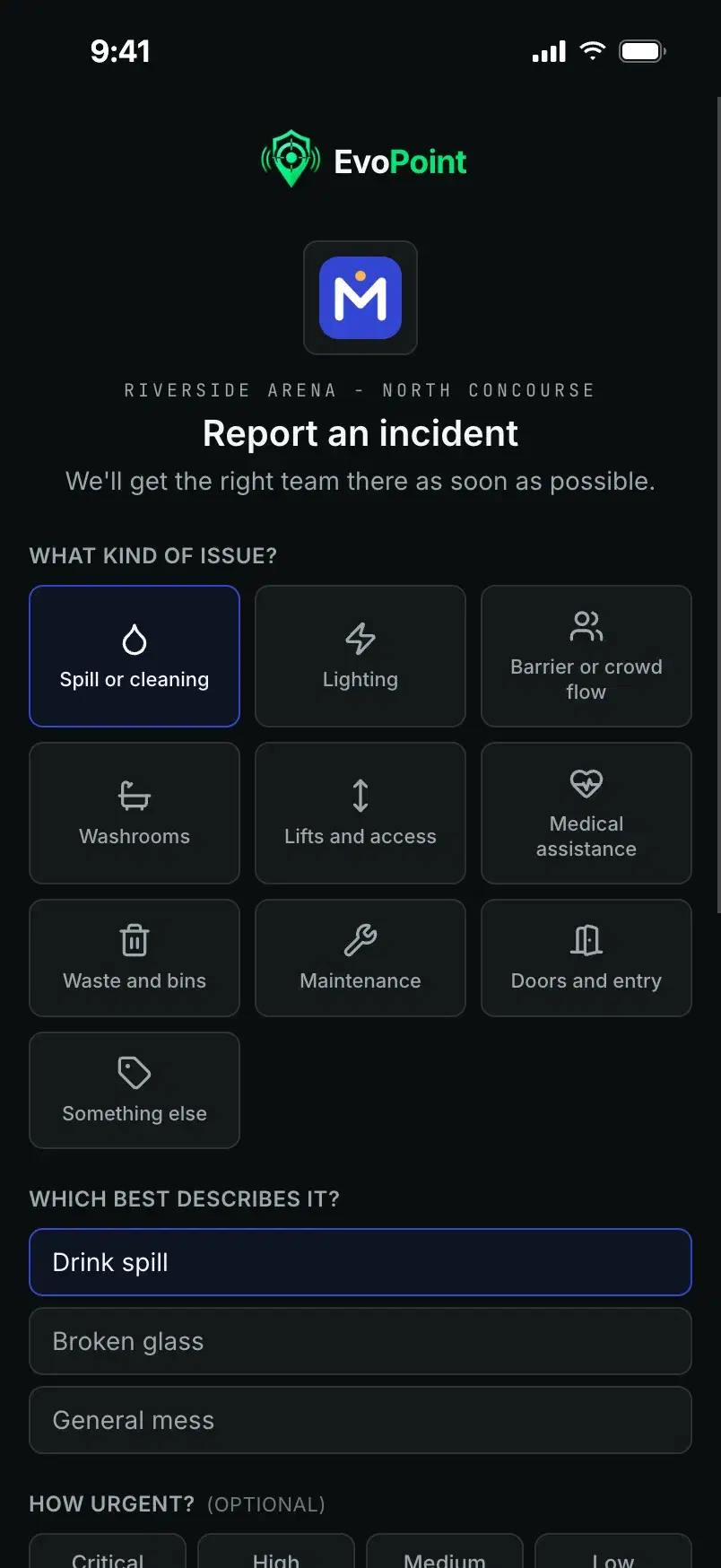
Riverside Arena
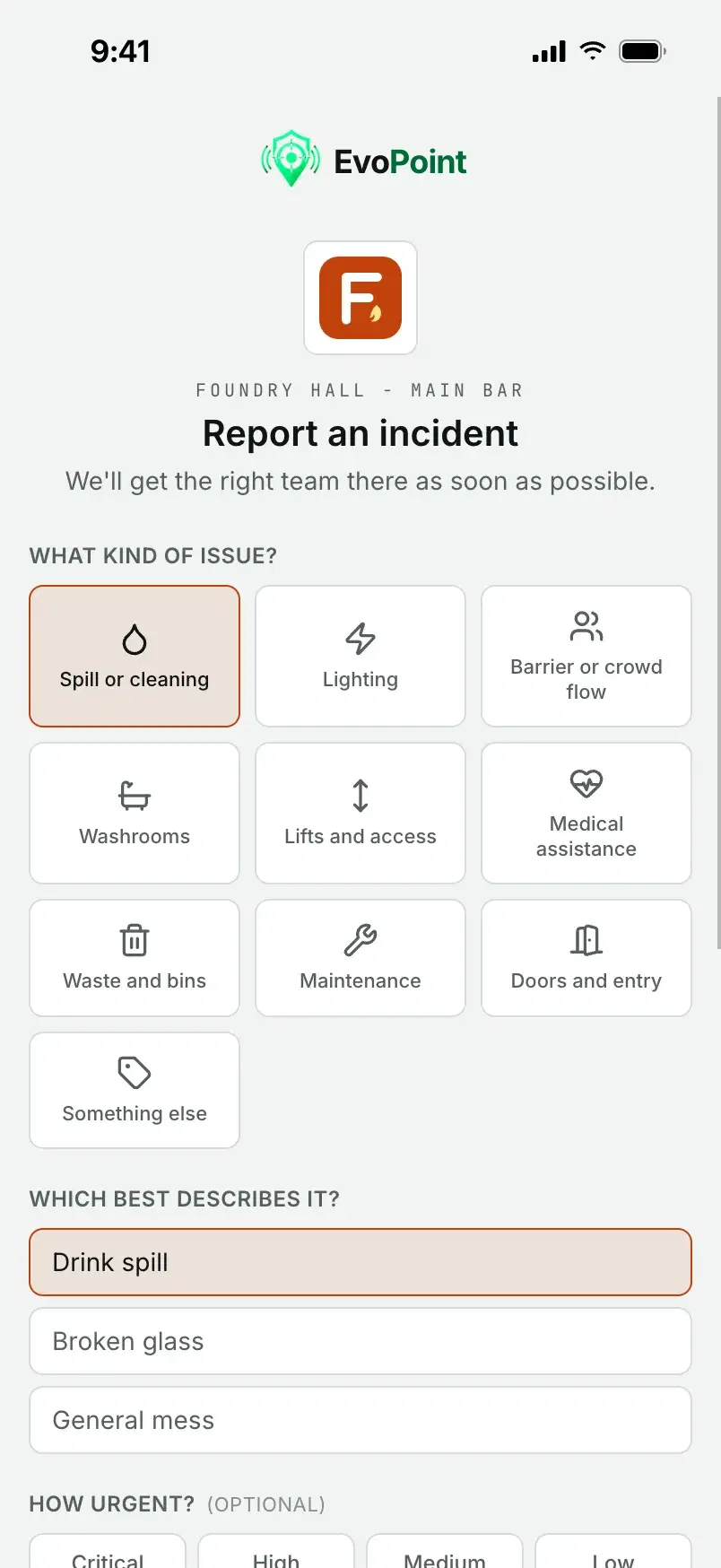
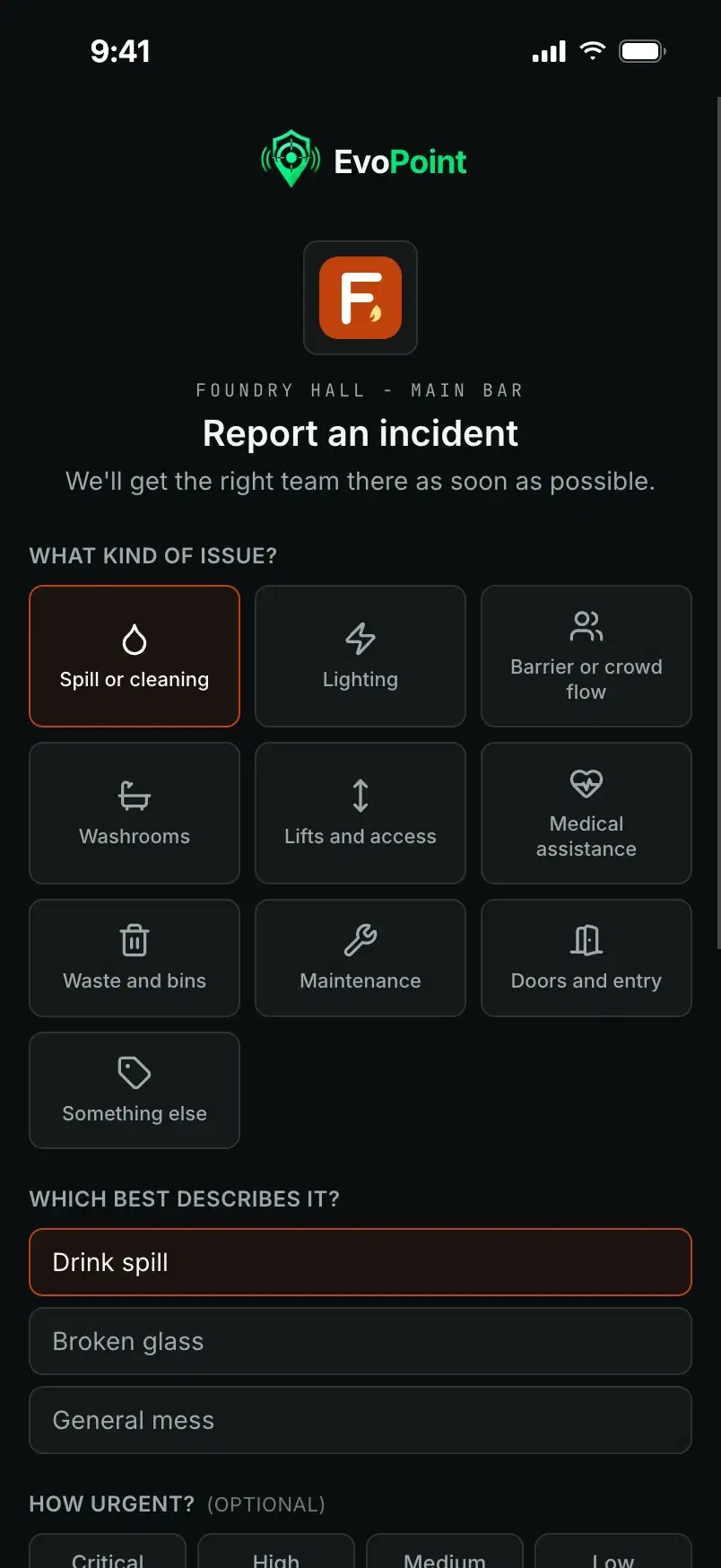
Foundry Hall
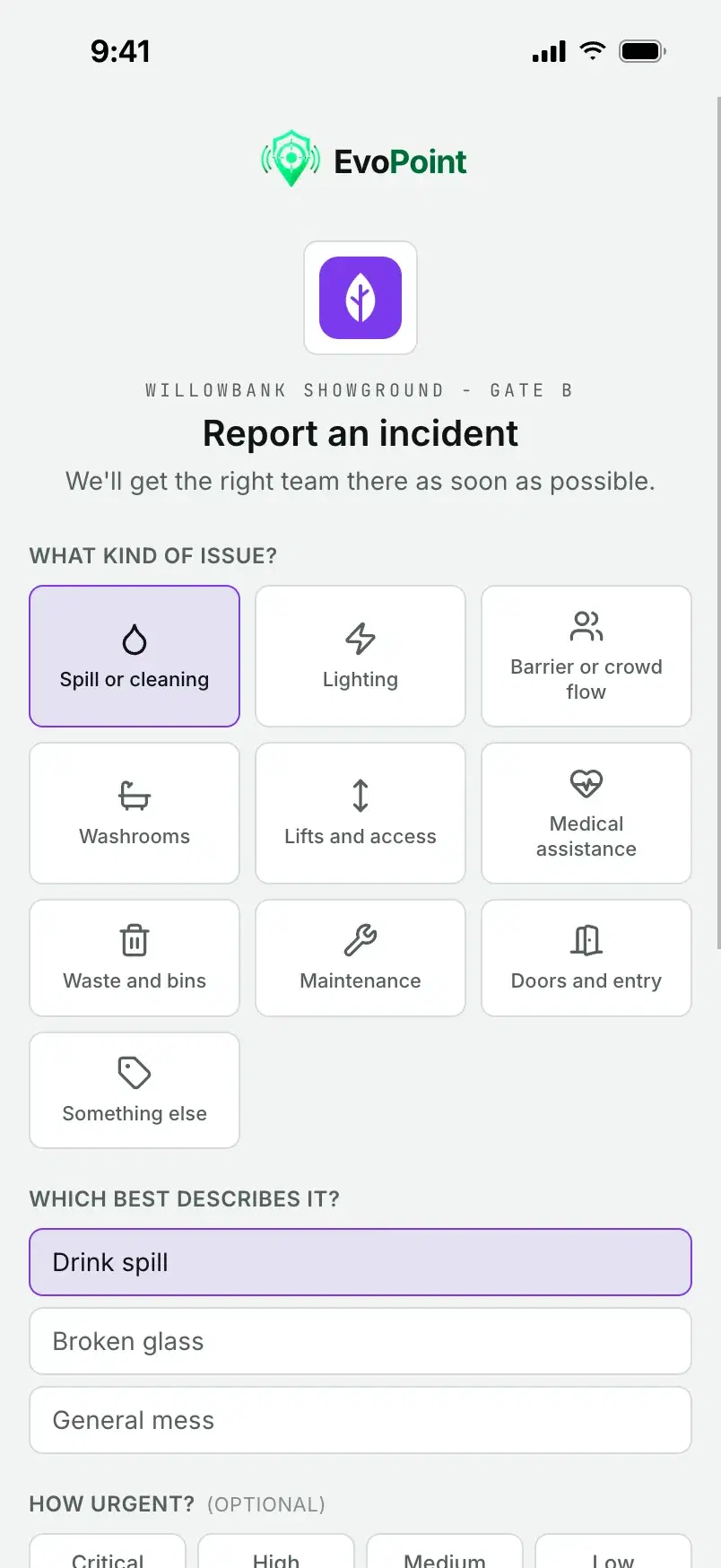
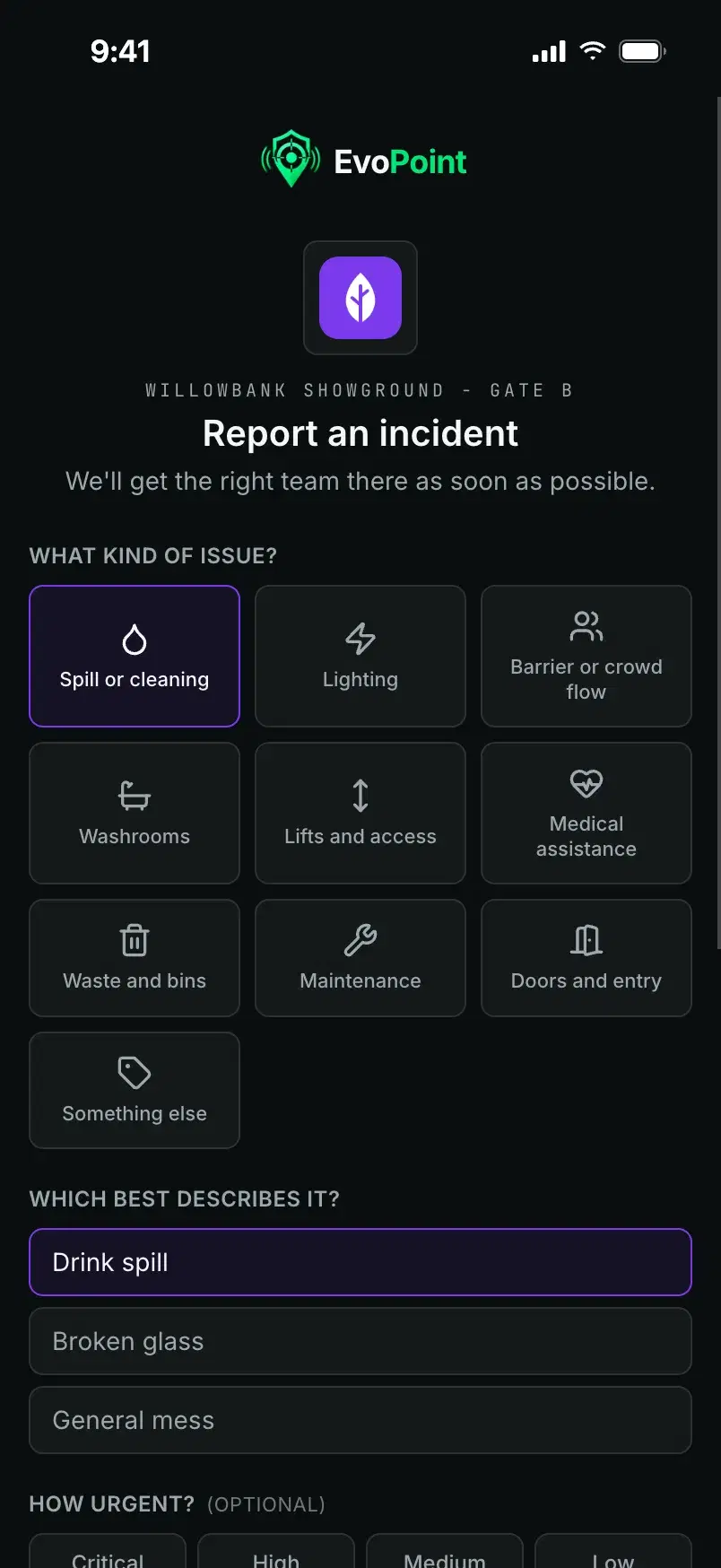
Willowbank Showground
Three example workspaces, each with its own logo and colour.
Settings
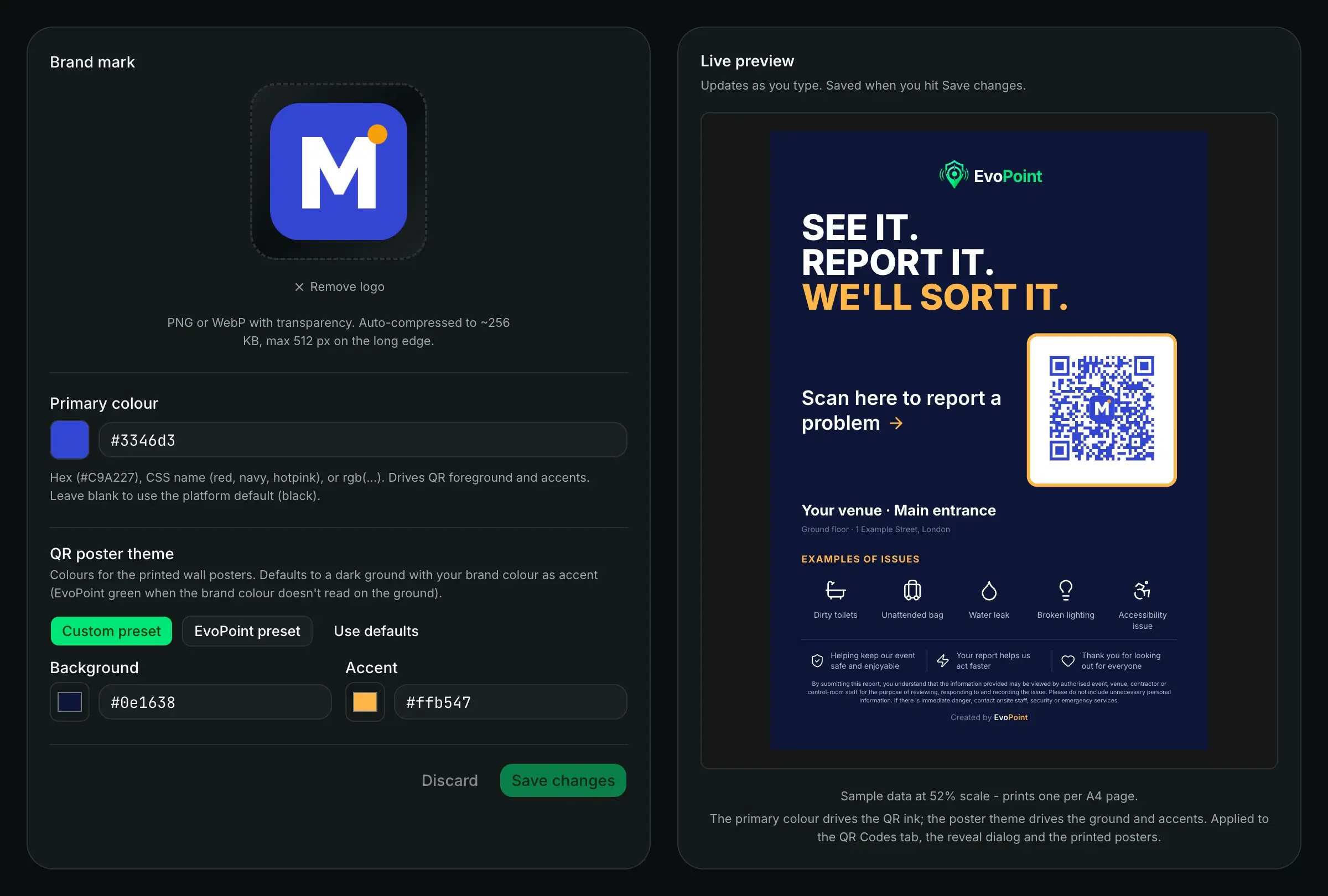
Set it once, in one place
- Upload your logo as a PNG, JPEG or WebP. It is compressed for you.
- Set your brand colour as a hex code, a colour name or rgb.
- Choose the poster background and accent, or start from a preset.
- Watch the real poster update as you type.
Posters
An A4 poster for every location
Print a whole site in one go, one poster per page, straight from the browser.
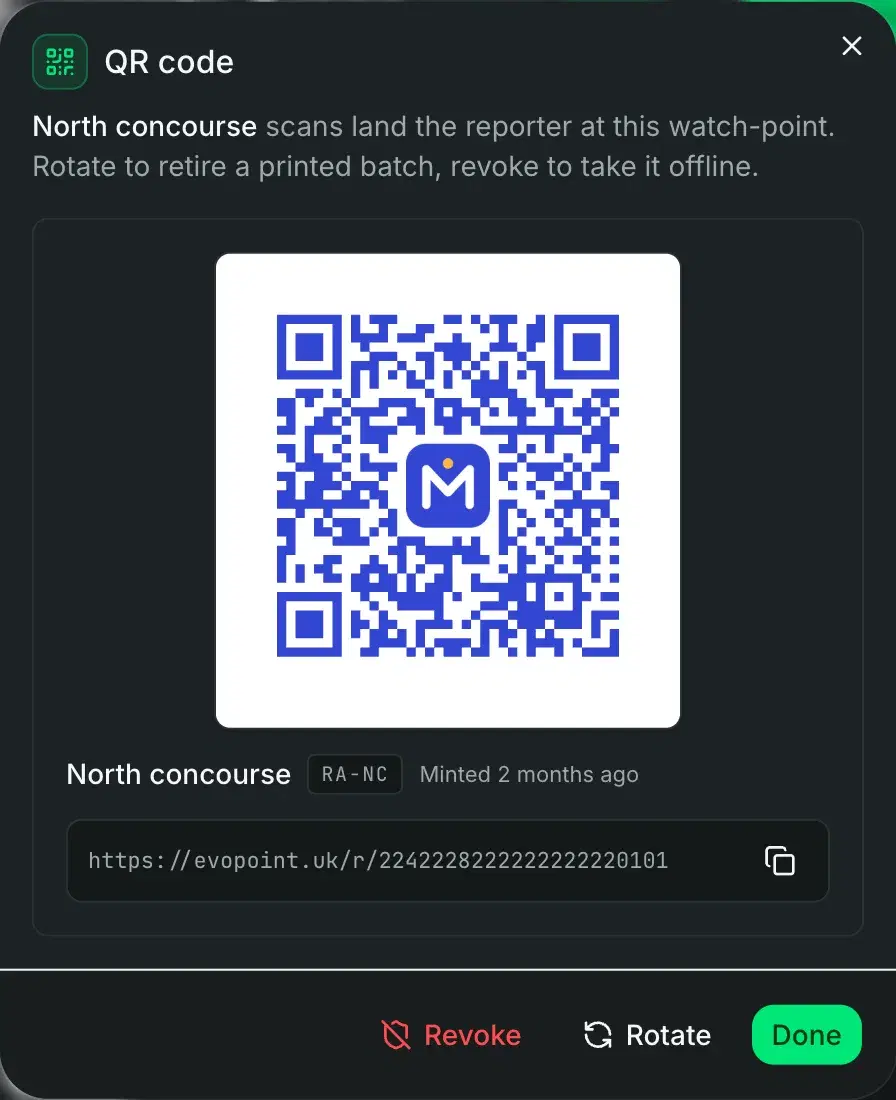
Your logo sits in the middle of every QR code, printed in your colour. A colour too light to scan prints dark instead.
Need just one? Print a single code on a plain sheet.
Codes you control
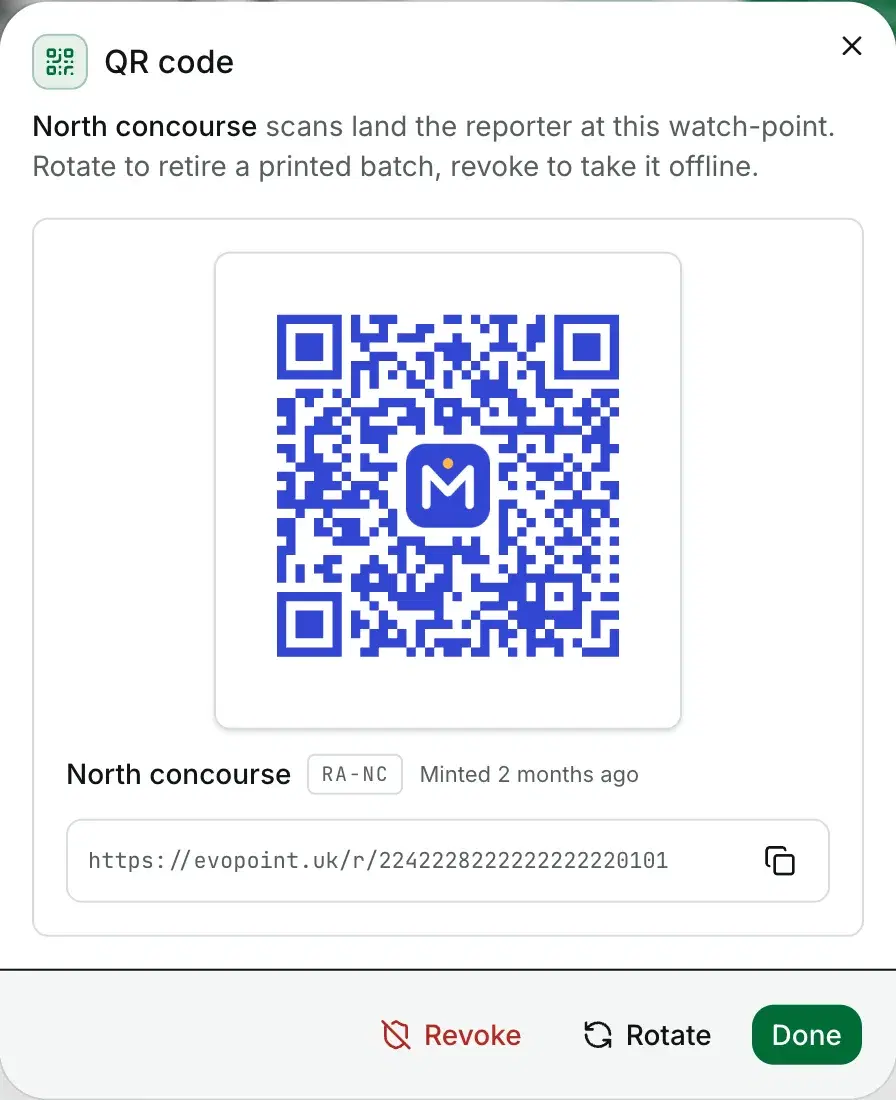
Rotate or revoke a code at any time
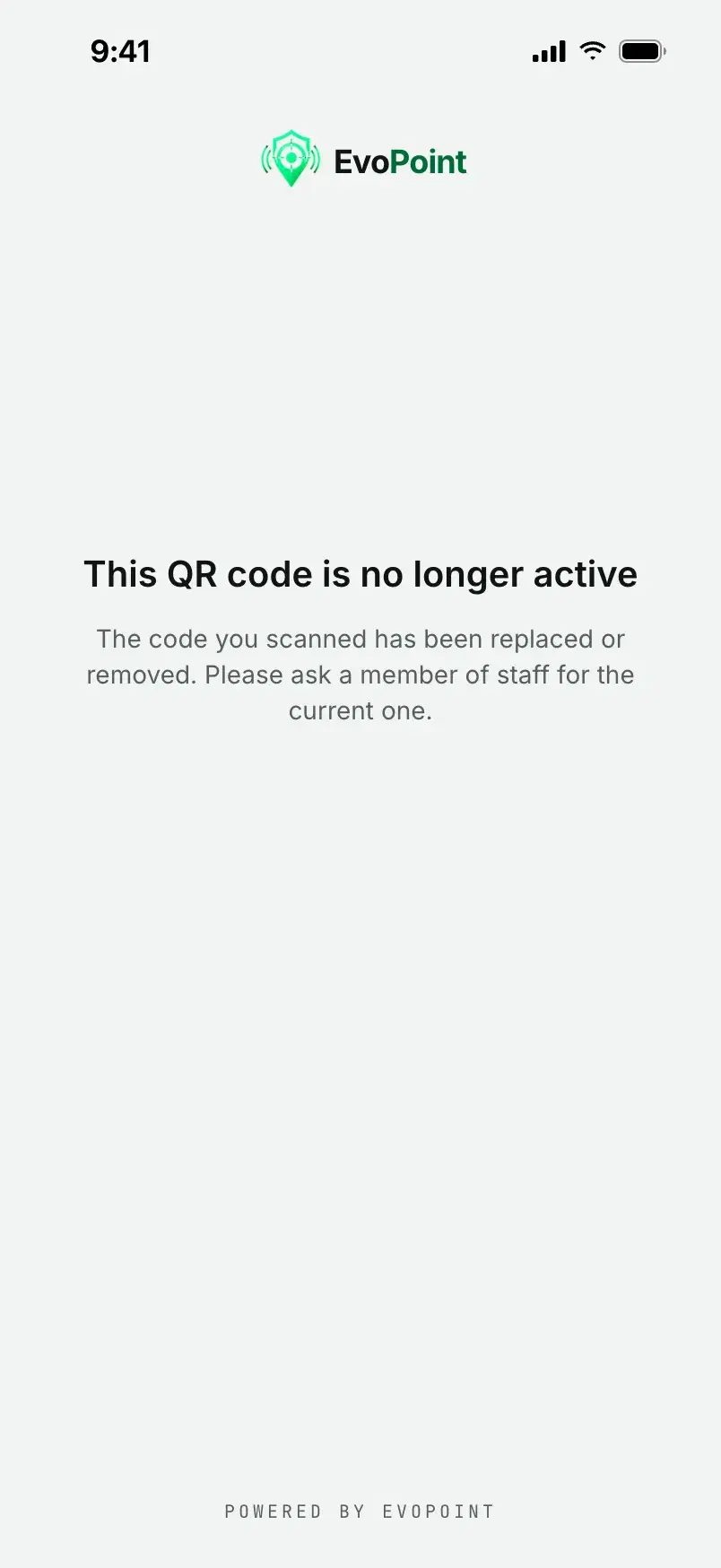
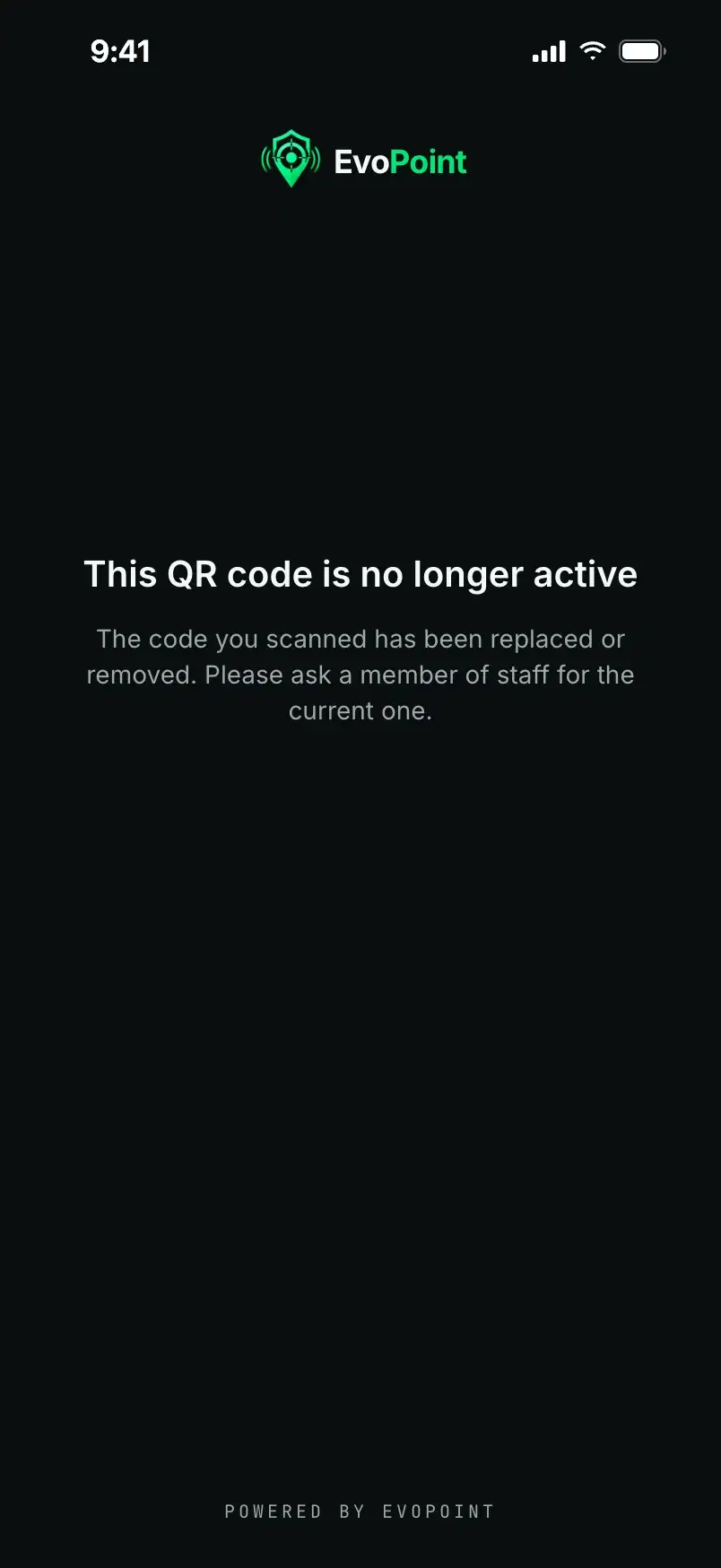
Each location has one active code. Rotate it and its old printed copies stop working. Revoke it to take the code offline.
Anyone who scans a retired code is asked to find a member of staff for the current one.
Setting it up
Three steps, and you can put them up the same afternoon
Add the locations
Add each gate, bar, toilet block and concourse to a site.
Mint the codes
Mint a code for every location that needs one, in one click.
Print the posters
Print the whole site at once, one A4 poster per location.
Made for a crowd
Built for a busy concourse, not a desk
No account, no app
Scanning opens a web page. No sign up and no password.
A half-typed report survives
What they type is saved on the phone, so a reload or a closed tab does not lose it.
No double reports on a retry
If a send fails and they press send again, the control room still gets one report.
Contact details are optional
A name and an email or phone number, or nothing at all.
Medical reports go straight to critical
The reporter sees your safety notice, and the control room hears an alert.
One workspace per code
A code minted for one workspace can only ever create a report there.
Some of what is on this page depends on your plan. See what each plan includes.